This website is a participant in the Amazon Services LLC Associates Program, an affiliate advertising program designed to provide a means for us to earn fees by linking to Amazon.com and affiliated sites.
Yes, you can connect two projectors together to either display the same image simultaneously (mirroring) or combine them for a larger, blended image (edge blending).
Imagine doubling your screen real estate, creating immersive 3D effects, or projecting the same presentation across multiple rooms—this is all possible when you link two projectors. Whether you’re enhancing a home theater setup, preparing a massive conference room, or elevating an art installation, dual projector configurations offer more flexibility and visual impact.
However, it’s not as simple as plugging in two HDMI cables. Depending on your goal—mirroring or expanding your image—you’ll need the right tools, cables, and a bit of setup knowledge. There are also potential challenges, like image alignment and latency issues, that need to be addressed.
Best for Connecting Two Projectors: Top 3 Recommended Products
J-Tech Digital HDMI Splitter 1×2
This high-performance HDMI splitter allows you to mirror one video source across two projectors simultaneously, perfect for presentations or synced video in large spaces.

- ✅ 1 HDMI Input to 2 HDMI Outputs – This affordable 1 x 2 HDMI splitter allows users to split one HDMI input signal (from cable/satellite box, DVD/Blu-ray player…
- ✅ Mix Different Display Resolutions – A Multi-Resolution Output (MRO) feature lets users send a compatible HDMI signal to output displays with different…
ViewSonic PX701-4K Projector
An excellent budget-friendly 4K projector with edge blending support. It delivers bright, color-accurate output ideal for dual-projector setups in home theaters or wide-format displays.
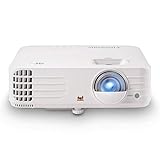
- 4K Home Theater Projector: UHD (3840x2160p) 4K resolution with a 1.5-1.6 throw ratio and 3,200 ANSI lumens perfect for gaming and home entertainment
- Designed for Fast Paced Content: Experience gaming on the big screen with 4.2ms low input lag and a magnificent 240Hz refresh rate

Gofanco Prophecy HDMI 2.0 Video Wall Processor
For advanced users, this processor enables you to combine two projectors into a single panoramic display. It handles resolution scaling and edge blending smoothly without lag.
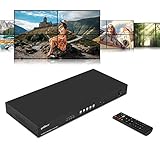
- QUAD-SCREEN PROCESSING – Create a 2×2 video wall from one of the 4 switchable sources: Type-C, 2x HDMI, or DVI. Supports up to 4K @30Hz video walls with a Type-C…
- VIDEOWALL MODES – Supports 9 modes: 1×1, 1×2, 1×3, 1×4, 2×1, 3×1, 4×1, 2×2, 2×2 rotation (180º image rotation). Cascading up to a 10×10 video wall
Why Would You Want to Connect Two Projectors?
Connecting two projectors together opens up a world of possibilities for both home and professional users. Whether you’re aiming for a more immersive experience or simply need to reach a larger audience, dual projector setups offer practical and creative solutions.
Enhanced Visual Coverage
One of the main reasons users connect two projectors is to increase screen size. By blending images side by side (a process called edge blending), you can create an ultra-wide or panoramic display ideal for events, conference halls, classrooms, or home theaters.
Multi-Room or Multi-Surface Projection
If you’re hosting a workshop, training session, or public event in a large venue, dual projection lets you mirror the same content on multiple surfaces. This ensures all viewers have access to the same visuals, no matter where they are seated.
3D Projection Systems
In more advanced setups, especially in cinema and simulation environments, two projectors can work together using polarization techniques to create 3D visuals. This setup requires special equipment and calibration but delivers a highly immersive viewing experience.
Increased Brightness
In poorly lit environments or large open spaces, combining two projectors displaying the same image can double the brightness, making visuals clearer and more vibrant.
How to Connect Two Projectors Together: Methods & Setups
There are two primary ways to connect two projectors: mirroring and edge blending (extended display). Your setup method depends on what you’re trying to achieve—either showing the same content on both projectors or combining their outputs into a larger, continuous image.
Mirroring (Duplicate Display)
This is the most straightforward method. It lets both projectors display the exact same content simultaneously.
Setup Instructions:
- Use an HDMI Splitter (1 input, 2 outputs) like the J-Tech Digital HDMI Splitter 1×2.
- Plug the video source (e.g., laptop, media player) into the splitter.
- Connect both projectors to the output ports of the splitter.
- Ensure both projectors support the resolution you’re outputting.
This setup is ideal for classrooms, conferences, or events where viewers are positioned in different areas.
Edge Blending (Extended Display)
This method lets you create a single, larger display by combining two images from separate projectors.
Setup Instructions:
- Use a video wall processor like the Gofanco Prophecy HDMI 2.0 or projection software (e.g., Dataton WATCHOUT).
- Calibrate both projectors carefully to ensure seamless image overlap.
- Align images using keystone correction and lens shift functions.
- Use edge blending tools to blend overlapping zones.
This is commonly used in immersive gaming setups, simulation rooms, or theaters.
Pro Tips:
- Use identical projector models for better color, brightness, and resolution matching.
- Mount projectors securely to avoid misalignment.
- Turn off any automatic scaling or overscan features during setup.
What Equipment Do You Need to Connect Two Projectors?
Setting up a dual projector configuration isn’t just about having two projectors. You’ll need additional gear to ensure a smooth, stable, and high-quality projection experience. The exact equipment depends on whether you’re mirroring or creating an extended display.
Essential Equipment for Mirroring Setup
To display the same image on both projectors, you’ll need:
- HDMI Splitter (1×2)
Splits one HDMI output from a source (like a laptop or Blu-ray player) into two identical HDMI outputs.
Example: J-Tech Digital HDMI Splitter 1×2 - Two Identical HDMI Cables
Ensures consistent video signal and quality. - Power Cables/Power Strip
To safely power both projectors from one outlet.
Essential Equipment for Extended/Blended Setup
To create a large, continuous image with two projectors:
- Edge Blending Processor or Video Wall Controller
Manages image expansion, scaling, and blending.
Example: Gofanco Prophecy HDMI 2.0 - Projection Mapping or Blending Software
Used for calibration and fine-tuning. Popular options include:- Dataton WATCHOUT
- Resolume Arena
- MadMapper
- Screen or Seamless Projection Surface
A wide, uniform surface is essential for edge blending or panoramic visuals. - Tripod Mounts or Ceiling Brackets
Helps with precise alignment and stability.
Optional Accessories:
- Wireless HDMI Extenders (for long-distance setups)
- HDMI Switches (if multiple input sources are used)
- Universal Remote or Projector Control Software
Common Issues When Connecting Two Projectors (and How to Fix Them)
While connecting two projectors can enhance your display, several issues may arise during setup or use. Fortunately, most problems are easy to diagnose and fix once you understand the root cause.
Color and Brightness Mismatch
If you’re using different projector models or lamp life varies, images may appear uneven.
Fix:
Manually calibrate color settings and brightness levels to match both devices.Image Misalignment
Use identical projector models for best results.
Replace old bulbs if one projector is dimmer.
When using extended display or edge blending, slight misalignments can create a visible line or double image.
Fix:
- Use keystone correction, lens shift, or image shift features.
- Physically adjust projector placement to ensure symmetry.
- Consider projector mapping software for precision calibration.
Signal Loss or Flickering
This is common when using long HDMI cables or low-quality splitters.
Fix:
- Use high-speed HDMI cables under 25 feet.
- Choose a powered HDMI splitter (not passive).
- Avoid cable adapters unless necessary—they can degrade signal quality.
Audio Sync Issues
Projectors typically don’t handle audio. When splitting HDMI, audio can lag or disappear.
Fix:
- Use a splitter with audio extraction support.
- Route audio separately to speakers or a sound system.
Resolution or Aspect Ratio Conflicts
If one projector can’t handle the resolution sent by the source, it may not display correctly.
Fix:
- Set your video source to the lowest common resolution both projectors support.
- Use scalers or converters if resolutions differ significantly.
Tips for Getting the Best Results from a Dual Projector Setup
Whether you’re aiming for mirrored displays or immersive panoramic visuals, proper setup and optimization are essential. These expert tips will help you get the best possible results from your dual projector configuration.
Use Identical Projectors Whenever Possible
Matching models ensures consistent resolution, brightness, color balance, and input lag. Using different projectors often results in visual disparities that are difficult to correct.
Calibrate Your Projectors Carefully
Use test patterns to align edges, match brightness, and correct keystone distortion. Tools like projection calibration software or built-in alignment grids can make this easier.
Invest in a High-Quality Screen or Surface
A seamless, matte-white projection surface will produce the best results for blending or side-by-side displays. Avoid textured walls or colored backgrounds that distort color fidelity.
Secure and Stabilize Projector Placement
Use ceiling mounts or adjustable tripod stands. Even minor shifts in position can cause misalignment and image overlap issues.
Control Ambient Light
Dual projection setups can suffer in well-lit environments. Use blackout curtains or dimmable lighting to enhance image visibility and contrast.
Choose the Right Video Source and Format
Make sure your source device supports the required resolution and output type. Blu-ray players, media servers, and laptops with dual HDMI outputs are ideal.
Test Everything Before the Main Event
Do a full dry run to catch any issues with alignment, signal strength, or image quality. Testing in the actual space ensures you’re prepared for real-world variables.
Conclusion
Connecting two projectors together is not only possible—it’s an incredibly effective way to enhance your viewing experience or presentation setup. Whether you’re mirroring displays for larger audiences or combining projections for immersive visuals, a dual projector setup offers unmatched flexibility.
With the right equipment—such as HDMI splitters, video processors, and identical projectors—you can achieve seamless performance and high-quality visuals. Of course, success depends on careful planning, calibration, and avoiding common pitfalls like misalignment or signal loss.
Whether you’re building a home theater, organizing a seminar, or creating a multi-display art installation, dual projection opens new creative and practical possibilities.
Frequently Asked Questions About Connecting Two Projectors Together
Can I connect two projectors to one laptop or PC?
Yes. The simplest method is using an HDMI splitter to mirror the same content on both projectors. However, for extended display across both units, you’ll need specialized video wall processors or software, and your graphics card must support dual output and screen expansion.
Do both projectors need to be the same model?
It’s highly recommended. Using identical projectors ensures matching resolution, brightness, and color reproduction, making blending or mirroring more seamless. Mismatched models can lead to noticeable differences in image quality.
Is it possible to blend two projector images into one seamless display?
Yes, this is called edge blending. It requires precision alignment, overlapping projection zones, and either a blending processor (like Gofanco Prophecy) or software like WATCHOUT. Calibration is key for a smooth, unified image.
Can I use wireless technology to connect two projectors?
Wireless HDMI transmitters and receivers can be used if your source is far from the projectors. However, they can introduce latency or signal loss. For best performance, wired connections are recommended, especially for extended or blended displays.
Will connecting two projectors double the brightness?
Only if both projectors are showing the same content and are carefully aligned. This technique is sometimes used in large venues to enhance visibility. However, blending two projectors for a wider image does not necessarily increase brightness per unit area.
What if only one projector displays the image correctly?
Check cable quality, power connections, and compatibility. Make sure the splitter (if used) supports the same resolution and refresh rate. Test each projector individually to isolate the issue.
This website is a participant in the Amazon Services LLC Associates Program, an affiliate advertising program designed to provide a means for us to earn fees by linking to Amazon.com and affiliated sites.