
This website is a participant in the Amazon Services LLC Associates Program, an affiliate advertising program designed to provide a means for us to earn fees by linking to Amazon.com and affiliated sites.
No, a projector doesn’t always have to be perfectly centered, but its placement can significantly affect image quality and viewing experience.
Setting up a projector might seem simple—just point and play, right? Not quite. If you’ve ever wondered whether your projector must sit dead-center to the screen, you’re not alone. Many new users assume exact alignment is mandatory for sharp and undistorted images. The truth is, modern projectors come equipped with tools like keystone correction, lens shift, and adjustable mounts to give you flexibility in placement.
But that doesn’t mean you can ignore alignment completely. The further off-center your projector is, the more you’ll rely on image correction tools—which can compromise picture clarity and geometry. Whether you’re mounting your projector on the ceiling, placing it on a coffee table, or tucking it into a corner, understanding how off-center placement impacts your setup is crucial.
Best for Projector Placement: Top 3 Tools for Easy Setup & Adjustment
Whether you’re mounting your projector off-center, dealing with a tricky room layout, or just want the clearest image possible, these products make it easy to align your projector properly—without compromising quality.
Epson Universal Projector Ceiling Mount
A sturdy, fully adjustable ceiling mount that allows tilt, swivel, and roll corrections—ideal for off-center installations and precise alignment in any room.

- Universal projector mount — offers a low-profile, aesthetic design
- Convenient — universal interface compatible with most projectors
VIVO Universal Extendable Projector Mount (MOUNT-VP01B)
This extendable mount is perfect for positioning your projector in a non-centered spot. Its adjustable arm and 360° rotation offer maximum flexibility for awkward layouts.
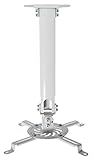
- Universal Extending Ceiling Projector Mount: Built for universal mounting, this product fits the majority of projectors on the market and is an excellent addition to…
- Compatibility: This mount is not compatible with the following projector models: Epson LS1100, 3010, 3200, 3700, 3800, 8350, 8500UB, 4010, Mitsubishi XL25U, or LG…
Optoma HD39HDR High Brightness Home Theater Projector
Built with vertical keystone correction and lens shift features, this projector allows you to set up slightly off-center without distorting the image—a great choice for less-than-ideal spaces.

- BRIGHT, COLORFUL IMAGES FOR HOME THEATER AND GAMING: An advanced six-segment color wheel (RYGCWB) produces accurate color with sRGB and Rec. 709 color profile…
- CLEAR DETAIL: Native 1080p (1920×1080) resolution with support for 4K HDR input and a 50,000:1 contrast ratio renders sharp, detailed images from high definition…
Why Centering a Projector Matters (And When It Doesn’t)
Positioning a projector at the center of the screen is considered ideal—but it’s not always necessary. The importance of centering depends on the type of projector you have, your setup environment, and the image correction features available.
Why Centering Is Ideal
When a projector is perfectly centered—both horizontally and vertically—you minimize the need for keystone correction or lens shift. This ensures:
- A sharper, distortion-free image
- Even light distribution
- The best possible resolution and focus across the entire screen
Centered alignment also reduces the chances of trapezoidal distortion, where the image appears wider at the top or bottom.
When You Don’t Need to Center the Projector
Modern projectors come with image correction features that allow for off-center placement:
- Vertical and horizontal keystone correction fixes image shape when the projector isn’t aligned with the screen.
- Lens shift physically moves the lens within the housing, maintaining image quality without digital adjustments.
- Adjustable mounts let you angle the projector correctly even if it’s mounted off-center.
However, overuse of digital correction tools may lead to reduced image sharpness and potential pixel stretching.
You don’t have to center your projector, especially if you have the right tools. But centering should always be your first choice when possible, as it preserves the integrity and sharpness of the image.
How Keystone Correction and Lens Shift Help with Off-Center Placement
If your projector isn’t perfectly aligned with the center of the screen, features like keystone correction and lens shift can help maintain a well-proportioned image. But it’s important to understand how these tools work and their limitations.
Keystone Correction: Digital Image Shaping
Keystone correction is a digital feature that adjusts the shape of the projected image when the projector is angled or offset. If your projector is tilted upward or downward, it can cause a trapezoidal effect—where the image is wider at the top or bottom.
Types of keystone correction:
- Vertical keystone corrects top-to-bottom distortion.
- Horizontal keystone corrects side-to-side distortion.
Pros:
- Easy to use
- Available on most modern projectors
- Useful for tabletop or angled ceiling installations
Cons:
- Reduces image resolution slightly
- Can introduce minor latency for gaming setups
- Not ideal for large corrections
Lens Shift: Optical Image Movement
Lens shift physically adjusts the position of the lens to move the image up, down, left, or right—without changing the projector’s angle.
Pros:
- Maintains native resolution
- Offers greater flexibility for off-center or high-mount installations
- Preferred for professional setups
Cons:
- Not available on budget models
- Limited range depending on the projector
Use lens shift for major positioning adjustments, and only rely on keystone correction for small tweaks when absolutely necessary.
Projector Mounting Tips for Perfect Alignment
Whether you’re mounting your projector on the ceiling, placing it on a shelf, or setting it on a table, getting the alignment right is key to a crisp and balanced image. A few strategic adjustments can make all the difference.
Choose the Right Mounting Location
Start by identifying the optimal screen center and work from there. Mount the projector either:
- Directly in front of the screen for best results, or
- Slightly off-center if using keystone or lens shift
Use a laser level or chalk line to ensure your screen and projector are vertically aligned.
Mind the Throw Distance
The throw distance—the space between your projector and screen—affects image size and clarity. Refer to your projector’s manual to find its ideal throw ratio.
For example:
- Short throw: Ideal for small rooms or close-range projection
- Long throw: Better for larger rooms and longer mounting distances
Use Adjustable Mounts or Stands
A universal adjustable mount allows you to:
- Tilt, rotate, and pan the projector
- Correct off-center placement without over-relying on digital adjustments
- Secure the projector to prevent movement or misalignment
Check Image Alignment Regularly
After mounting:
- Project a test image grid to check corners and edges
- Use keystone or lens shift only if needed
- Make fine adjustments to avoid shadowing or hot spots
Mounting your projector correctly from the start saves time and ensures a better viewing experience.
How Screen Size and Room Layout Affect Projector Placement
Projector placement isn’t just about where the device goes—it’s also about how your screen size, room dimensions, and furniture layout influence the image. A well-thought-out setup helps you avoid common issues like shadowing, keystone overuse, and eye strain.
Screen Size Dictates Distance and Height
Larger screens require greater throw distances, while smaller screens offer more flexibility. The key is matching your projector’s capabilities to the screen size.
Example throw distances:
- 100-inch screen → ~8–12 feet away (depending on throw ratio)
- 120-inch screen → ~10–15 feet away
Vertical alignment tip:
The projector’s lens should align with the top edge of the screen for ceiling mounts, or bottom edge for table mounts.
Furniture and Room Layout Matter
Where you place your couch, coffee table, and decor impacts where your projector can sit.
- Tabletop projectors may be blocked by furniture
- Ceiling-mounted projectors offer better clearance but require precise tilt and alignment
Open floor plans allow for more flexible placement, but small or irregular rooms might force off-center setups—where lens shift becomes invaluable.
Don’t Forget Ambient Light
Bright rooms can wash out your image, especially if the projector sits far from the screen or at an angle. If your layout demands off-center placement, consider:
- Blackout curtains
- Higher brightness projectors
- Ambient light rejecting (ALR) screens
Best Practices for Setting Up an Off-Center Projector
If centering your projector isn’t possible, don’t worry—you can still achieve a clear, perfectly proportioned image with the right setup strategy. Follow these best practices to make the most of an off-center projector installation.
Use Lens Shift Whenever Available
Always prioritize lens shift over keystone correction. Since it’s an optical adjustment, it maintains full image quality without digital distortion. Ideal for side or vertical offset placements.
Limit Keystone Correction to Small Adjustments
Digital keystone correction is handy—but overuse can degrade the image. Stick to minor corrections (under ±15° if possible) to prevent blurring or jagged edges.
Align the Projector Horizontally First
Even if it’s off-center, ensure the projector is parallel to the screen. Angle the lens straight toward the wall—not diagonally—to reduce geometric distortion.
Adjust Projector Height and Tilt Carefully
- For tabletop setups, prop the rear or front using adjustable feet.
- For ceiling mounts, use a tilting bracket to direct the lens downward at the screen.
Use a Test Pattern or Grid Image
Project a built-in grid or test pattern:
- Check if corners are sharp and square
- Ensure the image isn’t stretched or compressed
- Adjust gradually and test again
Clean the Lens and Screen
Dust or fingerprints can create light distortion, especially in edge areas—magnified if the projector isn’t aligned properly. Always clean before finalizing placement.
Take your time during installation. A few extra minutes aligning your off-center projector can mean a night of seamless, cinema-quality viewing.
Conclusion
While centering your projector offers the best image quality with minimal adjustments, it’s not always a strict requirement—especially with today’s advanced technology. Features like lens shift, keystone correction, and adjustable mounts allow you to set up your projector in a variety of positions without sacrificing too much in image clarity.
That said, the farther off-center you go, the more careful you need to be with alignment and calibration. By understanding your projector’s capabilities, considering your room layout, and following best practices, you can enjoy a bright, sharp, and distortion-free image—even if your projector isn’t perfectly centered.
Frequently Asked Questions About “Does a Projector Have to Be Centered?”
What happens if a projector is not centered?
If a projector isn’t centered horizontally or vertically, the image may appear distorted—often forming a trapezoid shape. While this can be corrected with keystone correction, excessive digital adjustment can reduce image clarity and sharpness.
Can I place my projector to the side of the room?
Yes, many modern projectors offer horizontal keystone correction or lens shift, which allows for side placement. However, be aware that side placement may require more correction and could reduce the visual quality if not properly adjusted.
Is vertical placement more important than horizontal?
Both are important, but vertical alignment (height) often has a greater impact on viewing comfort and geometry. Projectors mounted too high or too low require tilt adjustments, which can distort the image and increase dependency on keystone correction.
Do ultra short throw (UST) projectors need to be centered?
Yes, UST projectors are very sensitive to positioning and usually must be centered precisely both horizontally and vertically to project an accurate image. Misalignment in UST setups results in obvious distortion and shadowing.
Can lens shift fully replace the need for centering?
Lens shift is a powerful feature, but it has limits. It’s best used for fine adjustments, not extreme offset installations. It’s ideal for slightly off-center ceiling or shelf mounting, but shouldn’t be relied on for major misalignment.
Is it okay to always rely on keystone correction?
No—while convenient, excessive keystone correction can degrade image quality, introduce lag, and slightly stretch or compress pixels. Use it sparingly and only when physical alignment isn’t possible.
4K Projector with HDR10+: Ultimate Guide to Stunning Home Theater Visuals in 2026
Can You Put HID in Halogen Projectors? (Complete Guide)
Can You Use a Projector Without a Laptop? 5 Easy Alternatives to Try Today
This website is a participant in the Amazon Services LLC Associates Program, an affiliate advertising program designed to provide a means for us to earn fees by linking to Amazon.com and affiliated sites.
