
This website is a participant in the Amazon Services LLC Associates Program, an affiliate advertising program designed to provide a means for us to earn fees by linking to Amazon.com and affiliated sites.
Casting to a Nebula projector allows you to wirelessly mirror your phone, tablet, or laptop screen directly onto a larger display.
Instead of connecting cables, you can stream movies, presentations, games, or photos from your device in seconds. Most Nebula projectors support wireless casting through technologies like screen mirroring, Chromecast, or AirPlay.
Wireless casting has become one of the most useful features in modern projectors. It turns a small portable projector into a powerful entertainment hub or presentation tool.
Imagine watching a movie from your phone on a 100-inch screen or displaying slides during a meeting without plugging in any cables. With the right setup, casting to a Nebula projector is simple and takes less than a minute.
However, the exact steps depend on your device type. Android phones, iPhones, Windows laptops, and MacBooks all use slightly different casting methods.
Best for Casting to Nebula Projector
Nebula Capsule 3 Laser
This portable smart projector supports built-in Chromecast and Android TV. It makes wireless casting extremely easy from Android phones, iPhones, and laptops without needing additional streaming devices.
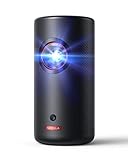
- Laser Engine to Illuminate Your World: Experience vibrant visuals with this laser projector, featuring a laser light source delivering 300 ANSI Lumens of brightness…
- Travel Light, Project Big: At just 2 lb (900 g) and 90% smaller than others with similar brightness, NEBULA Capsule 3 Laser projects up to a 120-inch screen and…
Nebula Cosmos Laser 4K
This high-performance projector is ideal for home theaters and wireless streaming. It supports multiple casting options including Chromecast, screen mirroring, and Wi-Fi connectivity for seamless device pairing.

- Laser-Powered Detail: Make your movies shine with the intensity, which is so bright you can even watch with the lights on, then watch every pixel pop in 4K UHD…
- Setup is a Snap: Start the movie in seconds with Intelligent Environment Adaptation (IEA) Technology. Analyze your room to avoid furniture or decorations, then watch…
Nebula Mars 3 Air
This compact projector is perfect for travel and outdoor movie nights. Its wireless casting features allow fast screen mirroring from smartphones, tablets, and laptops without complicated setup.

- Take the Big Screen Anywhere: This portable Google TV projector lets you watch all of your favorite content and apps—including Netflix—wherever you are.
- Jaw-Dropping Display: Enjoy a truly cinematic experience with rich detail and high clarity thanks to the 1080P HDR display and 400 ANSI Lumens brightness.
Related Accessories for Better Casting
- HDMI streaming sticks
- Portable Wi-Fi routers
- Wireless display adapters
- Bluetooth keyboards for projector navigation
What Is Casting on a Nebula Projector?
Casting refers to sending media or mirroring your device screen to another display wirelessly. With a Nebula projector, casting allows you to display content from your phone, tablet, or computer without using HDMI cables.
Most Nebula projectors run on Android TV or Google TV. This means they support wireless technologies like Chromecast, AirPlay (on some models), and screen mirroring.
These features allow different types of devices to connect easily.
Common activities you can cast include:
- Streaming movies from apps
- Sharing photos and videos
- Playing mobile games on a large screen
- Presenting slideshows or documents
- Watching YouTube or Netflix
There are two main types of casting.
Screen Mirroring
Screen mirroring duplicates your device screen exactly. Everything you see on your phone or laptop appears on the projector.
This is useful for:
- presentations
- gaming
- browsing websites
Media Casting
Media casting sends only the video or audio stream to the projector while your device becomes a remote control.
For example, when casting from YouTube or Netflix, the video plays directly on the projector instead of mirroring the entire phone screen.
Basic Requirements for Casting
Before casting, make sure the following conditions are met:
- Both devices are connected to the same Wi-Fi network
- The projector’s casting feature is enabled
- Your device supports screen mirroring or Chromecast
Once these requirements are met, casting to a Nebula projector usually takes only a few taps.
How to Cast to Nebula Projector from Android Devices (Step-by-Step)
Casting from an Android phone or tablet to a Nebula projector is usually the easiest method. Most Nebula projectors support Chromecast or built-in screen mirroring, which works seamlessly with Android devices.
Before starting, ensure both your Android device and the Nebula projector are connected to the same Wi-Fi network. This is required for wireless casting to function properly.
Method 1: Cast Using the Built-in Cast Feature
Many Android phones include a native Cast or Screen Cast option in the quick settings panel.
Follow these steps:
- Turn on your Nebula projector.
- Connect the projector to your Wi-Fi network.
- Open the Quick Settings panel on your Android phone.
- Tap Cast, Screen Cast, or Smart View (name may vary by device).
- Select your Nebula projector from the list of available devices.
- Your phone screen will begin mirroring on the projector.
Once connected, anything you do on your phone appears on the projector screen.
Method 2: Cast from Streaming Apps
Apps like YouTube, Netflix, and Spotify support direct casting.
Steps:
- Open a supported streaming app.
- Tap the Cast icon (usually a small screen with Wi-Fi waves).
- Select your Nebula projector.
- Choose the content you want to play.
This method streams the media directly to the projector while your phone acts as a remote control.
Tips for a Smooth Android Casting Experience
- Keep devices within strong Wi-Fi range.
- Close background apps to reduce lag.
- Update the Nebula projector firmware regularly.
How to Cast to Nebula Projector from iPhone or iPad (AirPlay Guide)
Casting from an iPhone or iPad to a Nebula projector is typically done using AirPlay or screen mirroring apps. Some newer Nebula projectors support AirPlay directly, while others may require an additional app or streaming device.
Before starting, connect both your iPhone/iPad and Nebula projector to the same Wi-Fi network. This ensures the devices can discover each other.
Method 1: Use AirPlay Screen Mirroring
If your Nebula projector supports AirPlay, you can mirror your screen directly from iOS.
Follow these steps:
- Turn on the Nebula projector and connect it to Wi-Fi.
- On your iPhone or iPad, open Control Center.
- Tap Screen Mirroring.
- Select your Nebula projector from the list of available devices.
- Your iPhone screen will instantly appear on the projector.
Once connected, you can display photos, videos, presentations, or apps on the big screen.
Method 2: Cast Using Streaming Apps
Some apps allow direct casting without mirroring the entire screen.
Examples include:
- YouTube
- Netflix
- Spotify
- Disney+
Steps:
- Open a supported app.
- Tap the Cast or AirPlay icon.
- Select the Nebula projector.
- Start playing your content.
This method reduces lag and improves video quality because the projector streams the content directly.
Tips for Better iPhone Casting
- Keep both devices close to the router.
- Update your iOS software and projector firmware.
- Restart devices if the projector does not appear.
How to Cast to Nebula Projector from a Windows Laptop or PC.
Casting from a Windows laptop to a Nebula projector allows you to display presentations, videos, or documents on a much larger screen without using cables. Most Windows computers support wireless display casting using Miracast or built-in screen projection tools.
Before beginning, confirm that your Nebula projector and Windows laptop are connected to the same Wi-Fi network. This ensures the devices can detect each other.
Method 1: Use the Windows “Project” Feature
Windows includes a built-in wireless display tool called Project. It lets you mirror or extend your screen to compatible devices like Nebula projectors.
Follow these steps:
- Turn on your Nebula projector and connect it to Wi-Fi.
- On your laptop keyboard, press Windows + K.
- A list of available wireless displays will appear.
- Select your Nebula projector from the list.
- Your screen will begin casting to the projector.
You can also choose how the display appears:
- Duplicate – Shows the same screen on both devices
- Extend – Turns the projector into a second monitor
- Second Screen Only – Displays content only on the projector
Method 2: Cast Using Google Chrome
If your Nebula projector supports Chromecast, you can cast directly from the Chrome browser.
Steps:
- Open Google Chrome on your laptop.
- Click the three-dot menu in the upper-right corner.
- Select Cast.
- Choose your Nebula projector.
- Select whether to cast a tab, file, or your entire desktop.
Tips for Smooth Laptop Casting
- Keep the laptop within strong Wi-Fi range.
- Update your graphics drivers if casting fails.
- Close heavy programs to prevent lag.
Troubleshooting: Why Your Nebula Projector Won’t Cast?
Sometimes casting to a Nebula projector may not work as expected. This can happen due to network issues, device compatibility problems, or incorrect settings. Fortunately, most casting problems are easy to fix.
Below are the most common issues and solutions.
Devices Are Not on the Same Wi-Fi Network
Casting requires both devices to be connected to the same wireless network.
Check the following:
- Your phone, tablet, or laptop is connected to Wi-Fi
- The Nebula projector is connected to the same network name (SSID)
- Guest networks or mobile hotspots are not interfering
Switching both devices to the same network often resolves the issue instantly.
Casting Feature Is Disabled
Some Nebula projectors require the casting feature to be enabled manually.
To check:
- Open Settings on the Nebula projector.
- Navigate to Network or Device Preferences.
- Turn on Screen Mirroring or Chromecast.
Once enabled, the projector should appear in the casting device list.
Weak Wi-Fi Signal
Poor internet connection can cause lag, disconnections, or failed casting attempts.
Improve connection by:
- Moving the projector closer to the router
- Reducing obstacles like walls or furniture
- Disconnecting unused devices from the network
A stronger signal ensures smoother streaming and mirroring.
Outdated Software
Old firmware can prevent casting features from working correctly.
Update both devices:
- Check for Nebula projector firmware updates in settings
- Update your phone, tablet, or laptop operating system
Regular updates often fix compatibility problems.
Restart Both Devices
If casting still fails, a simple restart can help.
Steps:
- Turn off the Nebula projector
- Restart your phone, tablet, or computer
- Reconnect to Wi-Fi and try casting again
This refreshes the network connection and clears temporary glitches.
Conclusion.
Casting to a Nebula projector is a simple way to enjoy movies, presentations, and apps on a much larger screen without dealing with cables. Whether you use an Android phone, iPhone, or Windows laptop, most Nebula projectors support convenient wireless casting options like screen mirroring, Chromecast, or AirPlay.
The key to a smooth experience is making sure both devices are connected to the same Wi-Fi network and that the projector’s casting feature is enabled. Once set up, you can mirror your device screen, stream content directly from apps, or even extend your computer display for work or presentations.
If you run into issues, quick fixes like restarting devices, updating software, or improving Wi-Fi signal usually solve the problem.
Frequently Asked Questions About How to Cast to Nebula Projector.
Can all Nebula projectors support screen casting?
Most modern Nebula projectors support wireless casting. Many models run on Android TV or Google TV, which includes built-in Chromecast. However, some older models may require third-party apps or an external streaming device to enable screen mirroring.
Before casting, check the projector specifications to confirm whether it supports Chromecast, AirPlay, or Miracast.
Why is my phone not detecting the Nebula projector?
If your phone cannot find the Nebula projector, the most common reason is that the devices are connected to different Wi-Fi networks. Both devices must be on the same network for casting to work.
Other possible causes include:
- Casting feature turned off on the projector
- Weak Wi-Fi signal
- Outdated device software
- Temporary connection glitches
Restarting both devices often fixes the problem quickly.
Can I cast Netflix to a Nebula projector?
Yes, you can cast Netflix to most Nebula projectors. If the projector supports Chromecast or has Netflix installed through Android TV, you can stream directly from the Netflix app on your phone or tablet.
Simply tap the Cast icon inside the Netflix app and select your Nebula projector.
Do I need Wi-Fi to cast to a Nebula projector?
Yes, wireless casting usually requires a Wi-Fi network. Both the projector and the casting device must connect to the same wireless network for discovery and communication.
In some cases, you can use a mobile hotspot if a router is not available.
Is screen mirroring the same as casting?
Not exactly. Screen mirroring duplicates everything on your device screen, while casting sends only specific media content to the projector.
Casting typically provides better video quality and less lag because the projector streams the content directly.
This website is a participant in the Amazon Services LLC Associates Program, an affiliate advertising program designed to provide a means for us to earn fees by linking to Amazon.com and affiliated sites.