This website is a participant in the Amazon Services LLC Associates Program, an affiliate advertising program designed to provide a means for us to earn fees by linking to Amazon.com and affiliated sites.
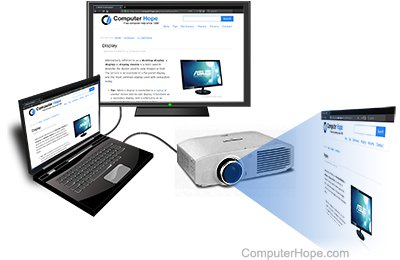
To hook up a Dell projector to a computer, connect the projector and computer using an HDMI, VGA, or USB cable, select the correct input source, and adjust your display settings so the computer can recognize the projector.
Whether you’re preparing for a business presentation, teaching a class, or creating a home theater experience, connecting a Dell projector to your computer is usually a straightforward process. However, many users encounter issues such as a blank screen, no signal message, or improper display settings.
The good news is that most Dell projectors support multiple connection methods and work seamlessly with both Windows and Mac computers. Once you underst
Best for Connecting a Dell Projector to a Computer
Amazon Basics High-Speed HDMI Cable
This high-speed HDMI cable delivers reliable video and audio transmission, supports Full HD and 4K resolutions, and offers durable construction. It’s ideal for modern Dell projectors and laptops equipped with HDMI ports.

- IN THE BOX: HDMI cable (A Male to A Male) for connecting 2 HDMI-enabled devices; 6 feet long in Black
- DEVICE COMPATIBLE: Connects Blu-ray players, Fire TV, Apple TV, PS4, PS3, Xbox One, Xbox 360, and computers to TVs, displays, A/V receivers, and more

BENFEI HDMI to VGA Adapter
This adapter allows newer laptops with HDMI outputs to connect to older Dell projectors that only support VGA inputs. Its compact design and plug-and-play functionality make setup quick and convenient.

- SPECIALLY DESIGNED for TV sticks: this active HDMI to VGA adapter could connect HDMI compatible Device to VGA compatible monitor, projector, TV. Please use HDMI…
- AUDIO SYNC SUPPORTED – Comes with an independent output of 3.5mm audio, external audio, to achieve simultaneous audio and video playback. you could connect to the…
Cable Matters USB-C to HDMI Adapter
Many modern laptops feature only USB-C ports. This adapter enables seamless projector connectivity while supporting high-definition video output and ensuring compatibility with numerous Dell projector models.

- Important–Check Compatibility Before Purchase: Actual output depends on your laptop and USB-C port. Achieving 8K@60Hz or 4K@240Hz requires a compatible graphics…
- Certified USB-C to HDMI 2.1 Adapter: Upgrade to HDMI 2.1 with this USB C to HDMI adapter with the latest HDMI 2.1 standard with the versatility of USB-C. Supports up…
Things You Need Before Connecting a Dell Projector to a Computer
Before connecting your Dell projector to a computer, it’s important to make sure you have the correct equipment and understand the available connection options. Spending a few minutes preparing can prevent common issues like a “No Signal” message, poor image quality, or an unrecognized display.
The first thing you need is a compatible cable. Most newer Dell projectors and laptops support HDMI, which carries both video and audio through a single cable. Older projector models may use VGA, while some modern laptops require a USB-C to HDMI adapter because they no longer include traditional display ports.
You should also verify that both devices have power. Projectors typically need a minute or two to warm up before displaying an image properly. Additionally, knowing your computer’s operating system can make the setup process easier since Windows and macOS have slightly different display settings.
Essential Items Checklist
- A Dell projector
- A desktop computer or laptop
- Power cables for both devices
- A compatible connection cable:
- HDMI cable
- VGA cable
- USB-C to HDMI adapter
- A stable surface or projector mount
- Optional external speakers for improved audio
Why Preparation Matters
Proper preparation helps you:
- Avoid compatibility problems
- Reduce troubleshooting time
- Achieve better picture quality
- Ensure stable video and audio transmission
- Complete the setup process faster
Pro Tip
Check the ports on both your computer and projector before purchasing any cables or adapters. Dell has produced projector models over many years, and port configurations can vary significantly between devices.
How to Hook Up a Dell Projector to a Computer Using HDMI, VGA, or USB Connections
Connecting a Dell projector to your computer is usually a simple process once you identify the correct connection type. Most Dell projectors support HDMI, VGA, and, in some cases, USB connectivity. The right method depends on the ports available on your computer and projector.
Method 1: Connect Using an HDMI Cable
HDMI is the easiest and most common connection method because it carries both video and audio through a single cable.
Steps:
- Turn off both the projector and the computer.
- Plug one end of the HDMI cable into your computer’s HDMI port.
- Connect the other end to the projector’s HDMI input.
- Turn on the Dell projector.
- Power on your computer.
- Press the projector’s Source or Input button and select HDMI.
In most cases, your computer will automatically detect the projector and begin displaying the image.
Method 2: Connect Using a VGA Cable
Older Dell projectors often use VGA connections.
Steps:
- Turn off both devices.
- Connect the VGA cable between the computer and projector.
- Tighten the connector screws to ensure a secure fit.
- Turn on the projector and then the computer.
- Select VGA as the projector’s input source.
Since VGA transmits only video, you may need a separate audio cable if sound is required.
Method 3: Connect Using USB or USB-C
Some newer laptops require an adapter because they only have USB-C ports.
Steps:
- Connect a USB-C to HDMI adapter to your computer.
- Attach the HDMI cable between the adapter and projector.
- Turn on both devices.
- Select the correct input source on the projector.
- Adjust your computer’s display settings if necessary.
Quick Connection Comparison
| Connection Type | Video | Audio | Image Quality | Best For |
|---|---|---|---|---|
| HDMI | Yes | Yes | Excellent | Modern laptops and projectors |
| VGA | Yes | No | Good | Older computers and projectors |
| USB-C to HDMI | Yes | Yes | Excellent | Newer laptops without HDMI ports |
How to Configure Display Settings on Windows and Mac After Connecting a Dell Projector
After physically connecting your Dell projector to your computer, the next step is configuring your display settings. In many cases, the projector is automatically detected. However, you may need to adjust a few settings to ensure the image displays correctly.
Different display modes serve different purposes. For example, Duplicate mode shows the same content on both screens, while Extend mode turns the projector into a second display that gives you additional workspace. Choosing the right option can significantly improve presentations and productivity.
How to Configure Display Settings on Windows
Method 1: Use the Keyboard Shortcut
- Connect and power on the projector.
- Press Windows + P on your keyboard.
- Select one of the following options:
- PC Screen Only: Displays content only on your computer.
- Duplicate: Shows the same screen on both devices.
- Extend: Uses the projector as a second monitor.
- Second Screen Only: Displays content only on the projector.
Method 2: Use Display Settings
- Right-click on the desktop.
- Select Display Settings.
- Scroll to the Multiple Displays section.
- Choose your preferred display mode.
- Adjust the screen resolution if necessary.
How to Configure Display Settings on Mac
- Connect and turn on the projector.
- Click the Apple menu and select System Settings.
- Choose Displays.
- Select one of these options:
- Mirror Displays: Shows identical content on both screens.
- Extended Display: Creates an additional workspace.
You can also drag the display arrangement to position the projected screen according to your setup.
Tips for Better Projection Quality
- Set the projector to its native resolution whenever possible.
- Use Duplicate mode for presentations and classroom teaching.
- Use Extend mode for multitasking and dual-screen workflows.
- Increase text size if projected content appears too small.
- Adjust brightness and contrast settings for clearer images.
Common Display Issues
If the projector remains blank:
- Verify that the correct input source is selected.
- Reconnect the cable securely.
- Restart both devices.
- Update your graphics drivers.
- Try another cable or adapter if detection fails.
Common Problems When Connecting a Dell Projector to a Computer and How to Fix Them
Even when you’ve connected everything correctly, your Dell projector may occasionally fail to display your computer screen properly. Most projector connection issues are caused by incorrect input settings, loose cables, outdated drivers, or incompatible display configurations. Fortunately, these problems are usually easy to diagnose and fix.
Dell Projector Says “No Signal”
A “No Signal” message is one of the most common issues.
How to fix it:
- Verify that the cable is firmly connected on both ends.
- Press the projector’s Source or Input button and select the correct input (HDMI or VGA).
- Disconnect and reconnect the cable.
- Restart both the computer and projector.
Computer Does Not Detect the Projector
Sometimes the projector is connected but doesn’t appear as a second display.
How to fix it:
On Windows:
- Press Windows + P.
- Select Duplicate or Extend.
- Go to Settings > System > Display.
- Click Detect if the projector isn’t found.
On Mac:
- Open System Settings.
- Select Displays.
- Choose Detect Displays if available.
Blank Screen or Black Screen
A blank display often means the computer is sending the signal to the wrong screen.
How to fix it:
- Switch between display modes using Windows + P.
- Confirm that the projector has fully powered on.
- Lower the screen resolution temporarily.
- Test with another cable or adapter.
Poor Image Quality
Blurry images, incorrect colors, or distorted screens can affect presentations.
How to fix it:
- Adjust the projector’s focus ring.
- Set the computer to the projector’s native resolution.
- Replace damaged or low-quality cables.
- Clean the projector lens carefully.
No Audio Through HDMI
Some users can see the image but hear no sound.
How to fix it:
On Windows:
- Right-click the speaker icon.
- Select Sound Settings.
- Choose the projector or HDMI device as the output.
On Mac:
- Open System Settings.
- Select Sound.
- Choose the projector as the audio output device.
Quick Troubleshooting Checklist
| Problem | Possible Cause | Solution |
|---|---|---|
| No Signal | Wrong input source | Select correct HDMI or VGA input |
| Projector not detected | Display settings issue | Use Windows + P or Detect Displays |
| Blank screen | Incorrect display mode | Switch to Duplicate or Extend |
| Blurry image | Resolution or focus issue | Adjust focus and resolution |
| No audio | Wrong output device | Change sound settings |
Tips for Getting the Best Display Quality From Your Dell Projector and Computer Setup
Successfully connecting your Dell projector to a computer is only the first step. To achieve crisp images, accurate colors, and a professional-looking presentation, you should optimize both the projector and your computer settings. A few simple adjustments can significantly improve your viewing experience.
Use the Projector’s Native Resolution
Every projector has a native resolution that delivers the sharpest image possible. Running your computer at a higher or lower resolution may result in blurry text or distorted graphics.
To find the best resolution:
- Check your Dell projector’s user manual or specifications.
- Set your computer’s display resolution to match the projector.
- Test presentations and videos before an important meeting or event.
Position the Projector Correctly
Proper placement greatly affects image quality.
For the best results:
- Place the projector on a stable, level surface.
- Position it directly in front of the screen whenever possible.
- Avoid excessive tilting, which can create image distortion.
- Adjust the projection distance according to the screen size you need.
Optimize Room Lighting
Projectors perform best in controlled lighting environments. Excessive ambient light can wash out colors and reduce contrast.
Consider these tips:
- Dim unnecessary lights.
- Close blinds or curtains when possible.
- Use brighter presentation themes in well-lit rooms.
- Increase projector brightness if your model supports multiple display modes.
Fine-Tune the Image Settings
Most Dell projectors include built-in image controls that can improve picture quality.
Adjust settings such as:
- Brightness
- Contrast
- Sharpness
- Color temperature
- Display mode (Presentation, Movie, Dynamic, or Standard)
Experimenting with these options helps you find the ideal balance for presentations, videos, and images.
Use High-Quality Cables and Adapters
Connection accessories can also affect performance. Damaged or low-quality cables may cause signal drops, flickering, or reduced image quality.
For reliable performance:
- Use certified HDMI cables whenever possible.
- Replace worn or damaged VGA cables.
- Purchase reputable USB-C adapters that support video output.
- Avoid unnecessary cable extensions.
Keep Your Equipment Updated and Maintained
Regular maintenance helps ensure consistent image quality.
Good maintenance practices include:
- Cleaning the projector lens carefully.
- Keeping air vents free from dust.
- Updating graphics drivers on your computer.
- Installing projector firmware updates if available.
- Inspecting cables and connectors periodically.
Best Practices Checklist
✓ Match the projector’s native resolution
✓ Position the projector correctly
✓ Control ambient lighting
✓ Adjust brightness and contrast settings
✓ Use quality cables and adapters
✓ Maintain and clean your equipment regularly
Conclusion
Learning how to hook up a Dell projector to a computer is easier than it may seem. In most cases, you simply need the correct cable—such as HDMI, VGA, or a USB-C adapter—connect both devices, select the proper input source, and configure your display settings. If you encounter issues like a blank screen or a “No Signal” message, basic troubleshooting steps such as checking cables, adjusting display modes, and updating drivers can usually resolve the problem quickly.
For the best experience, use the projector’s native resolution, position it correctly, and optimize room lighting and image settings. With the proper setup and maintenance, your Dell projector can deliver clear, professional-quality presentations, movies, and classroom displays for years to come.
Frequently Asked Questions About How to Hook Up a Dell Projector to a Computer
Why won’t my Dell projector connect to my computer?
If your Dell projector is not connecting, the issue is usually caused by an incorrect input source, a loose cable, incompatible adapter, or display settings that haven’t been configured properly. First, ensure the projector is turned on and set to the correct HDMI or VGA input. Then, verify that all cables are securely connected. On Windows, press Windows + P and select Duplicate or Extend. If the problem persists, restart both devices and try another cable or adapter.
Can I connect a Dell projector to a laptop using HDMI?
Yes. HDMI is one of the easiest ways to connect a Dell projector to a laptop because it carries both video and audio signals through a single cable. Simply connect the HDMI cable to both devices, power on the projector, and select the HDMI input source. Most computers automatically detect the projector.
How do I display my computer screen on a Dell projector?
After connecting the projector, configure your display settings. On Windows, press Windows + P and choose Duplicate, Extend, or Second Screen Only. On a Mac, open System Settings > Displays and enable Mirror Displays or set up an extended display.
Why does my Dell projector say “No Signal”?
A “No Signal” message generally means the projector is not receiving a video feed from the computer. This can happen if the wrong input source is selected, the cable is faulty, or the computer has not recognized the projector. Recheck your connections and display settings to resolve the issue.
Do I need special software to connect a Dell projector to a computer?
In most cases, no additional software is required. Modern operating systems automatically detect and configure external displays. However, keeping your graphics drivers updated can improve compatibility and performance.
Can I connect a Dell projector wirelessly?
Some Dell projectors support wireless connectivity through built-in features or optional wireless adapters. If your projector model includes wireless capabilities, follow the instructions in the user manual to connect it to your computer via Wi-Fi or screen mirroring.
By understanding the proper connection methods and troubleshooting techniques, you can quickly set up your Dell projector and enjoy smooth presentations, movies, and collaborative work sessions with minimal technical difficulties.
Can a Projector Get a Virus?why you need to know
This website is a participant in the Amazon Services LLC Associates Program, an affiliate advertising program designed to provide a means for us to earn fees by linking to Amazon.com and affiliated sites.