This website is a participant in the Amazon Services LLC Associates Program, an affiliate advertising program designed to provide a means for us to earn fees by linking to Amazon.com and affiliated sites.
The 5 digit pairing code for Meta Quest 2 is a temporary code used to connect your headset to the Meta Horizon mobile app during the setup process. If you are setting up your Oculus Quest 2 for the first time or reconnecting it to your phone, you may be asked to enter this code to complete the pairing process.
Finding the correct code can sometimes be confusing, especially if the headset does not display it immediately or the mobile app cannot detect your device. Fortunately, the pairing process is usually straightforward once you know where to look.
In this guide, you will learn where to find your Meta Quest 2 five-digit pairing code, how to enter it in the mobile app, and what to do if the code is missing or does not work. We will also cover common connection problems to help you complete the setup without unnecessary frustration.
Best Products for Meta Quest 2 Pairing and Setup
The following products can help make Meta Quest 2 setup, phone connectivity, and everyday headset use more convenient.
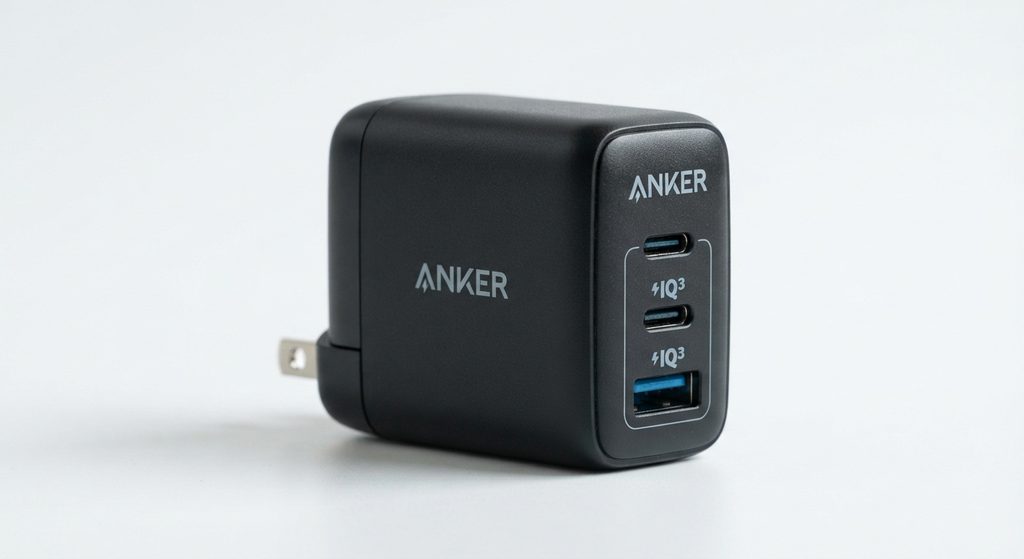
Anker 735 Charger (Nano II 65W)
Useful for keeping compatible devices charged during setup. Its compact design and multiple charging ports make it a convenient accessory for a VR setup.
TP-Link Archer AX55 Wi-Fi 6 Router
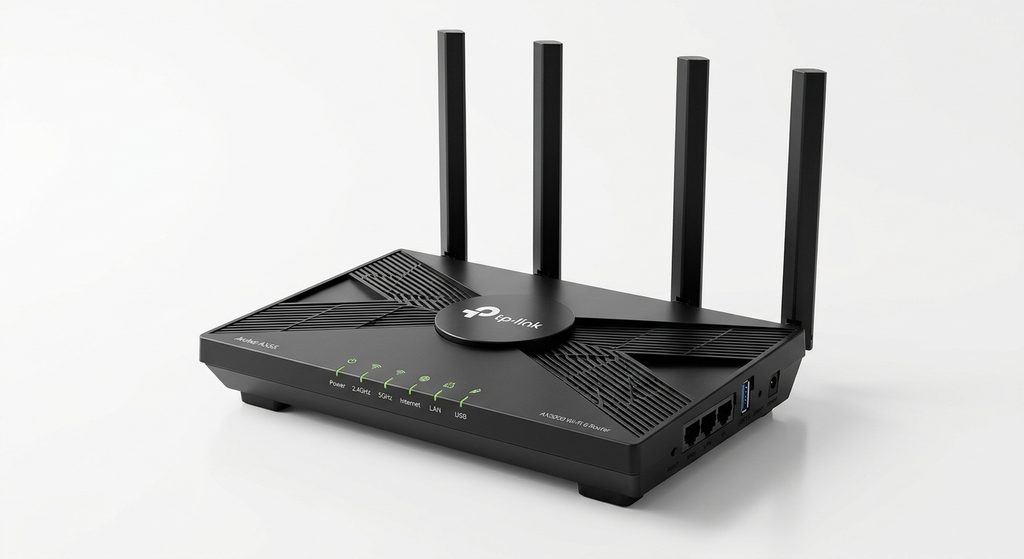
Provides modern Wi-Fi connectivity for compatible devices. It can help maintain a reliable home network for headset setup, app connectivity, and wireless VR activities.
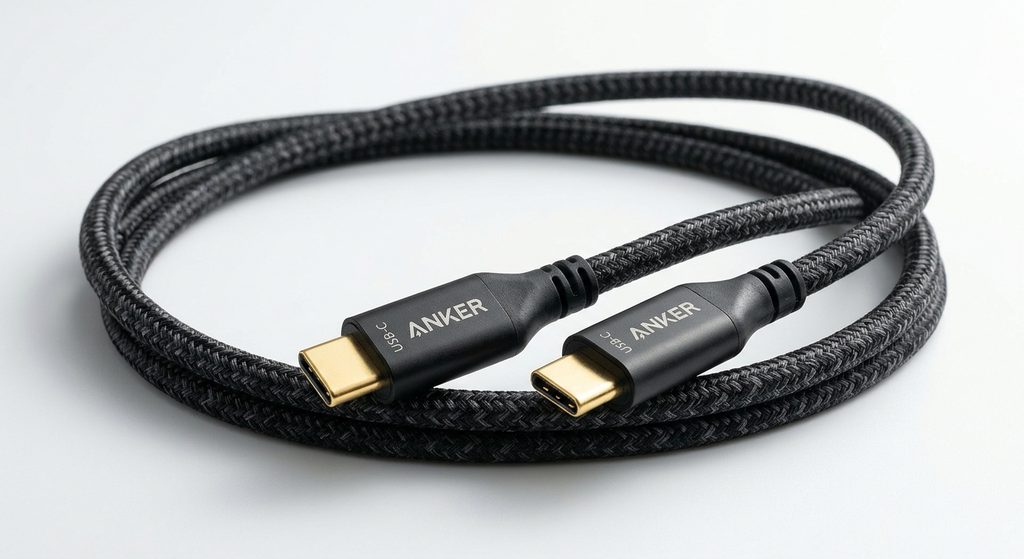
A practical accessory for compatible charging needs. Its durable construction and longer cable options make it useful when organizing your headset charging area.
Where to Find the 5 Digit Pairing Code on Meta Quest 2
Finding the five-digit pairing code on your Meta Quest 2 is the first step toward connecting your headset to the Meta Horizon mobile app. The code is displayed inside the headset and may appear automatically during the initial setup process.
If you have already completed the initial setup, you can also look for the code manually.
Follow these steps to locate your pairing code:
- Turn on your Meta Quest 2 headset.
- Put on the headset and open the universal menu.
- Select Quick Settings.
- Open Settings.
- Navigate to System.
- Select About.
- Scroll toward the bottom of the page.
- Look for the Pairing Code option.
Once you find the code, keep the headset powered on while completing the pairing process through the mobile app.
Important: During first-time setup, the five-digit code may appear automatically inside the headset. You do not necessarily need to navigate through the settings menu.
Meta’s support community also confirms that the pairing code can be found under Settings, System, and About when initial setup has already been completed. 886694+1
If you cannot find the Pairing Code option, check that you are signed into the correct Meta account and that your headset has completed its initial setup.
How to Enter the 5 Digit Pairing Code in the Meta Horizon App
Once you have located the five-digit pairing code inside your Meta Quest 2 headset, the next step is to enter it into the Meta Horizon mobile app. This allows your smartphone and headset to connect to the same Meta account, making it easier to manage your VR device.
Follow these steps to complete the pairing process:
- Open the Meta Horizon app on your Android phone or iPhone.
- Sign in using the Meta account you want associated with your headset.
- Navigate to the Devices section.
- Select the option to add or pair a new headset.
- Choose Meta Quest 2 from the available device options.
- Follow the on-screen instructions until the app requests a pairing code.
- Look inside your headset to see the five-digit code.
- Enter the code into the appropriate field in the mobile app.
- Follow any remaining instructions to finish connecting your devices.
Important pairing tips:
- Keep your Meta Quest 2 switched on during setup.
- Enable Bluetooth on your smartphone.
- Connect your phone and headset to the same Wi-Fi network when prompted.
- Make sure you are signed into the correct Meta account.
- Enter the code exactly as displayed in the headset.
If the headset pairs automatically, you may not need to enter the code manually. Meta also provides a pairing demonstration showing how to use the displayed code when automatic pairing does not work. 886694+2
Once pairing is successful, your headset should appear in the app’s device section.
Why Your Meta Quest 2 Five-Digit Pairing Code Is Not Working
If your Meta Quest 2 five-digit pairing code is not working, the problem may be related to an outdated mobile app, an incorrect Meta account, network connectivity, or an incomplete headset setup. Fortunately, most pairing problems can be resolved by checking a few basic settings.
Here are some common reasons your Meta Quest 2 pairing code might fail:
Incorrect Pairing Code
Double-check the five digits displayed inside your headset before entering them into the Meta Horizon app. Avoid confusing similar-looking numbers, and make sure you are using the current code rather than an older one.
Wrong Meta Account
Your headset and mobile app should be associated with the appropriate Meta account. If you are signed into a different account on your phone, the app may struggle to recognize your headset.
Bluetooth or Wi-Fi Problems
Bluetooth helps your smartphone discover nearby devices, while Wi-Fi supports the headset’s internet connection and setup process. Make sure both connections are enabled and functioning properly.
Outdated Meta Horizon App
An outdated app version may cause compatibility or connection problems. Check your phone’s app store for available updates.
Headset Software Problems
Sometimes, outdated headset software can interfere with the pairing process. Check whether your headset needs a software update and install any available updates before trying again. Meta+1
Quick things to try if your pairing code fails:
- Restart your smartphone and headset.
- Turn Bluetooth off and back on.
- Update the Meta Horizon app.
- Sign out and back into the correct Meta account.
- Check that both devices are connected to the same Wi-Fi network.
- Try pairing with another compatible smartphone if the problem continues.
Avoid performing a factory reset immediately because it removes locally stored data and settings.
How to Fix Meta Quest 2 Pairing Code Not Showing Up
If your Meta Quest 2 pairing code is not showing up, you may have difficulty connecting your headset to the Meta Horizon mobile app. This issue can happen during initial setup, after a software update, or when reconnecting a headset that was previously paired.
Fortunately, there are several troubleshooting steps you can try before considering more advanced solutions.
Restart Your Meta Quest 2 Headset
A temporary software issue may prevent the pairing code from appearing.
- Press and hold the headset’s power button.
- Select the restart option if available.
- Wait for the headset to boot completely.
- Check whether the pairing code appears.
Check Your Headset Setup
Make sure you have completed the necessary initial setup instructions. If the headset is still loading or waiting for an earlier setup step, the pairing code may not appear yet.
Update the Meta Horizon App
Open Google Play Store or Apple App Store and check whether an update is available. Install the latest compatible version and reopen the app.
Check Your Internet Connection
A weak or unstable internet connection can interrupt the headset setup process. Restart your router if necessary and reconnect your headset and smartphone.
Check for Headset Software Updates
If you can access the headset settings, check for available software updates. Keeping the headset updated can help resolve compatibility and setup problems.
Contact Meta Support
If the pairing code remains missing after trying these steps, visit Meta Quest Support for device-specific assistance.
Important: Avoid factory resetting your headset unless other troubleshooting options have failed. A reset can erase locally stored information.
How to Fix Meta Quest 2 Not Connecting to the Meta Horizon App
If your Meta Quest 2 is not connecting to the Meta Horizon app, the problem may involve Bluetooth permissions, Wi-Fi connectivity, account settings, or a temporary software glitch. Even if you have the correct five-digit pairing code, these issues can prevent your smartphone from recognizing the headset.
Try the following solutions to restore the connection.
Enable Bluetooth on Your Smartphone
Bluetooth allows your phone to discover nearby devices during the pairing process.
- Open your phone’s Settings.
- Navigate to Bluetooth.
- Turn Bluetooth on.
- Check that the Meta Horizon app has permission to use Bluetooth.
Check Your Wi-Fi Connection
Make sure your headset has a working internet connection. When the setup process requires the same network, connect your smartphone and headset to the same Wi-Fi network.
Verify Your Meta Account
Open the Meta Horizon app and confirm that you are signed into the account associated with your headset. Using a different account can interfere with device recognition.
Restart Both Devices
Restart your smartphone and Meta Quest 2 headset. Once both devices are running again, reopen the Meta Horizon app and try pairing.
Check App Permissions and Updates
Visit your phone’s application settings and confirm that the Meta Horizon app has the necessary Bluetooth and nearby-device permissions. Also, install any available app updates.
Remove Outdated Pairing Attempts
If the headset is already listed in the app but will not connect, check its device settings and follow the available troubleshooting or reconnection instructions.
Conclusion
The five-digit pairing code Meta Quest 2 uses helps connect your headset to the Meta Horizon mobile app during setup. You can find the code during initial configuration or check the headset’s settings when the relevant option is available.
If your pairing code is missing or not working, check your Bluetooth permissions, Wi-Fi connection, Meta account, and app version. Restarting both devices can also resolve temporary connection problems.
With the correct pairing information and a stable connection, you can complete your Meta Quest 2 setup and enjoy your VR experience.
For additional help, explore our related guides on Meta Quest 2 troubleshooting, Air Link connection problems, and Meta Quest headset setup.
Frequently Asked Questions About the 5 Digit Pairing Code Meta Quest 2
Where do I find my Meta Quest 2 five-digit pairing code?
During initial setup, the code may appear inside your headset. If setup is complete, check Settings, System, and About for the Pairing Code option, if available.
Why is my Meta Quest 2 pairing code not showing?
The code may not appear because the initial setup is incomplete, the headset needs restarting, or a temporary software issue is affecting the setup process.
Do I need the Meta Horizon app to pair my Quest 2?
The Meta Horizon app is used for smartphone pairing and device management. Download it from the official Google Play Store or Apple App Store.
Can I pair Meta Quest 2 without a five-digit code?
Some setup processes allow automatic pairing. However, if the app requests a code, follow the instructions displayed inside your headset.
Why does my Meta Horizon app not recognize my headset?
Check Bluetooth permissions, Wi-Fi connectivity, app updates, and your Meta account. Restarting both devices may also help.
Is the Meta Quest 2 pairing code permanent?
No. The five-digit pairing code is generally a temporary setup code, not a permanent password for your headset.
Can I use the same pairing code on another phone?
You may need to initiate a new pairing process when using another phone. Follow the app’s instructions and use the code currently displayed by your headset.
Will factory resetting my Meta Quest 2 fix pairing problems?
A factory reset may resolve persistent software or setup problems, but it should be a last resort because it removes locally stored data. Try simpler troubleshooting steps first.
This website is a participant in the Amazon Services LLC Associates Program, an affiliate advertising program designed to provide a means for us to earn fees by linking to Amazon.com and affiliated sites.