
This website is a participant in the Amazon Services LLC Associates Program, an affiliate advertising program designed to provide a means for us to earn fees by linking to Amazon.com and affiliated sites.
Yes, Apple TV does work with projectors, and it’s easier than you might think. Whether you’re streaming Netflix, mirroring your iPhone, or binge-watching Apple Originals, Apple TV can connect to most modern projectors with ease — as long as you have the right setup.
With home entertainment becoming more immersive, many users are switching from traditional TVs to projectors for that true cinema experience. But the big question remains: Will Apple TV be compatible with your projector? The answer depends on a few factors like your projector’s input ports, resolution, and whether it’s HDMI-enabled.
Best Apple TV Devices That Work With Projectors
If you’re planning to use a projector with Apple TV, not all models are created equal. Whether you’re after lightning-fast performance, top-tier visuals, or budget-friendly reliability, here are the three best Apple TV models that seamlessly work with projectors.
Apple TV 4K (3rd Generation, 2022) – Wi-Fi + Ethernet
Why it’s great:
This model delivers stunning 4K Dolby Vision with HDR10+, plus it features an Ethernet port for ultra-stable streaming — ideal for projectors in fixed setups.
No products found.
Apple TV HD (32GB)
Why it’s great:
A solid choice for 1080p projectors. It’s more affordable than the 4K model but still gives you access to all apps and AirPlay capabilities with smooth performance.
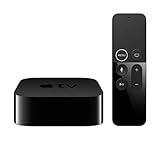
- Dolby Digital Plus 7.1 surround sound for immersive, room-filling sound – 1080p HD high-quality video for fluid, crisp video
- Apple A8 chip gives a big boost to audio, video, and graphics, for even better game and app experiences than ever before
Apple TV 4K (2nd Generation, 2021) – Wi-Fi Only
Why it’s great:
Perfect for home setups with wireless internet and supports high refresh rates for smoother motion — great for sports and gaming on large projection screens.
No products found.
How to Connect Apple TV to a Projector
Connecting your Apple TV to a projector is a straightforward process, but you’ll need to ensure both devices are compatible and properly set up.
What You Need:
- Apple TV device (4K or HD)
- HDMI cable
- Projector with an HDMI input
- Optional: HDMI-to-VGA adapter (for older projectors)
- Wi-Fi or Ethernet connection
Step-by-Step Setup:
- Plug in your Apple TV to a power outlet and connect it to the projector using an HDMI cable.
- Select the correct input on your projector (usually HDMI 1 or HDMI 2).
- Power on your Apple TV — the setup screen should appear on the projection.
- Follow the on-screen prompts to connect to Wi-Fi, sign in to your Apple ID, and configure language settings.
- If you’re using a VGA-only projector, use an HDMI-to-VGA adapter and connect external speakers via the Apple TV’s Bluetooth or audio-out from the projector.
Tips for Better Performance:
- Use a high-speed HDMI 2.1 cable for the best 4K HDR playback.
- Keep your Apple TV software updated to avoid compatibility issues.
- For ceiling-mounted projectors, consider using long HDMI cables or wireless HDMI transmitters.
Once everything is connected, you’ll be ready to stream your favorite content on a massive screen using Apple TV.
What Projectors Are Compatible with Apple TV?
Apple TV is compatible with a wide range of projectors, but a few key features determine how well the setup will perform. The most important factor? An HDMI input.
HDMI-Enabled Projectors:
Apple TV connects natively via HDMI, so any modern projector with an HDMI port is generally compatible. This includes:
- Home theater projectors
- Short-throw projectors
- 4K projectors
- Portable mini projectors
![[Built-in Apps & 2026 Upgraded] Mini Projector|Portable Projector 1080P/4K Support|Smart...](https://m.media-amazon.com/images/I/41ndu05hLGL._SL160_.jpg)
- 📺【Native 1080P | 150ANSI Lumens | 4K & HDR10 Support】Maypug mini projector features native 1080P resolution and 150ANSI lumens which delivers a stunning…
- 🚩【US-Tuned OS | Preinstalled Apps | No Extra Devices】 Maypug P3 4k projector features self-developed Lilac OS with officially certified streaming apps…
These projectors typically support HDCP (High-bandwidth Digital Content Protection), which Apple TV requires to stream protected content like Netflix or Apple TV+.
Projectors with VGA or RCA Inputs:
Older models without HDMI can still work, but you’ll need an HDMI-to-VGA or HDMI-to-RCA adapter. Keep in mind:
- You may lose HD resolution and audio support.
- External audio (Bluetooth speakers or 3.5mm jack) will be necessary.

- VERSATILE MULTIMEDIA COMPATIBILITY – Our home movie projector connects seamlessly with a range of devices, including Roku TV, Blu-Ray Player, Apple TV, Fire Stick…
- PORTABLE 100 INCH MOVIE SCREEN – Take your movie night anywhere, thanks to our portable outdoor movie projector with simple, hassle-free operation. Plus, it comes…
4K vs 1080p Compatibility:
- If you have an Apple TV 4K, it’s best paired with a 4K projector to get full resolution benefits.
- Apple TV HD works perfectly with 1080p projectors, which are still widely used and offer great value.
![Projector with WiFi and Bluetooth: [Auto Focus/Keystone] - NICPOW Full HD 1080P 4K Supported...](https://m.media-amazon.com/images/I/51JE43hvCqL._SL160_.jpg)
- Unleash Stunning Visuals: This movie projector has true 1080P HD (2.07 million pixels) and 4K decoding support (requires 4K content). Games look sharp with crisp…
- Fully Automatic Adjustment: This 4K projector features advanced auto-focus and 4D/4P keystone correction for instant setup. It automatically adjusts to any angle…
Recommended Compatibility Features:
- Support for HDMI 2.0 or 2.1
- Ability to display HDR10, Dolby Vision, or HDCP 2.2
- Native support for AirPlay 2 (optional but enhances usability)
If you’re shopping for a projector to use with Apple TV, look for models from brands like Epson, BenQ, LG, or Anker Nebula, which consistently offer high compatibility and performance.
Can You Use AirPlay With Apple TV and a Projector?
Yes, you can absolutely use AirPlay with Apple TV and a projector — and it’s one of the easiest ways to stream or mirror content from your Apple devices onto a large screen.
How It Works:
Once your Apple TV is connected to your projector and both are powered on:
- Make sure your Apple TV and iPhone/iPad/Mac are on the same Wi-Fi network.
- On your Apple device, open Control Center (or the AirPlay icon within an app like Photos, Safari, or YouTube).
- Tap Screen Mirroring or AirPlay, then select your Apple TV from the list.
- Your device’s screen will be mirrored via Apple TV, and the content will be projected.
What You Can Do With AirPlay:
- Stream videos, music, and photos
- Display presentations and documents
- Mirror gameplay or video calls
- Use your iPhone or iPad as a remote control
Why Use AirPlay?
- No physical cables between your device and projector
- Quick sharing of content with just a few taps
- Ideal for meetings, classrooms, and home theaters
Troubleshooting Tips:
- Make sure Bluetooth and Wi-Fi are enabled on your Apple device.
- Restart your Apple TV if it doesn’t show up under available AirPlay devices.
- Ensure both devices are updated to the latest OS version.
AirPlay is an incredibly user-friendly way to maximize the use of your projector and Apple TV, especially for dynamic, on-the-fly content sharing.
Do You Need an Internet Connection for Apple TV to Work With a Projector?
No, you don’t always need an internet connection for Apple TV to work with a projector — but it depends on how you plan to use it.
When You DO Need Internet:
- Streaming apps like Netflix, Hulu, Apple TV+, Disney+, and YouTube require a Wi-Fi or Ethernet connection.
- App updates and software upgrades on Apple TV also need internet.
- AirPlay from iCloud, like mirroring videos stored in iCloud Photos, requires connectivity.
When You DON’T Need Internet:
- Watching downloaded content: If you’ve downloaded movies or shows from Apple TV+ or iTunes onto your Apple TV, they can play offline.
- Using AirPlay Peer-to-Peer: You can mirror content from your iPhone, iPad, or Mac via AirPlay without Wi-Fi using a direct Bluetooth and Wi-Fi signal.
- Local media apps: Some apps (like VLC or Plex) allow you to access local media files via a USB or local server, which doesn’t require internet.
Tips for Offline Use:
- Download your shows or movies ahead of time when connected to Wi-Fi.
- Enable AirPlay Peer-to-Peer in settings.
- Make sure your projector and Apple TV are powered and connected via HDMI.
So while internet enhances the full experience of Apple TV on a projector, you’re not completely out of luck if your Wi-Fi is down — especially if you prepare ahead.
Can You Use Apple TV With a Wireless Projector?
Yes, Apple TV can work with wireless projectors — but it depends on how the projector handles video input. Most “wireless projectors” still require a physical HDMI connection for devices like Apple TV, while the wireless feature typically supports screen mirroring or casting from mobile devices.
Two Ways to Use Apple TV With a Wireless Projector:
- Standard HDMI Connection (Most Reliable):
Even wireless projectors often come with an HDMI port. You simply:
- Plug your Apple TV into the HDMI port.
- Use the projector’s Wi-Fi for smart features or casting.
- Wireless HDMI Transmitter (Truly Cable-Free):
To avoid physical cables entirely, you can connect your Apple TV to a wireless HDMI transmitter, which then sends the signal to a receiver plugged into your projector’s HDMI port.
This method allows your Apple TV to be placed away from the projector, ideal for ceiling-mounted or backyard setups.
Projector Examples That Work Well Wirelessly:
- Anker Nebula Capsule II (has HDMI + built-in Android apps)
- LG PF50KA (supports screen sharing and HDMI input)
- Epson EF-100 (compact, portable, and Apple TV friendly)
Apple TV does not wirelessly transmit video output to a projector on its own. You’ll always need a wired HDMI connection or an HDMI transmitter setup unless you’re using AirPlay on a compatible smart projector with built-in Apple AirPlay 2 support (rare).
Troubleshooting: Apple TV Not Working With Projector
If your Apple TV isn’t working with your projector, don’t panic — most issues stem from simple connection or compatibility problems. Here’s how to troubleshoot and fix them quickly.
No Signal or Black Screen?
- Check HDMI connection: Ensure the HDMI cable is firmly plugged into both the Apple TV and projector.
- Use the correct input: Set your projector to the HDMI input your Apple TV is connected to.
- Try another HDMI port or cable: Faulty ports or cables are common culprits.
Projector Says “HDCP Error”?
Apple TV requires HDCP (High-bandwidth Digital Content Protection) to stream protected content.
- Use a certified high-speed HDMI cable.
- Ensure your projector supports HDCP 2.2, especially if using Apple TV 4K.
No Sound from Projector?
- If using an HDMI-to-VGA adapter, remember that VGA doesn’t carry audio. Use Bluetooth or an external speaker.
- Check audio settings on your Apple TV under Settings > Video and Audio.
Apple TV Won’t Pair or Respond?
- Restart your Apple TV and projector.
- Ensure both devices are on the same network if using AirPlay.
- Update Apple TV software under Settings > System > Software Updates.
Using an Adapter?
- Not all adapters are compatible. Choose a reliable HDMI-to-VGA or HDMI-to-RCA adapter with external power and audio support.
Conclusion.
So, does Apple TV work with projectors? Absolutely — and it’s one of the easiest ways to enjoy a cinematic experience at home or on the go. Whether you’re streaming the latest Apple TV+ shows, mirroring a presentation from your iPhone, or enjoying downloaded content offline, Apple TV is highly compatible with most modern projectors.
Just ensure your projector has an HDMI input or use the right adapter if it doesn’t. With simple setup steps and versatile features like AirPlay, Apple TV seamlessly bridges the gap between your digital content and the big screen.
By choosing the right Apple TV model and understanding how to connect it properly, you’ll enjoy lag-free visuals, crisp sound, and effortless streaming — whether in your living room, backyard, or office.
Frequently Asked Questions About Apple TV and Projectors
Can I connect Apple TV to any projector?
Apple TV can connect to most projectors that have an HDMI input, which includes most modern models. If your projector only supports VGA or RCA, you’ll need an HDMI adapter — just make sure it supports video and audio output. For best results, pair Apple TV with HDCP-compliant projectors.
Do I need an Apple TV 4K to use it with a projector?
Not necessarily. If your projector supports only 1080p resolution, the Apple TV HD is sufficient. However, if you’re using a 4K projector, then the Apple TV 4K (2nd or 3rd Gen) is ideal to take full advantage of ultra-high-definition playback and Dolby Vision support.
Can I use Apple TV without a Wi-Fi connection?
Yes, but with limitations. You can:
- Watch downloaded content.
- Use AirPlay Peer-to-Peer for mirroring from an iPhone or iPad.
- Access local media using compatible apps.
However, most streaming services like Netflix, YouTube, and Apple TV+ will require an active internet connection.
Is AirPlay the same as Apple TV?
Not exactly. Apple TV is a hardware device, while AirPlay is a wireless protocol. AirPlay allows you to mirror or stream content from Apple devices to an Apple TV or AirPlay 2-compatible projector. You need Apple TV or a smart projector with AirPlay 2 support to use AirPlay reliably.
Why is there no sound when I connect Apple TV to my projector?
This typically happens when:
- You’re using a VGA adapter, which doesn’t carry audio.
- The projector doesn’t have built-in speakers or audio passthrough.
- You haven’t selected the correct audio output in Apple TV settings.
Fix this by connecting Bluetooth speakers, using external sound systems, or checking settings under Settings > Video and Audio.
Can Apple TV connect to a Bluetooth speaker while using a projector?
Yes. Apple TV supports Bluetooth audio devices. You can connect a Bluetooth speaker or soundbar even while the video is being displayed via HDMI on your projector. Just go to Settings > Remotes and Devices > Bluetooth.
Does Apple TV work with smart projectors?
Yes. Even though smart projectors have built-in apps, Apple TV provides a faster, smoother interface and supports a wider app ecosystem. Simply plug Apple TV into the projector’s HDMI port and use it as the main content hub.
This website is a participant in the Amazon Services LLC Associates Program, an affiliate advertising program designed to provide a means for us to earn fees by linking to Amazon.com and affiliated sites.
