
This website is a participant in the Amazon Services LLC Associates Program, an affiliate advertising program designed to provide a means for us to earn fees by linking to Amazon.com and affiliated sites.
A 4096 x 2160 smart projector for home delivers an ultra-high-resolution viewing experience designed for detailed movies, immersive gaming, and cinematic entertainment. However, before purchasing one, it is important to understand the difference between true 4K resolution (4096 x 2160) and 4K UHD resolution (3840 x 2160), since many home theater projectors advertised as 4K use the latter.
A good smart projector combines high-resolution picture quality with built-in streaming capabilities, Wi-Fi connectivity, convenient setup, and impressive brightness. These features allow you to enjoy movies, television shows, sports, and games on a much larger screen without relying on a traditional television.
In this guide, we explore what to look for in a 4096 x 2160 smart projector for home, recommend popular 4K projector options, and explain the features that matter most. Whether you are building a dedicated home theater or upgrading your living room entertainment system, understanding these specifications will help you make a more informed buying decision.
Best for Home Theater and 4K Smart Projector Viewing
Choosing a 4096 x 2160 smart projector for home depends on your preferred viewing experience, room conditions, budget, and streaming requirements. While many manufacturers advertise 4K projectors, most consumer home theater models use 3840 x 2160 UHD resolution rather than native 4096 x 2160 cinema resolution.
Here are three projectors worth considering, including a native 4K cinema option and smart 4K alternatives.
Hisense C2 Ultra TriChroma Laser Projector
The Hisense C2 Ultra is an excellent choice for homeowners who want a modern smart projector with 4K UHD resolution, vibrant laser colors, and convenient streaming features.
- Resolution: 3840 x 2160 (4K UHD)
- Brightness: Up to 3,000 ANSI lumens
- Smart platform: VIDAA OS
- HDR: Dolby Vision, HDR10+, and HLG
- Connectivity: Wi-Fi, Bluetooth, and HDMI 2.1
- Projection size: 65–300 inches
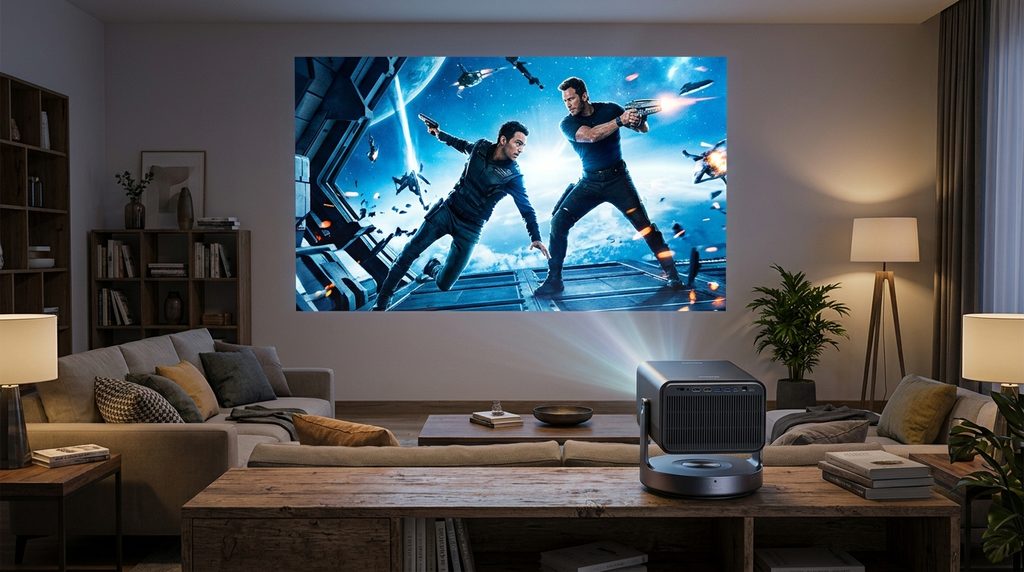
Why we picked it
The Hisense C2 Ultra combines sharp 4K visuals, triple laser color technology, built-in streaming apps, flexible positioning, and impressive brightness, making it suitable for versatile home entertainment.HisenseUSA+2
Epson EpiqVision Ultra LS800
The Epson EpiqVision Ultra LS800 is particularly suitable for homeowners who want a large-screen entertainment experience without mounting a projector on the ceiling or placing it far across the room.
- Resolution: 4K PRO-UHD, maximum 3840 x 2160
- Brightness: 4,000 lumens
- Smart platform: Android TV
- Projection technology: 3-chip 3LCD
- Projection type: Ultra-short-throw laser
- Audio: Built-in Yamaha sound system
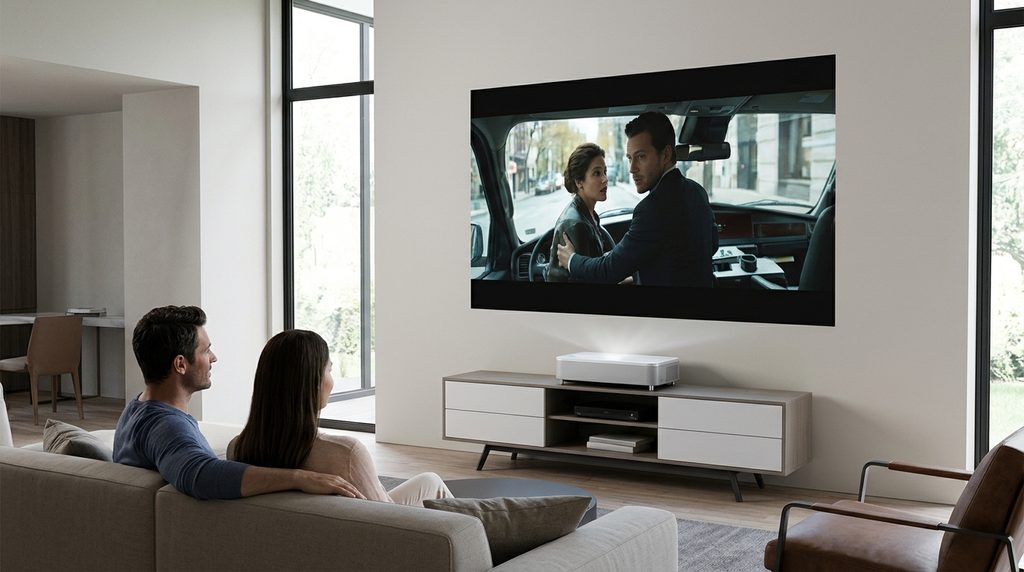
Why we picked it
The Epson LS800 offers impressive brightness, ultra-short-throw convenience, Android TV streaming, and detailed 4K-enhanced images, making it ideal for living rooms with limited projector placement space.Epson Media Server+2
Sony VPL-XW7000ES
The Sony VPL-XW7000ES is a premium home theater projector designed for viewers who prioritize cinematic image quality, advanced image processing, and powerful laser projection.
- Native panel resolution: 3840 x 2160
- Supported input resolution: Up to 4096 x 2160
- Brightness: 3,200 lumens
- Projection technology: 4K SXRD
- Light source: Laser
- HDR support: HDR10 and HLG
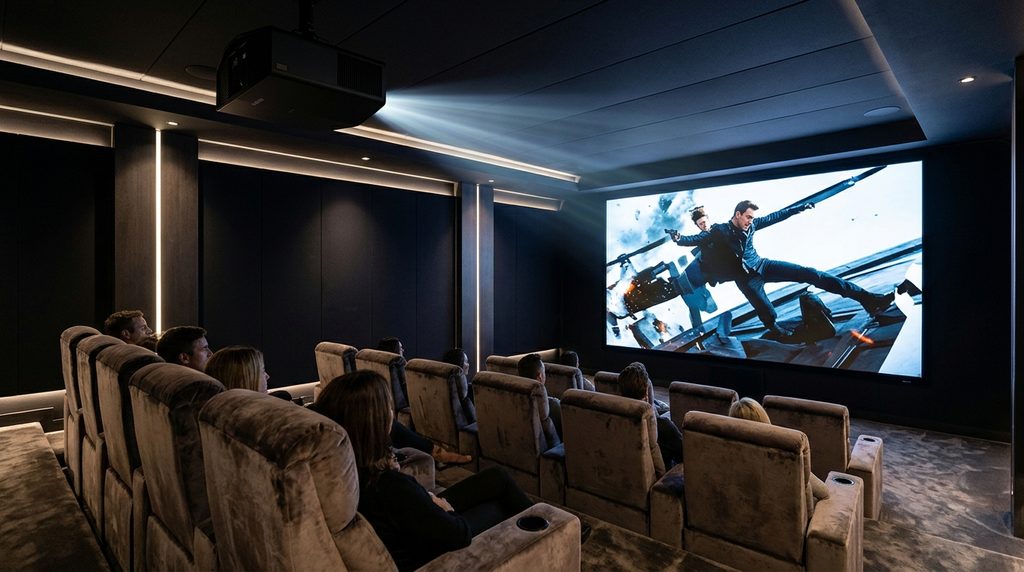
Why we picked it
The Sony VPL-XW7000ES delivers premium cinematic image quality, powerful laser brightness, advanced HDR processing, and flexible lens adjustments for dedicated home theaters and demanding movie enthusiasts.
Important: Although this projector accepts 4096 x 2160 video signals, its native imaging panels are 3840 x 2160. It is not a native 4096 x 2160 projector, and it does not include a built-in smart TV streaming platform. An external streaming device is needed for smart entertainment.Sony USA+2
Related Products for Your Home Projector Setup
Consider adding these accessories to improve your viewing experience:
- Apple TV 4K: Adds convenient streaming capabilities to projectors without built-in smart platforms.
- Amazon Fire TV Stick 4K: Provides access to popular streaming applications.
- ALR projector screen: Helps improve contrast and reduce unwanted ambient light.
- HDMI 2.1 cable: Supports compatible high-resolution video connections.
- Dolby Atmos soundbar: Enhances movie sound and creates a more immersive theater experience.
Buying tip: If you specifically need a projector with native 4096 x 2160 resolution and built-in smart streaming, verify both specifications before purchasing. The three recommendations above offer 4K home entertainment, but they do not all provide native 4096 x 2160 imaging.
What Does 4096 x 2160 Resolution Mean in a Smart Projector?
A 4096 x 2160 resolution refers to a high-resolution display format commonly associated with digital cinema projection. It contains approximately 8.85 million pixels, producing detailed images with excellent clarity, sharp edges, and realistic visual textures. This resolution is also known as DCI 4K and is slightly wider than the 3840 x 2160 resolution commonly used in consumer 4K televisions and home theater projectors.
Understanding this difference is important when shopping for a 4096 x 2160 smart projector for home because manufacturers sometimes use the general term 4K to describe different resolution technologies.
Understanding the Difference Between DCI 4K and 4K UHD
The two common 4K formats have different pixel dimensions:
| Resolution format | Pixel dimensions | Approximate pixels |
|---|---|---|
| DCI 4K | 4096 x 2160 | 8.85 million |
| 4K UHD | 3840 x 2160 | 8.29 million |
| Full HD | 1920 x 1080 | 2.07 million |
DCI 4K has a slightly wider image, making it particularly relevant to professional cinema applications. Meanwhile, 4K UHD is the standard resolution used by most consumer streaming platforms, televisions, gaming consoles, and home entertainment projectors.
Why Does the Difference Matter for Home Entertainment?
The difference becomes noticeable when matching your projector to your content and screen.
For example:
- Watching Netflix and YouTube: Most 4K streaming content is delivered in 3840 x 2160 UHD, making a 4K UHD projector suitable for everyday entertainment.
- Watching cinematic movies: DCI 4K compatibility can be useful when playing content mastered in the cinema format.
- Gaming: A projector that supports 4K input, suitable refresh rates, and low input lag can provide an excellent gaming experience.
- Professional video playback: Native 4096 x 2160 resolution may be valuable for specialized cinema and production applications.
Native 4K vs Pixel-Shifting Technology
Another important specification is native resolution. A native 4K projector uses an imaging system designed to produce the specified physical pixel resolution, while some projectors use pixel-shifting technology to create a higher-resolution image from a lower-resolution imaging chip.
Both approaches can produce impressive results, but buyers should understand what the manufacturer means by 4K.
When comparing models, check:
- Native imaging resolution.
- Maximum supported input resolution.
- Whether pixel shifting is used.
- Supported HDR formats.
- Compatibility with your streaming and gaming devices.
The bottom line: A 4096 x 2160 smart projector is a specialized choice for people seeking DCI 4K compatibility. For most home entertainment setups, however, a good 3840 x 2160 projector provides excellent image quality and compatibility with widely available 4K content.
Key Features to Look for in a 4096 x 2160 Smart Projector for Home
Choosing the right 4096 x 2160 smart projector for home involves more than checking its resolution. A projector may support 4K video but still deliver disappointing results if it has insufficient brightness, poor contrast, limited connectivity, or an outdated smart operating system.
Before purchasing, consider the following essential features to ensure your projector delivers an enjoyable home entertainment experience.
Resolution and Image Quality
Resolution determines how much detail your projector can display. If you specifically want 4096 x 2160, check whether the projector has native DCI 4K imaging or simply accepts a 4096 x 2160 input signal.
For most home theater users, 3840 x 2160 UHD is also an excellent option because it supports the resolution used by most consumer 4K content.
Brightness and Lumens
Brightness determines how clearly projected images appear under different lighting conditions. A projector with higher brightness is generally more suitable for rooms with ambient light.
Consider these general brightness guidelines:
- 1,000–1,500 ANSI lumens: Best for dark, dedicated home theaters.
- 1,500–2,500 ANSI lumens: Suitable for controlled lighting and evening entertainment.
- 2,500–3,500 ANSI lumens: Better for moderately lit living rooms.
- 3,500+ ANSI lumens: Worth considering for brighter environments.
These are practical starting points rather than strict requirements. Screen size, screen gain, projector technology, and room lighting also affect perceived brightness.
Contrast Ratio and Color Accuracy
Contrast ratio determines the difference between the darkest blacks and brightest whites a projector can display. A higher native contrast ratio generally helps produce deeper blacks and more realistic images, especially when watching movies in a dark room.
Color accuracy is equally important. Look for projectors supporting wide color gamuts such as DCI-P3 and Rec.709.
HDR Support
High Dynamic Range (HDR) improves the visual experience by expanding the range of brightness, contrast, and color in compatible content.
Look for these HDR formats:
- HDR10: A widely supported format for 4K movies and streaming.
- HDR10+: Uses dynamic metadata to adjust picture information scene by scene.
- Dolby Vision: Offers dynamic HDR adjustments on compatible devices.
- HLG: Commonly used for HDR broadcasting.
Not every projector supports all these formats, so check the specifications before purchasing.
Smart Features and Streaming Connectivity
A smart projector should make entertainment convenient without requiring multiple external devices.
Consider models with:
- Built-in Android TV, Google TV, VIDAA, or another supported smart platform.
- Wi-Fi connectivity for streaming.
- Bluetooth for wireless audio devices.
- HDMI ports for gaming consoles and streaming sticks.
- USB ports for compatible media playback.
Also check whether popular streaming applications are officially supported.
Throw Distance and Screen Size
Throw distance determines how far the projector must sit from the screen to produce a particular image size.
- Standard throw: Requires more space between the projector and screen.
- Short throw: Produces a large image from a shorter distance.
- Ultra-short throw: Can sit close to the wall or screen, making it suitable for smaller living rooms.
For example, an ultra-short-throw projector can be positioned on a media console rather than mounted on the ceiling.
Gaming Performance and Sound
If you enjoy gaming, check for low input lag, suitable refresh rates, and HDMI 2.1 compatibility where required. These specifications can improve responsiveness when playing on compatible gaming consoles.
Built-in speakers are convenient, but an external soundbar or home theater system can deliver a more immersive experience.
Expert buying tip: Don’t choose a projector based on resolution alone. Compare brightness, native contrast, HDR support, smart features, connectivity, and installation flexibility. These specifications collectively determine how enjoyable your home theater experience will be.
How to Set Up a 4096 x 2160 Smart Projector at Home
Setting up a 4096 x 2160 smart projector for home entertainment doesn’t have to be complicated. With the right placement, screen, connectivity, and picture adjustments, you can create an enjoyable cinema-style viewing experience in your living room, bedroom, or dedicated home theater.
The most important consideration is choosing a suitable projection location and ensuring your projector can display content at its supported resolution.
Step 1: Choose the Right Location
Start by selecting a suitable location for your projector. Ideally, choose a room where you can control natural and artificial lighting to improve image quality.
Consider these factors:
- Leave enough space between the projector and projection screen.
- Avoid placing the projector where people frequently walk.
- Ensure adequate ventilation around the projector.
- Keep the projector away from excessive heat and dust.
- Position it on a stable surface or compatible ceiling mount.
If you have limited space, consider a short-throw or ultra-short-throw projector.
Step 2: Select a Suitable Projector Screen
A good screen helps improve image consistency, brightness, and viewing comfort.
For a home theater setup, consider:
- White matte screens: Suitable for rooms with controlled lighting.
- ALR screens: Help reduce the impact of ambient light.
- Fixed-frame screens: Provide a smooth, permanent viewing surface.
- Motorized screens: Retract when not in use.
Choose a screen size that matches your room dimensions and projector’s throw specifications.
Step 3: Connect Your Streaming and Gaming Devices
Most smart projectors include built-in streaming capabilities, allowing you to access supported entertainment applications through Wi-Fi.
Follow these steps:
- Connect the projector to a power source.
- Switch it on and complete the initial setup.
- Connect to your home Wi-Fi network.
- Sign in to your supported streaming applications.
- Connect external devices through HDMI where necessary.
You can connect devices such as Apple TV 4K, Amazon Fire TV Stick 4K, gaming consoles, laptops, and compatible Blu-ray players.
Step 4: Adjust the Picture Settings
Once the projector is connected, adjust the image to suit your room and screen.
Start with these settings:
- Select the appropriate picture mode, such as Cinema or Filmmaker.
- Adjust brightness and contrast.
- Enable compatible HDR settings.
- Set the correct aspect ratio.
- Focus the image until text and objects appear sharp.
- Use lens shift or optical zoom where available.
Avoid relying excessively on digital keystone correction because it can reduce effective image detail.
Step 5: Test the Resolution and Sound
Finally, play a 4K video and confirm that the source device and projector are communicating correctly.
Check the playback resolution in your streaming device’s settings or information display. Remember that a projector accepting a 4096 x 2160 signal does not necessarily have native 4096 x 2160 imaging.
Test the audio using the built-in speakers or connect an external soundbar through HDMI ARC, eARC, optical audio, or Bluetooth, depending on compatibility.
Setup tip: For the best results, prioritize accurate placement, a suitable screen, controlled lighting, and proper focus. These adjustments can make a significant difference even when using a projector with similar specifications to competing models.
Common Problems with 4096 x 2160 Smart Projectors and How to Fix Them
Even a high-quality 4096 x 2160 smart projector for home can experience occasional performance problems. These may include blurry images, streaming interruptions, connectivity issues, overheating, or unexpected resolution changes.
Fortunately, most common projector problems can be resolved through basic troubleshooting. Understanding what causes these issues can help you maintain consistent picture quality and avoid unnecessary repair expenses.
Blurry or Unfocused Images
A blurry image is one of the most common problems projector owners experience. It can result from incorrect focus settings, improper projector placement, a dirty lens, or projecting outside the recommended throw distance.
How to fix it:
- Adjust the projector’s focus until the image becomes sharp.
- Clean the lens gently using an appropriate microfiber cloth.
- Check whether the projector is positioned at the correct distance.
- Make sure the projector and screen are properly aligned.
- Avoid excessive digital keystone correction.
If only certain areas of the image appear blurry, check whether the projector is tilted or whether the screen surface is uneven.
Projector Not Displaying 4K Resolution
Sometimes, a smart projector displays Full HD instead of 4K, even when connected to a 4K streaming device.
This problem may be caused by an incompatible HDMI cable, incorrect output settings, unsupported refresh rates, or limitations of the projector itself.
How to fix it:
- Check whether your projector supports the desired 4K input resolution.
- Set your streaming device or gaming console to output 4K.
- Use a compatible HDMI cable.
- Check the HDMI input settings.
- Restart both devices and test playback again.
Remember that displaying a 4096 x 2160 input signal does not automatically mean the projector has native DCI 4K resolution.
Wi-Fi and Streaming Problems
Smart projectors rely on internet connectivity to stream movies, television shows, and other online content. Weak Wi-Fi signals can cause buffering, low-quality playback, or interrupted streaming.
How to fix it:
- Move the projector closer to your wireless router.
- Restart your router and projector.
- Check your internet connection speed.
- Update the projector’s firmware.
- Close unnecessary background applications.
- Use an Ethernet connection if your projector supports it.
Overheating and Unexpected Shutdowns
Projectors generate heat during operation, particularly models with powerful laser or lamp light sources. Poor ventilation, dusty air filters, or blocked cooling vents can cause overheating.
How to fix it:
- Keep ventilation openings clear.
- Position the projector in a well-ventilated location.
- Clean accessible filters according to the manufacturer’s instructions.
- Avoid placing objects directly against cooling vents.
- Allow the projector to cool before inspecting it.
If overheating continues, consult the manufacturer’s service provider rather than opening the projector yourself.
No Sound or Audio Delay
Audio problems can occur when connecting external speakers, soundbars, gaming consoles, or streaming devices.
How to fix it:
- Check the projector’s volume and mute settings.
- Confirm that the correct audio output is selected.
- Check HDMI ARC or eARC compatibility.
- Reconnect Bluetooth speakers.
- Adjust audio synchronization settings if available.
For the best experience, use a compatible soundbar or surround sound system when watching movies.
Poor Image Quality in Bright Rooms
Even a projector with impressive brightness can produce washed-out images when sunlight or strong indoor lighting reaches the projection screen.
How to fix it:
- Close curtains or blinds.
- Reduce unnecessary room lighting.
- Consider a suitable ambient-light-rejecting screen.
- Increase projector brightness when appropriate.
- Avoid projecting onto reflective or unsuitable wall surfaces.
Troubleshooting tip: If your projector continues experiencing problems after these adjustments, consult its user manual or an authorized technician. Persistent image defects, unusual noises, and repeated shutdowns may indicate hardware problems rather than incorrect settings
Conclusion
A 4096 x 2160 smart projector for home can provide an impressive cinematic experience with detailed images, large-screen entertainment, and convenient streaming features. However, choosing the right model requires understanding the difference between native DCI 4K and 4K UHD resolution. You should also compare brightness, contrast, HDR support, smart features, connectivity, and installation requirements before purchasing.
Models such as the Hisense C2 Ultra, Epson LS800, and Sony VPL-XW7000ES offer different approaches to premium home projection. Ultimately, the best choice depends on your room size, entertainment preferences, and budget. Invest in a suitable projector screen and sound system to complete your home theater experience.
Frequently Asked Questions About 4096 x 2160 Smart Projectors for Home
Is 4096 x 2160 the same as 4K UHD?
No. 4096 x 2160 is DCI 4K resolution, commonly used in digital cinema, while 3840 x 2160 is 4K UHD, the standard for most consumer televisions and home theater projectors. Both offer approximately 8 million pixels, but DCI 4K has a slightly wider image.
Can I use a 4096 x 2160 projector for Netflix?
Yes, provided the projector supports the required streaming application and compatible 4K playback. Most Netflix 4K content is delivered in 3840 x 2160 UHD rather than DCI 4K. You may also need a compatible streaming subscription, internet connection, and supported playback device.
Is a 4K smart projector better than a 4K television?
It depends on your entertainment needs. A projector can produce a much larger screen, making it excellent for movies, sports, and gaming. However, a 4K television generally provides better brightness and contrast in rooms with significant ambient light.
How many lumens should a home 4K projector have?
For a dedicated dark home theater, approximately 1,500–2,500 ANSI lumens can be a useful starting point. Brighter living rooms may benefit from 2,500–3,500 ANSI lumens or more. Screen size and lighting conditions also influence the brightness you need.
Can a smart projector connect to a gaming console?
Yes. Most modern 4K projectors can connect to compatible PlayStation and Xbox consoles through HDMI. Check supported resolutions, refresh rates, input lag, and HDMI specifications before purchasing to ensure a smooth gaming experience.
Do I need a special screen for a 4K projector?
A dedicated projector screen is recommended because it provides a consistent viewing surface and can improve perceived image quality. A quality matte-white screen works well in dark rooms, while an ambient-light-rejecting screen may help in brighter environments.
This website is a participant in the Amazon Services LLC Associates Program, an affiliate advertising program designed to provide a means for us to earn fees by linking to Amazon.com and affiliated sites.