
This website is a participant in the Amazon Services LLC Associates Program, an affiliate advertising program designed to provide a means for us to earn fees by linking to Amazon.com and affiliated sites.
Meta Quest Air Link keeps disconnecting mainly due to unstable Wi-Fi, network congestion, or improper system settings—but the good news is that most issues are fixable in minutes.
If you’ve ever been deep into a VR session only to get kicked out suddenly, you know how frustrating it can be. Air Link is designed to deliver smooth, wireless PC VR gameplay, but even small network hiccups can break the experience.
The problem is that wireless VR streaming is highly sensitive to latency, bandwidth, and interference. A minor drop in signal strength or background network traffic can cause instant disconnections.
Fortunately, you don’t need to be a tech expert to fix it. With the right setup tweaks, hardware adjustments, and a few hidden settings, you can make Air Link far more stable.
Best for Fixing Meta Quest Air Link Disconnect Issues
Best for Stable Wireless VR Gaming
- Meta Quest 3
Offers improved Wi-Fi performance and better processing power, reducing lag and disconnections. Its upgraded hardware ensures smoother Air Link streaming compared to older Quest models.

- CARDBOARD MONKENAUT — Get our best Gorilla Tag bundle yet with this Amazon exclusive deal. Purchase Meta Quest 3 to get exclusive items, including the Gorilla…
- NEARLY 30% LEAP IN RESOLUTION — Experience every thrill in breathtaking detail with sharp graphics and stunning 4K+ Infinite Display.

- ASUS RT-AX55 AX1800 WiFi 6 Router
Provides fast, stable Wi-Fi 6 connectivity ideal for VR streaming. It reduces latency spikes and network congestion, which are common causes of Air Link disconnects.
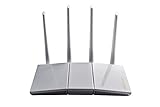
- Maximum Range : 3000 Sq Ft
- Next-Gen WiFi Standard – Supporting the latest WiFi standard 802.11AX (WiFi 6) and 80MHz bandwidth for better capacity and efficiency.
- Anker USB-C Link Cable (Official Alternative)
Acts as a reliable fallback when wireless fails. It ensures consistent performance and eliminates disconnection issues entirely when used as a wired solution.

- The Anker Advantage: Join the 50 million+ powered by our leading technology.
- Enhanced Durability: Improved construction techniques and materials make a cable that lasts 5× longer.
Weak or Unstable Wi-Fi Connection
A weak Wi-Fi connection is the most common reason Air Link keeps disconnecting. Wireless VR requires a fast, consistent connection with minimal interruptions.
If your headset frequently drops connection, your network signal is likely fluctuating. Even small dips in signal strength can interrupt the data stream between your PC and headset.
Common Wi-Fi Problems
- Using a 2.4GHz network instead of 5GHz
- Distance from the router
- Physical obstacles like walls or furniture
- Multiple devices using the same network
How to Fix It
- Switch to a 5GHz or Wi-Fi 6 network
- Move closer to your router
- Keep a line-of-sight between headset and router
- Disconnect unnecessary devices from Wi-Fi
Place your router in the same room as your VR setup for best results.
Network Congestion and Bandwidth Overload
Network congestion is a silent but powerful reason why Meta Quest Air Link keeps disconnecting. Even if your Wi-Fi signal is strong, too many devices sharing the same network can disrupt your VR experience.
Air Link streams high-resolution video in real time, which requires consistent bandwidth. When other devices—like phones, TVs, or laptops—are streaming, downloading, or gaming simultaneously, they compete for bandwidth. This competition causes latency spikes, packet loss, and ultimately disconnections.
Signs of Network Congestion
- Air Link disconnects during peak internet usage times
- Lag spikes before disconnection
- Reduced visual quality or stuttering
- Better performance late at night or early morning
Common Causes
- Streaming services like Netflix or YouTube running in the background
- Large downloads or updates on other devices
- Multiple users connected to the same Wi-Fi
- Smart home devices constantly using bandwidth
How to Fix It
- Limit connected devices during VR sessions
- Use a dedicated router for your VR setup
- Enable Quality of Service (QoS) settings on your router to prioritize VR traffic
- Pause downloads, updates, or streaming while using Air Link
Advanced Fix
- Create a separate 5GHz SSID exclusively for your Meta Quest headset
This ensures your VR traffic isn’t competing with other devices.
If possible, connect your PC to the router using an Ethernet cable. This reduces wireless load and improves stability significantly.
PC Performance Issues and Incorrect Settings
Your PC plays a critical role in maintaining a stable Meta Quest Air Link connection. If your system struggles to keep up, Air Link may lag, stutter, or disconnect entirely.
Air Link relies on your PC to render VR content and stream it in real time. If your CPU, GPU, or memory is overloaded, the stream can fail—causing sudden disconnections.
Signs Your PC Is the Problem
- Air Link disconnects during high-performance games
- Fans ramp up loudly before a disconnect
- Stuttering or freezing just before losing connection
- Poor performance even with strong Wi-Fi
Common Causes
- Outdated graphics drivers
- Insufficient GPU power for VR
- Background apps consuming system resources
- Incorrect Oculus settings
How to Fix It
- Update GPU drivers (NVIDIA/AMD) to the latest version
- Close unnecessary apps like browsers, launchers, or recording software
- Lower graphics settings in VR games
- Set your PC to High Performance mode in power settings
Optimize Oculus Settings
- Reduce Render Resolution
- Lower Bitrate in Air Link settings
- Disable experimental features if unstable
Advanced Fix
- Use the Oculus Debug Tool to fine-tune performance settings like bitrate and encoding
If your PC barely meets VR requirements, consider upgrading your GPU for a smoother and more stable experience.
Interference and Environmental Factors
Even with fast internet and a powerful PC, environmental interference can still cause Meta Quest Air Link to disconnect. Wireless signals are sensitive, and your surroundings can quietly disrupt performance.
Air Link depends on a clean, uninterrupted Wi-Fi signal. Devices and materials around you can interfere with that signal, causing instability and sudden dropouts.
Common Sources of Interference
- Other Wi-Fi networks nearby (especially in apartments)
- Bluetooth devices like headphones or controllers
- Microwaves and cordless phones
- Thick walls, metal objects, or glass surfaces
These factors weaken or distort your Wi-Fi signal, even if your connection appears strong on paper.
Signs of Interference
- Random disconnections despite good speeds
- Performance drops when moving around the room
- Inconsistent latency or jitter
- Air Link works better in certain spots
How to Fix It
- Switch your router to a less crowded Wi-Fi channel
- Use 5GHz or Wi-Fi 6 instead of 2.4GHz
- Keep your play area free of obstacles
- Turn off nearby unused wireless devices
Optimize Your Play Space
- Play in the same room as your router
- Avoid corners or enclosed spaces
- Elevate your router for better signal distribution
Advanced Fix
- Use a Wi-Fi analyzer app to identify interference and choose the best channel
If you live in a densely populated area, upgrading to a Wi-Fi 6 router can dramatically reduce interference issues.
Software Bugs, Updates, and Hidden Glitches
Software issues are an often-overlooked reason why Meta Quest Air Link keeps disconnecting. Even with perfect hardware and network conditions, bugs or outdated software can break your connection.
Air Link depends on both your headset software and the Oculus PC app working in sync. If either one has a glitch, mismatch, or outdated version, disconnections can happen unexpectedly.
Common Software-Related Issues
- Outdated Meta Quest firmware
- Bugs in the Oculus PC app
- Version mismatch between headset and PC
- Corrupted app data or cache
These issues can silently affect performance without obvious warning signs.
Signs It’s a Software Problem
- Air Link worked fine before a recent update
- Random disconnects with no clear pattern
- Reconnecting temporarily fixes the issue
- Problems persist despite strong Wi-Fi and good PC performance
How to Fix It
- Update your Meta Quest headset to the latest version
- Update the Oculus PC software
- Restart both your headset and PC
- Toggle Air Link off and back on in settings
Advanced Fixes
- Log out and back into your Meta account
- Reinstall the Oculus PC app
- Perform a factory reset on your headset (last resort)
Always keep both your headset and PC app updated at the same time to avoid compatibility issues.
Conclusion
Meta Quest Air Link disconnects are usually caused by Wi-Fi instability, network congestion, PC performance limitations, interference, or software glitches. The key to fixing the issue is identifying which factor is affecting your setup.
Start with the basics—optimize your Wi-Fi, reduce network traffic, and ensure your PC meets VR requirements. Then move on to environmental adjustments and software updates.
In most cases, a combination of small tweaks can completely eliminate disconnections and give you a smooth, uninterrupted VR experience.
If wireless issues persist, consider switching to a wired connection for maximum stability.
Frequently Asked Questions About Meta Quest Air Link Keeps Disconnecting
Why does my Meta Quest Air Link disconnect randomly?
Random disconnections are usually caused by unstable Wi-Fi, interference, or network congestion. Even small drops in signal strength can interrupt the connection between your PC and headset.
Is Air Link better than a cable connection?
Air Link offers wireless freedom, but it’s less stable than a wired connection. A USB-C Link cable provides more consistent performance with zero risk of Wi-Fi interference.
What internet speed do I need for Air Link?
Speed matters less than stability. A strong 5GHz connection with low latency is more important than high download speeds.
Can a router fix Air Link disconnect issues?
Yes, upgrading to a Wi-Fi 6 router can significantly improve stability, reduce latency, and minimize interference—especially in crowded network environments.
Why does Air Link work fine sometimes and fail other times?
This usually points to network congestion or interference. Your connection may be stable when fewer devices are active and unstable during peak usage times.
Should I reset my Meta Quest to fix disconnections?
A factory reset should only be used as a last resort. Try updating software, restarting devices, and optimizing your network first before resetting.
This website is a participant in the Amazon Services LLC Associates Program, an affiliate advertising program designed to provide a means for us to earn fees by linking to Amazon.com and affiliated sites.