This website is a participant in the Amazon Services LLC Associates Program, an affiliate advertising program designed to provide a means for us to earn fees by linking to Amazon.com and affiliated sites.
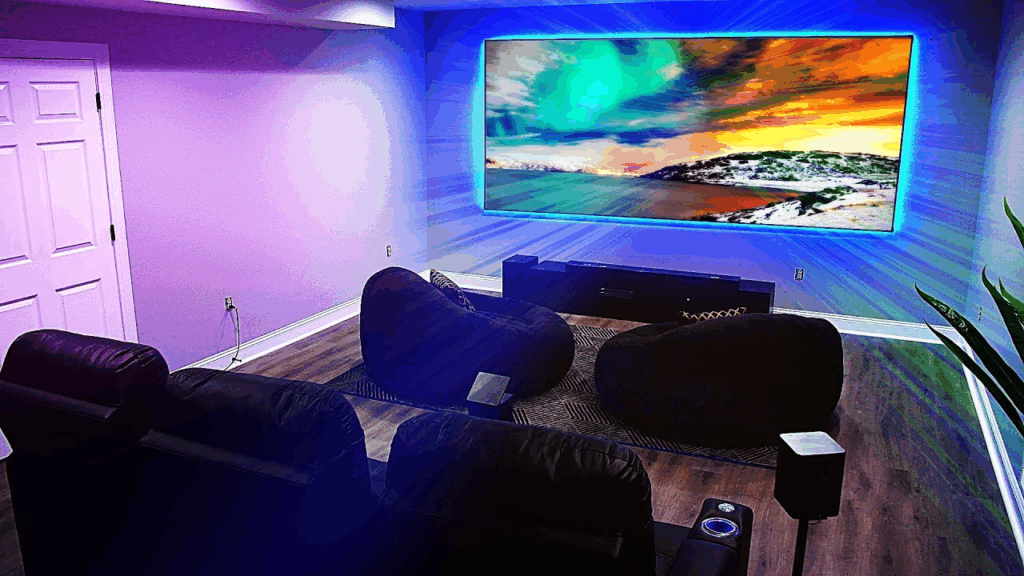
Yes, you can use a projector with a gaming console, and it’s a fantastic way to enjoy immersive, big-screen gameplay right at home.
Imagine turning your living room into a massive gaming arena where every explosion, race, or battle feels larger than life. That’s exactly what a projector can do for your gaming experience. However, while the idea sounds simple—just plug and play—the reality can involve a few technical hiccups.
From input lag and resolution mismatches to sound issues and connection errors, gamers often run into problems that can ruin the ex
Best for Gaming Projectors (Top Picks for Console Gaming Setup)
Choosing the right projector for gaming isn’t just about screen size—it’s about low input lag, high refresh rates, and crisp resolution. These three factors directly impact how smooth and responsive your gameplay feels.
Below are three of the best gaming projectors that pair exceptionally well with consoles like PlayStation and Xbox.
Top Gaming Projector Picks
BenQ TK700STi
BenQ TK700STi Gaming Projector
A short-throw 4K projector built for ultra-low latency and fast-paced console gaming.
The BenQ TK700STi is ideal for console gamers thanks to its ultra-low input lag and short-throw design. It delivers smooth 4K gameplay with minimal delay, making it perfect for competitive gaming setups in smaller rooms.
No products found.
Epson Home Cinema 3800
Epson Home Cinema 3800 Projector
A bright and versatile projector balancing gaming performance with cinematic visuals.
This projector offers a great balance between gaming and home theater use. With solid brightness and decent latency, it’s perfect for casual to mid-level gamers who also enjoy movies and streaming.

- 4K PRO-UHD (1) – Advanced pixel-shifting technology works in parallel with three individual high-definition LCD chips without sacrificing picture brightness
- Precision Shift Glass Plate Technology – Unique, digitally controlled Precision Shift Glass Plate precisely refracts pixel light to display a 3840 x…

Optoma UHD38
A high-refresh-rate projector optimized for fast gameplay and low input lag performance.
The Optoma UHD38 stands out for fast refresh rates and low latency, making it excellent for FPS and racing games. It supports high-speed modes that significantly improve responsiveness during gameplay.
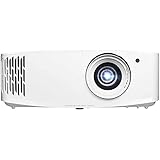
- TRUE 4K ULTRA HD: Experience high-quality home cinema feel with 4K Ultra HD with 8.3 million distinct addressable on-screen pixels
- LAG-FREE GAMING: Ultra-fast 240Hz gaming for blur-free visuals and unparalleled smoothness––combined with Enhanced Gaming Mode to produce a 4.2ms response time…
Product Comparison Table
| Feature | BenQ TK700STi Gaming Projector | Epson Home Cinema 3800 Projector | Optoma UHD38 Gaming Projector |
|---|---|---|---|
| Resolution | 4K UHD | 4K PRO-UHD | 4K UHD |
| Input Lag | ~16ms (4K) / ~4ms (1080p) | ~24ms | ~16ms (4K) |
| Refresh Rate | Up to 240Hz (1080p) | 60Hz | Up to 240Hz (1080p) |
| Best Use Case | Competitive gaming | Mixed use (movies + games) | Fast-paced gaming |
| Throw Type | Short throw | Standard throw | Standard throw |
Why These Projectors Were Chosen
- BenQ TK700STi:
Chosen for its ultra-low input lag and short-throw capability, making it perfect for competitive gamers who want fast response times and large-screen gameplay in limited space setups. - Epson Home Cinema 3800:
Selected for its excellent brightness and versatility, offering a balanced experience for both gaming and cinematic viewing, making it ideal for casual gamers and home entertainment setups. - Optoma UHD38:
Picked for its high refresh rate support and low latency performance, making it a strong choice for fast-paced console gaming where responsiveness and smooth visuals are critical.
How to Connect a Gaming Console to a Projector (Step-by-Step Guide)
Connecting a gaming console to a projector is surprisingly simple, but doing it correctly ensures low lag, clear visuals, and proper audio output. Most modern projectors are designed to support consoles like PlayStation, Xbox, and Nintendo Switch via HDMI.
Step-by-Step Setup Process
Use an HDMI Cable (Best Method)
The easiest and most reliable way to connect your console is through HDMI.
- Plug one end into your console (PS5, Xbox, etc.)
- Connect the other end to the projector’s HDMI port
- Select the correct HDMI input on the projector
Most gaming projectors, like the BenQ TK700STi, support HDMI and are optimized for console compatibility.
Adjust Resolution Settings
After connecting, configure your console’s display settings.
- Set resolution to 1080p or 4K, depending on projector capability
- Enable HDR if supported
- Match refresh rate (60Hz or higher for smoother gameplay)
Projectors with 4K resolution and high refresh rates provide better clarity and responsiveness during gameplay.
Set Up Audio Output
Many projectors have weak built-in speakers, so external audio is recommended.
- Use a soundbar or speakers via:
- 3.5mm audio jack
- Bluetooth (if supported)
- AV receiver
This improves immersion, especially for action or multiplayer games.
Enable Game Mode
Game Mode reduces input lag significantly.
- Look for “Game Mode” in projector settings
- Turn off extra processing features like motion smoothing
Some gaming projectors can reduce input lag to as low as 4ms–16ms, making gameplay much more responsive.
Pro Tips for Best Performance
- Use a short HDMI cable to reduce signal interference
- Play in a darker room for better image quality
- Position the projector correctly to avoid keystone distortion
- Check HDMI version (2.0 or higher) for 4K gaming support
Common Mistake to Avoid
Using adapters (like HDMI-to-VGA) can reduce quality and introduce lag. Always stick to direct HDMI connections whenever possible.
This setup ensures your console and projector work seamlessly together for smooth, immersive gaming.
Common Problems When Using a Projector with a Gaming Console (And How to Fix Them)
While using a projector with a gaming console is straightforward, several common issues can affect performance. The good news is that most of these problems have quick and practical fixes.
No Signal or Black Screen
A “no signal” message is one of the most frequent issues when connecting a console to a projector. This usually happens due to incorrect input selection or faulty connections.
How to fix it:
- Ensure the HDMI cable is securely plugged in
- Select the correct HDMI input source on the projector
- Restart both the console and projector
- Try a different HDMI port or cable
If the issue persists, check if your console resolution is supported by the projector.
Input Lag (Delayed Controls)
Input lag can ruin fast-paced games, especially shooters and racing titles. Projectors naturally have more lag than TVs, but it can be minimized.
How to fix it:
- Enable Game Mode on the projector
- Lower resolution to 1080p for faster response
- Disable image processing features like motion smoothing
- Use projectors designed for gaming (low latency models)
For competitive gaming, aim for input lag under 20ms.
No Sound or Poor Audio Quality
Many users notice either no sound or weak audio when using a projector. This is because built-in speakers are often limited.
How to fix it:
- Connect external speakers or a soundbar
- Use Bluetooth audio if supported
- Check console audio output settings
- Ensure volume isn’t muted on both devices
External audio dramatically improves immersion and clarity.
Blurry or Distorted Image
A poor image can make games look washed out or hard to play. This often results from incorrect positioning or settings.
How to fix it:
- Adjust focus and lens settings
- Reposition the projector for proper alignment
- Avoid excessive keystone correction
- Match console resolution with projector native resolution
Proper alignment ensures sharp visuals and reduces eye strain.
Washed-Out Colors or Low Brightness
Projectors depend heavily on lighting conditions, which can affect image quality.
How to fix it:
- Play in a darker room or use blackout curtains
- Increase brightness settings on the projector
- Use a proper projection screen instead of a plain wall
- Enable HDR settings if available
Quick Troubleshooting Checklist
- Check HDMI connections and input source
- Enable Game Mode for lower latency
- Use external speakers for better audio
- Adjust projector position and focus
- Optimize lighting conditions
Fixing these common issues can dramatically improve your gaming experience, turning a frustrating setup into a smooth and immersive one.
Tips to Optimize Projector Gaming Performance for the Best Experience
Getting a projector to work with your gaming console is one thing—optimizing it for peak performance is where the real difference happens. With a few smart adjustments, you can significantly improve responsiveness, clarity, and overall immersion.
Prioritize Low Input Lag Settings
Input lag is the most critical factor in gaming performance. Even a small delay can affect reaction time in competitive games.
How to optimize:
- Turn on Game Mode in projector settings
- Use 1080p resolution for faster response times
- Disable post-processing features (motion smoothing, noise reduction)
Lower latency ensures your actions register instantly on screen.
Use the Right Display Settings on Your Console
Your console settings must match your projector’s capabilities to avoid performance bottlenecks.
Recommended settings:
- Resolution: Match native projector resolution (1080p or 4K)
- Refresh rate: Set to 60Hz or higher if supported
- HDR: Enable only if the projector handles it well
Matching these settings prevents unnecessary scaling and lag.
Upgrade Your Audio Setup
Audio plays a huge role in immersion, especially in story-driven or multiplayer games.
Best options:
- External soundbars or speakers
- AV receivers for surround sound
- Bluetooth speakers (if supported)
Better audio enhances spatial awareness and overall gameplay experience.
Optimize Your Room Environment
Unlike TVs, projectors are highly affected by ambient light and room setup.
Improve visuals by:
- Playing in a dark or dimly lit room
- Using blackout curtains
- Investing in a projector screen instead of a wall
- Choosing neutral-colored walls if a screen isn’t available
This dramatically improves contrast and color accuracy.
Position Your Projector Correctly
Proper placement ensures a sharp, distortion-free image.
Key tips:
- Keep the projector at the recommended throw distance
- Align it directly with the screen (avoid tilting)
- Use minimal keystone correction
- Adjust focus manually for sharpness
Correct positioning prevents blur and input delay caused by processing.
Pro Gamer Setup Checklist
- Enable Game Mode
- Match resolution and refresh rate
- Use external audio
- Control room lighting
- Align projector properly
By fine-tuning these elements, you can transform your projector into a powerful gaming display that rivals traditional TVs—while delivering a much bigger and more immersive experience.
Conclusion
Using a projector with a gaming console is not only possible but can deliver an incredibly immersive experience when set up correctly. From connecting via HDMI to optimizing settings like resolution and input lag, small adjustments can make a significant difference in performance.
We’ve covered how to properly set up your console, troubleshoot common issues like lag and no signal, and fine-tune your environment for the best visuals and sound. The key takeaway is to prioritize low latency, proper positioning, and the right display settings to ensure smooth gameplay.
Frequently Asked Questions About Using a Projector with a Gaming Console
Can you play PS5 or Xbox on a projector?
Yes, you can easily play both PlayStation and Xbox consoles on a projector using an HDMI connection. Most modern projectors support these consoles and deliver high-quality visuals. Just ensure your projector supports the console’s resolution and refresh rate for the best experience.
Is gaming on a projector good or bad?
Gaming on a projector is excellent for immersion due to the large screen size. However, performance depends on input lag and refresh rate. Gaming-specific projectors provide smooth gameplay, while standard ones may feel slightly delayed.
Do projectors have input lag for gaming?
Yes, all projectors have some level of input lag, but modern gaming projectors minimize it significantly. Many offer low latency modes (Game Mode), reducing lag to acceptable levels for most players, especially in casual gaming.
What resolution is best for projector gaming?
The best resolution depends on your projector:
- 1080p → Best for performance and low lag
- 4K → Best for visual quality and detail
For competitive gaming, 1080p is often preferred due to faster response times.
Can you use a projector in a bright room for gaming?
Yes, but image quality may suffer. Projectors perform best in dark environments. If you must game in a bright room, choose a high-brightness projector and consider using a proper screen to improve visibility.
Do you need speakers with a projector for gaming?
While most projectors include built-in speakers, they are usually not powerful enough for gaming. External speakers, soundbars, or headphones are recommended for better sound quality and immersion.
What is the best projector feature for gaming?
The most important features include:
- Low input lag
- High refresh rate (120Hz or more)
- HDMI 2.0 or higher support
These ensure smooth, responsive gameplay without noticeable delays.
This website is a participant in the Amazon Services LLC Associates Program, an affiliate advertising program designed to provide a means for us to earn fees by linking to Amazon.com and affiliated sites.