This website is a participant in the Amazon Services LLC Associates Program, an affiliate advertising program designed to provide a means for us to earn fees by linking to Amazon.com and affiliated sites.
You can connect a laptop to a projector wirelessly by using built-in casting features, Wi-Fi-enabled projectors, or wireless display adapters.
Ever walked into a meeting or classroom only to struggle with cables that won’t fit or reach? You’re not alone. Wireless projection has become a game-changer, eliminating messy setups and making presentations smoother and more professional.
Modern laptops and projectors now support technologies like Miracast, AirPlay, and Chromecast, allowing you to mirror or extend your screen without plugging in a single cable. Whether you’re presenting slides, streaming videos, or teaching a class, going wireless saves time and adds flexibility.
Best for Wireless Projector Connections
Best for Wireless Projection: Top Devices
BenQ InstaShow WDC10 Wireless Presentation System
This device offers plug-and-play functionality with no software installation required. It delivers low latency and stable connections, making it perfect for professional presentations and business environments.
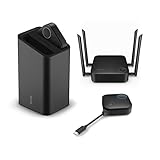
- Plug and play for presenting and talking in meetings
- Exclusive wireless microphone system picks up voices in medium to large rooms
Google Chromecast (3rd Gen or newer)
Chromecast is affordable and widely compatible with laptops via Chrome browser casting. It’s ideal for streaming content and casual presentations, especially in home or small office setups.

- Expand your home entertainment without buying a new TV; Google Chromecast lets you stream your favorites from your phone, tablet, or laptop; no remote needed
- Chromecast is easy to set up up; just plug it in, connect to Wi-Fi, and start streaming to turn your TV into a smart TV; it works with almost any TV that has an HDMI…
Microsoft Wireless Display Adapter
Designed for Windows users, this adapter uses Miracast technology for seamless screen mirroring. It provides a reliable, lag-free experience, making it excellent for meetings, classrooms, and productivity tasks.

- Share what’s on your tablet, laptop, smartphone, or Surface onto an HDTV or monitor. Works with all Miracast enabled Windows 10 phones, tablets, and laptops…
- Stream movies, view photos, or display a presentation on a big screen all wirelessly. Compatibility: Surface devices, including Surface Book/Surface Laptop/Surface…
How Wireless Projector Connections Work (Understanding the Basics)
Wireless projector connections work by transmitting your laptop’s screen over a Wi-Fi signal instead of using physical cables like HDMI or VGA.
At the core of this technology are wireless display standards such as Miracast, AirPlay, and Chromecast. These systems allow your laptop to “mirror” or “cast” its screen to a compatible projector or adapter.
Instead of plugging in a cable, your laptop sends compressed video and audio data through your local network. The projector (or a connected streaming device) receives and displays it in real time. This makes presentations cleaner and more flexible.
Key Wireless Technologies Explained
- Miracast (Windows):
Built into most Windows laptops, it allows direct screen mirroring without needing internet access. - AirPlay (Mac):
Apple’s wireless casting feature works seamlessly with Apple TV or AirPlay-compatible projectors. - Chromecast:
Uses Wi-Fi and the Chrome browser to stream content or mirror your screen easily.
Two Common Connection Methods
- Direct Wireless Connection (Peer-to-Peer)
Your laptop connects directly to the projector without a router. This is fast and ideal for presentations. - Network-Based Connection (Wi-Fi Network)
Both devices connect to the same Wi-Fi network. This allows more flexibility and supports multiple users.
Why Go Wireless?
- No cable clutter or compatibility issues
- Freedom to move around while presenting
- Quick setup for meetings or classrooms
- Supports multiple devices easily
Understanding these basics makes the actual setup process much easier. Once you know how the connection works, you can choose the best method for your device and situation.
Step-by-Step Guide: How to Connect a Laptop to a Projector Wirelessly (Windows & Mac)
Connecting your laptop to a projector wirelessly is easier than it sounds. The exact steps depend on whether you’re using a Windows laptop or a Mac, but both processes are straightforward.
For Windows (Using Miracast)
Most Windows 10 and 11 laptops support built-in wireless display via Miracast.
Follow these steps:
- Turn on your projector and enable wireless display mode
- On your laptop, press Windows + K
- A list of available devices will appear
- Select your projector or wireless adapter
- Wait a few seconds for the connection to establish
Once connected, your screen will automatically mirror or extend to the projector.
For Mac (Using AirPlay)
MacBooks use AirPlay for wireless screen sharing.
Steps to follow:
- Ensure your Mac and projector are on the same Wi-Fi network
- Click the Control Center in the menu bar
- Select Screen Mirroring
- Choose your AirPlay-compatible projector or Apple TV
- Enter a code if prompted
Your Mac screen will instantly appear on the projector.
Using Chromecast (Works on Both Windows & Mac)
If your projector supports HDMI, you can plug in a Chromecast device.
Steps:
- Open Google Chrome browser
- Click the three-dot menu (top right)
- Select Cast
- Choose your Chromecast device
- Pick “Cast Desktop” for full screen sharing
Pro Tips for a Smooth Connection
- Keep both devices within strong Wi-Fi range
- Close unnecessary apps to reduce lag
- Use 5GHz Wi-Fi for better performance
- Update your laptop drivers and system software
Common Problems When Connecting Wirelessly (And How to Fix Them)
Wireless projector connections are convenient, but they’re not always perfect.
Sometimes, you may experience connection failures, lag, or poor display quality. The good news is that most of these issues are easy to fix with a few adjustments.
Projector Not Showing Up
If your projector doesn’t appear in the list of available devices, it’s usually a network or compatibility issue.
How to fix it:
- Ensure both devices are on the same Wi-Fi network
- Turn on wireless display mode on the projector
- Restart both your laptop and projector
- Check if your laptop supports Miracast or AirPlay
Lag or Delayed Screen Mirroring
A delay between your laptop and projector can disrupt presentations or video playback.
Solutions include:
- Switch to a 5GHz Wi-Fi network for faster speeds
- Move closer to the router or projector
- Disconnect unused devices from the network
- Lower the screen resolution temporarily
No Audio on Projector
Sometimes video works fine, but audio stays on your laptop.
Fix it by:
- Changing your laptop’s audio output settings
- Selecting the projector as the default audio device
- Reconnecting the wireless session
Poor Image Quality
Blurry or pixelated projection can reduce the impact of your presentation.
Try these fixes:
- Adjust display resolution settings on your laptop
- Ensure stable Wi-Fi signal strength
- Update graphics drivers
- Avoid screen casting heavy applications unnecessarily
Quick Troubleshooting Checklist
- Restart devices
- Check Wi-Fi connection
- Update software and drivers
- Confirm compatibility
- Reduce network congestion
Best Settings for Optimal Wireless Projector Performance
Getting a wireless connection to work is one thing—making it smooth, fast, and reliable is another.
Optimizing your settings ensures you avoid lag, improve image quality, and maintain a stable connection during presentations or streaming.
Optimize Your Wi-Fi Network
Your network plays the biggest role in wireless projection performance.
Best practices include:
- Use a 5GHz Wi-Fi band instead of 2.4GHz for faster speeds
- Position your router closer to both devices
- Limit the number of connected devices during use
- Avoid network-heavy activities like downloads or streaming
A strong, stable network dramatically reduces lag and disconnections.
Adjust Display Settings on Your Laptop
Fine-tuning your display settings can significantly improve projection quality.
Key adjustments:
- Set resolution to match the projector’s native resolution
- Choose “Duplicate” for presentations or “Extend” for multitasking
- Lower resolution slightly if you experience lag
- Adjust refresh rate if supported
Use the Right Projection Mode
Different scenarios require different display modes.
- Duplicate Mode: Best for presentations and meetings
- Extend Mode: Ideal for multitasking or working with multiple windows
- Second Screen Only: Useful for focused presentations
Choosing the correct mode improves usability and clarity.
Keep Software and Drivers Updated
Outdated systems can cause connection instability.
Make sure to:
- Update your operating system regularly
- Install the latest graphics drivers
- Update projector firmware if applicable
- Keep casting apps or browsers up to date
Reduce Interference for Better Stability
Wireless signals can be disrupted by environmental factors.
Minimize interference by:
- Keeping devices away from thick walls or metal objects
- Avoiding crowded Wi-Fi channels
- Turning off unused Bluetooth devices nearby
Wireless vs Wired Projector Connections: Which One Should You Choose?
While wireless projection is convenient, it’s not always the best choice for every situation.
Understanding when to use wireless vs wired connections helps you avoid performance issues and choose the most reliable setup for your needs.
When Wireless Connections Are Best
Wireless setups are ideal when flexibility and convenience matter most.
Use wireless when:
- You want a clean, cable-free setup
- You need to move around while presenting
- Multiple people need to connect quickly
- You’re working in classrooms or collaborative environments
Wireless projection shines in modern, dynamic spaces where ease of use is a priority.
When Wired Connections Are Better
Despite advances in wireless tech, cables still offer unmatched stability.
Choose wired when:
- You’re streaming high-resolution video (4K or higher)
- You need zero lag, such as in gaming or live demos
- Wi-Fi is unstable or overcrowded
- You’re in a high-stakes presentation where reliability is critical
A simple HDMI cable can eliminate many of the risks associated with wireless connections.
Wireless vs Wired: Quick Comparison
| Feature | Wireless Connection | Wired Connection |
|---|---|---|
| Setup | Easy, no cables | Requires cables |
| Mobility | High | Limited |
| Stability | Moderate (Wi-Fi dependent) | Very high |
| Latency | Slight delay possible | Minimal to none |
| Best Use Case | Presentations, meetings | Gaming, high-res video |
Hybrid Approach (Best of Both Worlds)
Many professionals use both methods depending on the situation.
For example:
- Start wirelessly for convenience
- Switch to wired if performance drops
Having both options ensures you’re always prepared.
Conclusion
Connecting a laptop to a projector wirelessly is a simple and efficient way to modernize your presentations, meetings, or entertainment setup. By using technologies like Miracast, AirPlay, or Chromecast, you can eliminate cables and enjoy greater flexibility.
Throughout this guide, you’ve learned how wireless projection works, step-by-step setup methods for Windows and Mac, how to troubleshoot common issues, and how to optimize performance for the best results. You also now understand when wireless is the better option—and when a wired connection might still be the smarter choice.
Frequently Asked Questions About How to Connect a Laptop to a Projector Wirelessly
Can all laptops connect to a projector wirelessly?
Not all laptops support wireless projection. Most modern Windows laptops support Miracast, while MacBooks use AirPlay. Older devices may require external adapters like Chromecast.
Do I need internet to connect wirelessly?
Not always. Some technologies like Miracast allow direct connections without internet. However, Chromecast and AirPlay typically require both devices to be on the same Wi-Fi network.
Why is my wireless projector connection lagging?
Lag is usually caused by weak Wi-Fi signals, network congestion, or high-resolution streaming. Switching to a 5GHz network and reducing background activity can help
Can I play videos through a wireless projector?
Yes, but performance depends on your network speed. For high-quality or fast-moving video, a wired connection may provide smoother playback.
Is wireless projection secure?
Yes, if you’re using a secure Wi-Fi network. Avoid connecting on public or unsecured networks, especially for sensitive presentations.
What’s the easiest way to connect wirelessly?
Using built-in features like Windows + K (Miracast) or AirPlay on Mac is the simplest method. External devices like Chromecast make the process even easier.
This website is a participant in the Amazon Services LLC Associates Program, an affiliate advertising program designed to provide a means for us to earn fees by linking to Amazon.com and affiliated sites.