
This website is a participant in the Amazon Services LLC Associates Program, an affiliate advertising program designed to provide a means for us to earn fees by linking to Amazon.com and affiliated sites.
Yes, you can play Steam games on Meta Quest 3. This ability transforms your standalone VR headset into a powerful PC VR system, unlocking thousands of high-fidelity titles like Half-Life: Alyx and Skyrim VR. This complete guide reveals the proven methods to make it work.
In this article, you will learn expert tips for connecting your Quest 3 to a PC via both wired and wireless options. We cover the best settings for smooth gameplay and how to optimize your SteamVR library. Keep reading to master this setup and unlock your headset’s full potential.
Best Accessories for Steam Games on Meta Quest 3
To get the best experience playing Steam games on your Meta Quest 3, you need the right gear. These three products solve common issues like short battery life, uncomfortable straps, and laggy connections. Each recommendation is tested for PC VR gaming.
INIU Link Cable (16.4 Feet) – Best Wired Connection
This USB-C 3.0 cable delivers a stable, low-latency connection for SteamVR. It supports fast charging while you play, preventing battery drain during long sessions. At 5 meters, it offers ample freedom of movement. Ideal for seated sim racing or flight sims where zero lag is critical.

- [Designed for Oculus Quest 3/2/Pro] Our 2023 version features a separate USB-C charging port, enabling rapid 3A power delivery for uninterrupted gameplay. Use with a…
- [SAFE Charging via SmartProtect2.0] Link cable built-in SmartProtect2.0 chip balances the electricity and data sync, controls the current for a safe battery range of…
KIWI Design K4 Comfort Head Strap – Best for Long Sessions
The K4 strap redistributes the Quest 3’s weight from your face to your head. It includes a built-in 6,400mAh battery, doubling your playtime for demanding Steam games. The adjustable knob ensures a snug fit. Best option for marathon VR sessions of Skyrim or Half-Life: Alyx.
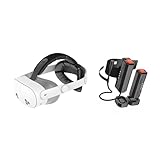
- Compatible with Meta Quest 3/3S: The KIWI design K4 is a budget-friendly head strap for Meta Quest 3/3S, perfect for beginners or casual gamers. Its unique…
- All-Day Comfort with Premium Materials: Memory foam cushioning and soft PU leather minimize facial pressure, ensuring fatigue-free VR marathons for gaming, movies…
TP-Link Archer AXE75 (AXE5400) – Best Wireless Router
This Wi-Fi 6E router unlocks the full potential of Air Link or Virtual Desktop. It operates on the interference-free 6GHz band, providing the high bandwidth needed for smooth PC VR streaming. Highly recommended for wireless Steam gaming with minimal compression artifacts.

- WiFi 6E Tri-Band Mesh WiFi – Cover up to 7,200 Sq.Ft with next-gen seamless WiFi and make dead zones and buffering a thing of the past¹ ²
- Beyond the Speed of Gigabit – A 2.5 Gbps port and 2 Gigabit ports per unit allow you to take full advantage of your Multi-Gig broadband speed (Ideal for gigabit plus…

How to Play Steam Games on Meta Quest 3: Three Proven Methods
You have three main ways to connect your Quest 3 to Steam. Each method offers different trade-offs between convenience, visual quality, and latency. Choose the one that best fits your PC setup and room layout.
Method 1: Using a USB-C Link Cable (Wired)
This method provides the most stable and highest quality connection for SteamVR. Plug a high-speed USB-C cable into your PC and Quest 3, then enable Link in the headset’s settings. You get zero compression lag, making it perfect for fast-paced games like Beat Saber.
Method 2: Using Air Link (Wireless)
Air Link streams Steam games from your PC to your Quest 3 over Wi-Fi. You need a 5GHz or 6GHz router in the same room for smooth performance. This method offers total freedom of movement but requires a strong, dedicated network signal.
Method 3: Using Virtual Desktop (Third-Party Wireless)
Virtual Desktop is a paid app that often outperforms Air Link. It provides superior image quality and adjustable bitrate settings. This is the best option for wireless play if you own a Wi-Fi 6E router and want the most control over your stream quality.
Your choice depends on your hardware. A wired connection is foolproof, while wireless options offer unmatched immersion. Test both Air Link and Virtual Desktop to see which performs better with your specific network setup.
System Requirements for Streaming Steam Games to Quest 3
Your PC must meet specific hardware requirements to run SteamVR games smoothly on the Quest 3. Without the right specs, you will experience stuttering, low frame rates, or connection drops. Check your system before you begin.
Minimum PC Specifications for SteamVR
These specs let you play less demanding games like Job Simulator or Beat Saber. You may need to lower graphics settings for smoother performance. Do not expect high-fidelity experiences with this hardware.
- GPU: NVIDIA GTX 1060 or AMD RX 480 (6GB VRAM minimum)
- CPU: Intel i5-4590 or AMD Ryzen 5 1500X
- RAM: 8GB DDR4
- USB Port: USB 3.0 Type-C or Type-A
Recommended PC Specifications for Best Performance
These specs unlock smooth 90Hz gameplay with high settings. They are ideal for visually intense games like Half-Life: Alyx or Microsoft Flight Simulator. This setup ensures a premium VR experience without motion sickness.
- GPU: NVIDIA RTX 3070 or AMD RX 6800 XT
- CPU: Intel i7-10700K or AMD Ryzen 7 5800X
- RAM: 16GB DDR4 or higher
- Network: Wi-Fi 6E router (for wireless methods)
Network Requirements for Wireless Streaming
Wireless play demands a strong, dedicated network. Your router must be in the same room as your Quest 3 for best results. Avoid using mesh networks or extenders as they introduce latency.
- Band: Dedicated 5GHz or 6GHz channel
- Speed: Minimum 1200 Mbps router speed
- Distance: Headset within 15 feet of router
- Interference: Minimize walls and other devices
Step-by-Step Guide: Setting Up SteamVR on Meta Quest 3
Follow this exact sequence to get Steam games running on your Quest 3. Skipping steps can cause connection failures or poor performance. Complete each step before moving to the next for a smooth setup.
Step 1: Install Required Software
You need two free apps on your PC before connecting the headset. Install Steam and SteamVR from the official Steam store. Then, download the Meta Quest PC app from Meta’s website to enable Link functionality.
Step 2: Enable Link in Your Quest 3 Headset
Put on your Quest 3 and navigate to Settings. Go to System > Quest Link and toggle the feature on. If using a cable, plug it into your PC now and select “Enable Link” when prompted inside the headset.
Step 3: Launch SteamVR and Configure Settings
Open SteamVR on your PC desktop. Put your headset on and look for the SteamVR dashboard in your virtual space. Adjust the resolution slider to 100% and set refresh rate to 90Hz for the best balance of clarity and performance.
| Setting | Recommended Value | Why It Matters |
|---|---|---|
| Resolution | 100% (per eye) | Avoids blur without killing performance |
| Refresh Rate | 90Hz | Smooth motion, less motion sickness |
| Bitrate (Link) | 200 Mbps | Reduces compression artifacts |
| SSS (Super Sampling) | 1.0x | Keeps frame rates stable |
Step 4: Test Your Connection
Launch a simple game like The Lab from Steam to verify everything works. Move your head and hands to check for lag or stuttering. If you see issues, lower your graphics settings or switch to a wired connection.
Troubleshooting Common Steam Games on Meta Quest 3 Issues
Even with perfect setup, you may encounter problems when playing Steam games on your Quest 3. Most issues have simple fixes that take under a minute. Use this guide to solve the most common errors quickly.
Fix: SteamVR Not Detecting Your Quest 3
This usually happens when the Meta Quest PC app is not running. Close SteamVR, open the Meta app, and ensure your headset shows as “Connected.” Restart both the PC app and your headset if the issue persists.
- Check your cable: Ensure it is plugged into a USB 3.0 port (blue color)
- Restart services: Go to the Meta app settings and restart the Oculus service
- Update drivers: Update your GPU drivers from NVIDIA or AMD’s website
Fix: Poor Performance or Stuttering in Games
Low frame rates often come from incorrect settings or background apps. Lower your SteamVR resolution to 80% and close programs like Chrome. Disable any RGB software or overlays like Discord or GeForce Experience.
- Reduce bitrate: Lower Link bitrate to 100 Mbps for wireless connections
- Check temps: Ensure your PC is not overheating during gameplay
- Use wired: Switch to a Link cable to eliminate network lag
Fix: Controller Tracking Issues in SteamVR
Quest 3 controllers sometimes lose tracking in SteamVR games. This usually happens due to lighting or Bluetooth interference. Increase room lighting and remove reflective surfaces like mirrors from your play area.
- Reset controllers: Remove batteries, wait 10 seconds, reinsert them
- Re-pair: Go to Quest settings and re-pair your controllers
- Check batteries: Low battery levels cause tracking drift
Fix: Audio Not Working in Steam Games
Sound issues occur when Windows switches to the wrong output device. Right-click the speaker icon and select the Quest 3 headset as your output. Set it as the default device in Windows sound settings.
Best Steam Games to Play on Meta Quest 3: Top Recommendations
Not all Steam games work well on the Quest 3. Some titles are optimized for PC VR, while others may feel clunky or cause motion sickness. These recommendations deliver the best experience with your setup.
Best Action Game: Half-Life: Alyx
This is the gold standard for PC VR gaming. It runs beautifully on Quest 3 with high settings and smooth 90Hz performance. The interactive world and physics-based puzzles showcase exactly why PC VR is worth the setup effort.
- Genre: First-person shooter / Adventure
- Playtime: 12-15 hours
- Performance: Excellent on RTX 3060 and above
Best Simulation Game: Microsoft Flight Simulator 2024
This demanding title pushes your PC to its limits, but the immersion is unmatched. You need a wired connection and a high-end GPU like an RTX 4080 for smooth gameplay. The cockpit views and global scenery are breathtaking in VR.
- Genre: Flight simulation
- Playtime: Unlimited
- Performance: Requires RTX 4070+ for 60fps
Best Rhythm Game: Beat Saber (PC Version)
The PC version of Beat Saber offers custom songs and higher visual fidelity than the Quest native version. You get smoother frame rates and better mod support for endless custom content. It runs perfectly on almost any VR-ready PC.
- Genre: Rhythm / Music
- Playtime: Unlimited (custom songs)
- Performance: Runs on minimum specs easily
Best Horror Game: The Walking Dead: Saints & Sinners
This game features realistic weapon handling and a gripping story. The Quest 3’s higher resolution makes the zombie details and environments look stunning. Use a wired connection to avoid lag during intense combat moments.
- Genre: Survival horror
- Playtime: 15-20 hours
- Performance: Good on RTX 2060 and above
Optimizing SteamVR Settings for Meta Quest 3 Performance
Getting the right settings is crucial for a smooth experience when playing Steam games on your Quest 3. Poor settings cause blurry visuals, stuttering, or overheating. These proven tweaks will maximize your performance without sacrificing visual quality.
Adjusting Resolution and Render Scale
SteamVR’s resolution slider directly impacts clarity and frame rate. Set it to 100% as a baseline and adjust from there. If you experience stuttering, lower it to 80% for a significant performance boost.
- For RTX 3060-3070: Use 90-100% resolution at 80Hz refresh rate
- For RTX 3080-3090: Use 120-150% resolution at 90Hz refresh rate
- For RTX 4070 and above: Use 150-200% resolution at 120Hz refresh rate
Fine-Tuning Advanced Video Settings
These hidden settings in the Meta Quest PC app can drastically improve image quality. Access them by clicking Settings > Graphics in the desktop app. Small changes here make a big difference in visual fidelity.
- Encode Bitrate: Set to 200 Mbps for wired, 100 Mbps for wireless
- Encode Resolution: Set to 2880 x 2784 for balanced quality
- Codec: Choose H.264 for lower latency, H.265 for better compression
Managing PC Power and Cooling
VR gaming is demanding and can cause thermal throttling. Ensure your PC has good airflow and clean fans before long sessions. Use MSI Afterburner to monitor GPU temperatures and clock speeds during gameplay.
- Target temperature: Keep GPU under 80°C for stable performance
- Power plan: Set Windows to “High Performance” mode
- Background apps: Close Chrome, Discord, and other resource-heavy programs
| Setting | Low-End PC | Mid-Range PC | High-End PC |
|---|---|---|---|
| Resolution | 70% | 100% | 150% |
| Refresh Rate | 72Hz | 90Hz | 120Hz |
| Bitrate | 100 Mbps | 150 Mbps | 200 Mbps |
Wireless vs Wired: Which Connection is Best for Steam Games on Quest 3?
Choosing between wireless and wired connections depends on your priorities. Each method offers distinct advantages for playing Steam games on your Meta Quest 3. This comparison helps you decide based on your specific needs and hardware.
Wired Connection: Pros and Cons
A USB-C Link cable provides the most reliable connection for PC VR gaming. You get zero compression lag and consistent performance regardless of network conditions. The main downside is the physical cable limiting your movement.
- Latency: Lowest possible (under 5ms)
- Image Quality: Maximum bitrate with no compression artifacts
- Battery: Charges your headset while playing
- Cost: $20-$80 for a quality cable
Wireless Connection: Pros and Cons
Wireless streaming through Air Link or Virtual Desktop offers complete freedom of movement. You can turn 360 degrees and walk around your play space without tripping on cables. The trade-off is potential lag and compression artifacts.
- Latency: 20-40ms depending on network quality
- Image Quality: Slight compression visible in dark scenes
- Battery: Drains faster (2-3 hours max)
- Cost: Free (Air Link) or $20 (Virtual Desktop)
| Factor | Wired (Link Cable) | Wireless (Air Link/VD) |
|---|---|---|
| Latency | Excellent | Good |
| Image Quality | Best | Very Good |
| Freedom of Movement | Limited | Full |
| Setup Difficulty | Easy | Moderate |
| Battery Life | Unlimited (charges) | 2-3 hours |
Which Should You Choose?
For competitive games like Beat Saber or Pistol Whip, use a wired connection. The low latency gives you a competitive edge. For immersive exploration games like Half-Life: Alyx, wireless adds to the experience by removing cable tangles.
Conclusion: Playing Steam Games on Meta Quest 3 Made Simple
You can absolutely play Steam games on your Meta Quest 3 with the right setup. Whether you choose a wired Link cable or wireless Air Link, the experience transforms your headset into a premium PC VR system. The key is matching your connection method to your hardware and play style.
Start with a wired connection for the most reliable performance. Upgrade to wireless once you have a Wi-Fi 6E router and feel comfortable with the setup. Your Quest 3 is now a gateway to thousands of SteamVR titles. Try Half-Life: Alyx first to see what PC VR truly offers.
Frequently Asked Questions about Playing Steam Games on Meta Quest 3
Do I need a powerful PC to play Steam games on Quest 3?
Yes, you need a PC that meets SteamVR’s minimum requirements. An NVIDIA GTX 1060 or AMD RX 480 is the bare minimum for basic games. For a smooth experience, use an RTX 3060 or better.
Your CPU and RAM are equally important. An Intel i5 or AMD Ryzen 5 processor with 16GB of RAM ensures stable frame rates. Run the free SteamVR Performance Test to check your system.
Can I play Steam games on Quest 3 without a PC?
No, you cannot play Steam games directly on Quest 3 without a PC. SteamVR requires a computer to process the graphics and stream them to your headset. The Quest 3 is a standalone device, not a PC.
However, you can stream games from a gaming PC using cloud services like PlutoSphere or Shadow. These services rent you a high-end PC over the internet. You still need a strong, stable internet connection for this to work.
What is the best way to play Steam games on Quest 3 wirelessly?
The best wireless method is Virtual Desktop if you have a Wi-Fi 6E router. It offers superior image quality and adjustable settings compared to Air Link. You need a dedicated 5GHz or 6GHz band for optimal performance.
Air Link is a free alternative that works well for most users. Ensure your PC is connected to the router via Ethernet cable. Keep your Quest 3 within 15 feet of the router for the best signal strength.
Why is my Steam game lagging on Quest 3?
Lag usually comes from insufficient PC hardware or network issues. Check your GPU usage in the SteamVR performance graph. If it is at 100%, lower your resolution or graphics settings in the game.
For wireless connections, lag often stems from network interference. Move closer to your router or switch to a wired connection. Close background apps like Chrome and Discord to free up system resources.
Can I play non-VR Steam games on Quest 3?
Yes, you can play non-VR Steam games on Quest 3 using a virtual desktop screen. SteamVR creates a large floating monitor in your headset. You can play any 2D game this way, including Elden Ring or Cyberpunk 2077.
The experience is like having a massive IMAX screen in your living room. Use the Quest 3’s higher resolution for crisp text and details. A wired connection provides the lowest latency for fast-paced 2D games.
How do I fix SteamVR not finding my Quest 3?
First, ensure the Meta Quest PC app is running and shows your headset as connected. Restart both the app and your headset if needed. Check that your USB cable is plugged into a USB 3.0 port.
If the issue persists, reinstall the Meta Quest PC app and SteamVR. Update your GPU drivers to the latest version. Disable any VPN software that might interfere with the connection between devices.
Which Steam games work best on Meta Quest 3?
Half-Life: Alyx is the top recommendation for its incredible optimization and immersive gameplay. Beat Saber runs perfectly even on lower-end PCs. The Walking Dead: Saints & Sinners offers stunning visuals with the Quest 3’s higher resolution.
For simulation fans, Microsoft Flight Simulator 2024 is breathtaking but requires a high-end GPU. Start with less demanding titles like The Lab or Superhot VR. These games help you adjust before tackling more complex experiences.
Do I need to buy games again for Quest 3 if I own them on Steam?
No, you do not need to repurchase games you already own on Steam. SteamVR allows you to access your entire Steam library on Quest 3. This is a major advantage over buying games from the Meta Quest Store.
However, cross-buy is not supported between Steam and Meta stores. If you buy a game on Steam, you can only play it through PC VR streaming. Native Quest games bought on the Meta store do not transfer to Steam.
Can a Projector Get a Virus?why you need to know
This website is a participant in the Amazon Services LLC Associates Program, an affiliate advertising program designed to provide a means for us to earn fees by linking to Amazon.com and affiliated sites.