
This website is a participant in the Amazon Services LLC Associates Program, an affiliate advertising program designed to provide a means for us to earn fees by linking to Amazon.com and affiliated sites.
Yes, you can play iRacing with Meta Quest 3 by connecting the headset to a compatible Windows gaming PC using Meta Quest Link, Air Link, or Steam Link. This allows you to experience iRacing in virtual reality, with an immersive cockpit view, realistic track environments, and a greater sense of depth while racing.
The Meta Quest 3 is a popular VR headset for PC racing simulators because of its sharp pancake lenses, high-resolution displays, and wireless connectivity options. However, getting the best experience requires more than simply connecting your headset.
You also need a capable gaming PC, the correct connection method, and properly configured graphics settings. In this guide, you’ll learn how to set up iRacing with Meta Quest 3, improve performance, troubleshoot common problems, and get a smoother VR racing experience.
Best Products for iRacing With Meta Quest 3
Choosing the right equipment can make a noticeable difference when playing iRacing with Meta Quest 3. Although the headset provides the virtual reality experience, you also need a reliable PC connection and suitable hardware to enjoy smoother racing sessions.
Here are three products worth considering for your iRacing VR setup.
Meta Quest 3
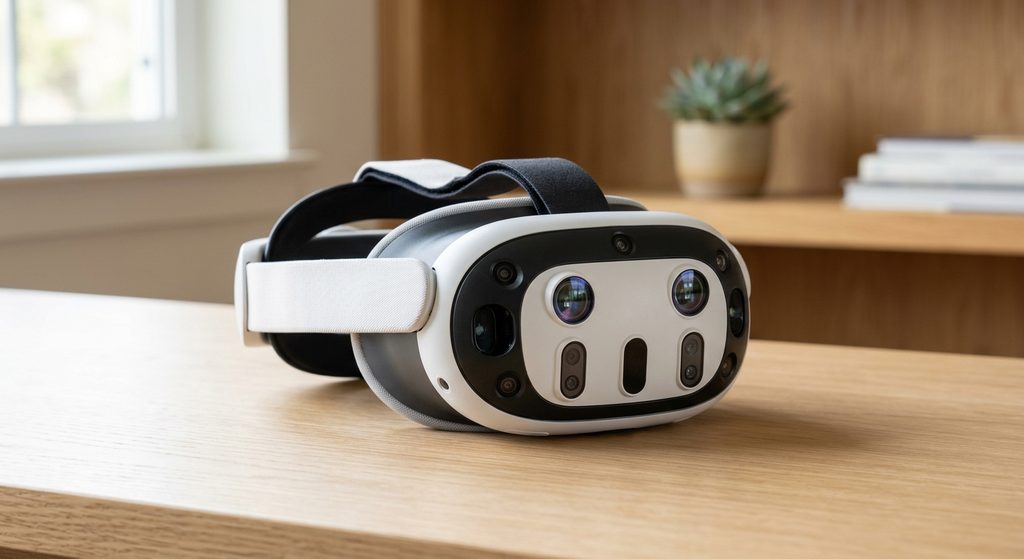
Why we recommend it: Meta Quest 3 delivers sharp visuals, pancake lenses, and comfortable PC VR connectivity, making it an excellent headset for experiencing immersive iRacing cockpit views and detailed racing environments.
Meta Quest Link Cable
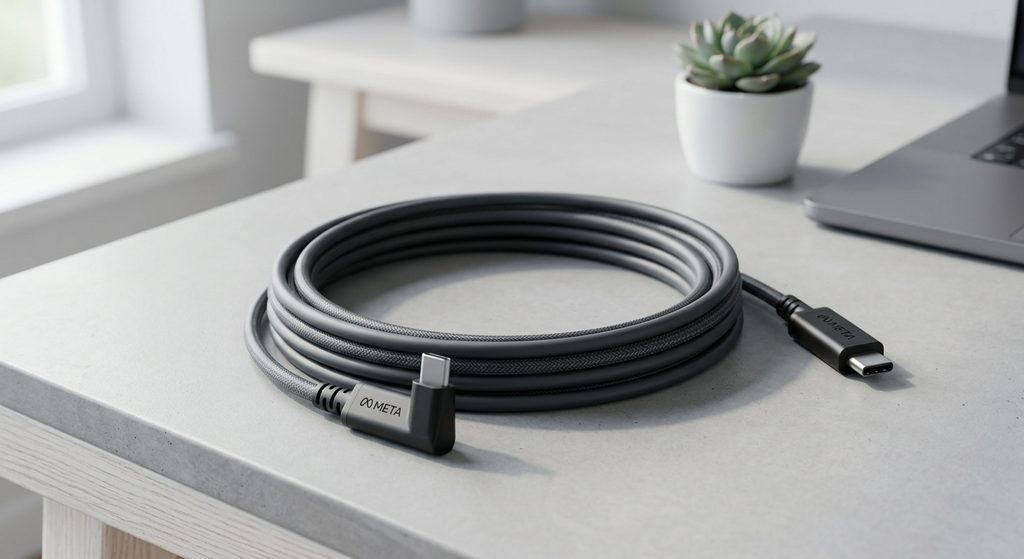
Why we recommend it: This cable provides a dependable wired connection between your Quest 3 and gaming PC, reducing reliance on Wi-Fi and helping maintain consistent PC VR streaming during longer racing sessions.
TP-Link Wi-Fi 6 Router
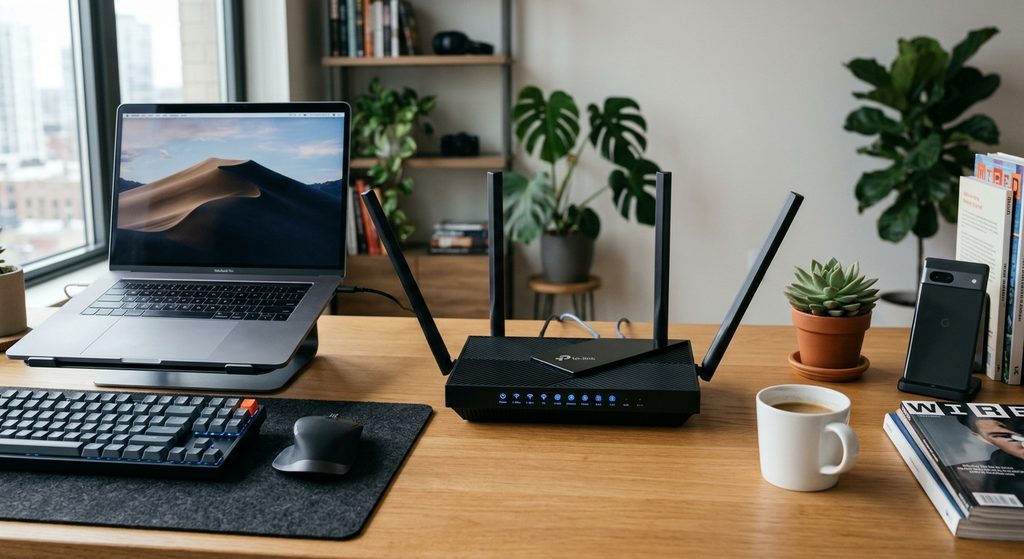
Why we recommend it: A suitable Wi-Fi 6 router can improve wireless PC VR streaming when using Air Link, especially when your gaming PC connects through Ethernet and your headset uses dedicated wireless bandwidth.
Important buying tip: iRacing officially recommends a wired headset connection for reliability. A wireless router is an alternative for Air Link, not a replacement for a capable gaming PC. iRacing+2
How to Set Up iRacing With Meta Quest 3 (Step-by-Step Guide)
Setting up iRacing with Meta Quest 3 requires connecting your headset to a Windows gaming PC and selecting the correct VR display mode. The simplest starting point is Meta Quest Link with a USB-C cable because a wired connection generally provides more consistent performance than wireless streaming.
According to iRacing’s official VR setup guidance, you need a compatible VR headset, a PC that meets the game’s and headset’s requirements, an active iRacing subscription, and an installed copy of iRacing. iRacing
Step 1: Check Your PC Requirements
Before connecting your headset, make sure your computer can handle both iRacing and PC VR.
You will need:
- A Windows gaming PC with a compatible dedicated graphics card.
- At least 16GB RAM as a useful starting point.
- A compatible processor.
- Sufficient storage for iRacing and additional content.
- A Meta Quest 3 headset.
- A reliable USB-C data cable or suitable Wi-Fi connection.
Remember that VR requires additional graphical processing because the PC must render separate images for each eye.
Step 2: Install Meta Quest Link on Your PC
Download and install the official Meta Quest Link desktop application.
Follow these steps:
- Visit the official Meta Quest setup page.
- Download the Windows PC application.
- Install the software and sign in to your Meta account.
- Turn on your Meta Quest 3.
- Connect the headset to your PC using a compatible USB-C cable.
Allow the software to recognize your headset before moving to the next step.
Step 3: Enable Quest Link
Put on your headset and follow the connection prompts.
- Open Quick Settings from the universal menu.
- Select Quest Link.
- Choose your connected gaming PC.
- Select Launch or Connect when prompted.
- Wait for the PC VR environment to appear.
Your Quest 3 should now be connected to your computer.
Step 4: Configure OpenXR for iRacing
Selecting the correct display mode is essential because iRacing must recognize your headset as a VR device rather than displaying the game on a virtual flat screen.
Follow these instructions:
- Open the iRacing desktop application.
- Locate the display mode selector in the upper-right corner.
- Select OpenXR from the available VR display modes.
- Ensure Meta Quest Link is configured as the active OpenXR runtime.
- Save your selection and prepare to launch a session.
iRacing recommends trying OpenXR first because it is a modern, widely supported VR standard. iRacing+1
Step 5: Launch iRacing in VR
Once your headset is connected and OpenXR is configured, you can test your first virtual racing session.
- Open iRacing on your PC.
- Select the Test Drive option.
- Choose your preferred car and racing track.
- Start the session with your Meta Quest 3 connected.
- Put on your headset and check whether the cockpit appears in VR.
- Turn your head gently to confirm that head tracking works.
If your cockpit view appears too high, too low, or incorrectly positioned, use the Reset HMD command to recenter your view. iRacing lists the semicolon key as its default shortcut. iRacing
Pro tip: Start with a simple test session before joining a competitive race. Confirm that your steering wheel, pedals, head tracking, and frame delivery work correctly.
Best iRacing Graphics and Performance Settings for Meta Quest 3
Getting the best graphics and performance settings for iRacing with Meta Quest 3 is essential for enjoying clear visuals, smooth head tracking, and responsive racing. Because VR requires your gaming PC to render two images simultaneously, demanding graphics settings can reduce frame rates and cause stuttering.
The best approach is to prioritize consistent performance before increasing visual quality. iRacing recommends aiming for approximately 90 FPS (90Hz) when possible, although the ideal settings depend on your PC hardware and headset configuration. iRacing+1
Recommended Starting Graphics Settings
The following settings provide a starting point for a mid-range gaming PC. They are not universal presets, so adjust them according to your graphics card and actual performance.
| Graphics setting | Recommended starting point |
|---|---|
| Sky and clouds | Low |
| Cars | High |
| Grandstands | Low |
| Crowds | Low |
| Foliage | Off |
| Dynamic shadows | Off |
| Number of lights | 3 or fewer |
| Shadow filtering | Low |
| Cockpit mirrors | Reduce if necessary |
| Max cars rendered | Start with a lower number |
| Motion blur | Off |
These recommendations focus on reducing demanding visual effects while keeping important racing details visible. iRacing’s own troubleshooting documentation identifies shadows, lighting, and the number of rendered cars as potential performance bottlenecks. iRacing+1
Adjust Your Meta Quest 3 Refresh Rate
The Meta Quest 3 supports different refresh rates, including 72Hz, 80Hz, 90Hz, and 120Hz. Higher refresh rates can make racing feel smoother, but they also increase the processing workload on your PC.
For iRacing, consider these options:
- 72Hz: A useful starting point for less powerful gaming PCs.
- 80Hz: A reasonable balance between smoothness and performance.
- 90Hz: A good target for a capable gaming PC.
- 120Hz: Best reserved for systems that can consistently handle the additional workload.
You can adjust the refresh rate through the Meta Quest Link desktop application.
Improve Image Clarity Without Sacrificing Performance
If the racing environment looks blurry, check your headset resolution and streaming settings.
Try these adjustments:
- Start with the default rendering resolution.
- Increase resolution gradually if your GPU has sufficient headroom.
- Avoid excessive supersampling.
- Test different anti-aliasing settings.
- Reduce demanding graphical effects before lowering resolution.
Meta explains that increasing render resolution improves image sharpness but also increases GPU requirements. Meta Horizon OS Developers+1
Pro tip: Change one setting at a time and test it during a practice session. This makes it easier to identify which adjustments improve performance without unnecessarily reducing visual quality.
How to Fix Common iRacing With Meta Quest 3 Problems
Although iRacing with Meta Quest 3 can deliver an immersive racing experience, you may occasionally encounter connection problems, lag, stuttering, black screens, or tracking issues. Most of these problems are related to PC performance, headset connectivity, graphics settings, or software configuration.
The good news is that you can often resolve these issues through a few straightforward troubleshooting steps without replacing your headset or gaming PC.
Meta Quest 3 Not Connecting to iRacing
If your Meta Quest 3 connects to your computer but iRacing does not launch in VR, check your OpenXR configuration.
Try these solutions:
- Make sure Meta Quest Link recognizes your headset.
- Confirm that OpenXR is selected in iRacing’s display settings.
- Check that Meta Quest Link is configured as the active OpenXR runtime.
- Restart iRacing after changing your VR settings.
- Disconnect and reconnect your headset if the connection fails.
iRacing VR Lag and Stuttering
Lag and stuttering can make racing uncomfortable and affect your ability to judge corners and distances.
Common causes include insufficient GPU performance, high rendering resolution, background applications, and unstable wireless connections.
Try the following:
- Lower demanding graphics settings, particularly shadows and reflections.
- Close unnecessary background applications.
- Reduce the headset rendering resolution if necessary.
- Check your GPU usage and frame-rate performance.
- If using Air Link, check your Wi-Fi connection and network stability.
For a more consistent experience, test a wired Link connection to determine whether wireless streaming is contributing to the problem.
Meta Quest 3 Black Screen When Launching iRacing
A black screen can occur when the VR runtime fails to initialize correctly or when iRacing launches using the wrong graphics output mode.
Try these troubleshooting steps:
- Close iRacing completely.
- Restart the Meta Quest Link application.
- Check that your headset is connected and recognized.
- Confirm that OpenXR is selected in iRacing.
- Restart your computer if the problem continues.
- Launch a VR test session before entering a full race.
Also, check whether your graphics drivers and Windows installation are up to date.
Meta Quest 3 Tracking or Position Problems
If your cockpit view moves incorrectly or your head tracking becomes unreliable, try resetting your headset position.
- Clean the headset’s external tracking cameras.
- Make sure your room has adequate lighting.
- Avoid playing in an environment with very little visual detail.
- Reset your headset boundary if necessary.
- Use iRacing’s Reset HMD command to recenter your cockpit view.
If tracking problems continue in other VR applications, investigate the headset connection and tracking environment rather than assuming iRacing is responsible.
Air Link Connection Problems
If you prefer playing wirelessly, Air Link can be a convenient alternative to a USB-C cable.
However, unstable Wi-Fi can cause lag, image compression, and connection interruptions.
Try these improvements:
- Connect your gaming PC directly to your router using Ethernet.
- Use a suitable 5GHz or 6GHz Wi-Fi connection.
- Keep your router relatively close to your headset.
- Reduce unnecessary network traffic.
- Restart your router if the wireless connection becomes unstable.
Important: iRacing advises against using OpenXR Toolkit because it is no longer supported by its developer and can introduce performance or display problems
Conclusion: Is iRacing With Meta Quest 3 Worth It?
Playing iRacing with Meta Quest 3 is an excellent way to experience virtual reality racing from an immersive cockpit perspective. The headset offers sharp visuals, reliable PC VR connectivity, and head tracking that makes navigating racing circuits feel more realistic.
For the best experience, use a capable gaming PC, configure Meta Quest Link or Air Link correctly, and optimize your iRacing graphics settings. A wired connection is a good starting point if you experience wireless lag or inconsistent performance.
Ultimately, Meta Quest 3 is worth considering if you want to take your iRacing experience beyond traditional monitor-based racing. With the right setup, you can enjoy a more immersive and engaging virtual racing experience.
Frequently Asked Questions About iRacing With Meta Quest 3
Can you play iRacing with Meta Quest 3?
Yes. You can play iRacing with Meta Quest 3 by connecting the headset to a compatible Windows gaming PC using Meta Quest Link, Air Link, or another supported PC VR connection method.
Does iRacing support Meta Quest 3?
Yes. iRacing supports PC-based VR headsets, including Meta Quest devices. You can use OpenXR to configure your headset for virtual reality racing.
Do you need a gaming PC to play iRacing on Meta Quest 3?
Yes. iRacing is a PC game, so you need a compatible Windows gaming PC to run the simulator. The Quest 3 acts as your VR headset rather than running the full PC version independently.
Is Meta Quest Link or Air Link better for iRacing?
Meta Quest Link is a good starting option because it provides a wired connection. Air Link offers wireless convenience but depends heavily on your Wi-Fi quality and network configuration.
What FPS should you aim for when playing iRacing in VR?
Aiming for 90 FPS is a useful target when your hardware supports it. However, stable performance at a lower refresh rate can be preferable to inconsistent frame delivery.
Why does iRacing look blurry on Meta Quest 3?
Blurry visuals can result from low rendering resolution, incorrect headset positioning, lens alignment, or streaming compression. Check your headset fit and gradually adjust rendering resolution.
Can you use a steering wheel with Meta Quest 3 and iRacing?
Yes. You can connect compatible racing wheels and pedals to your gaming PC. Popular options include Logitech and Thrustmaster racing wheel systems.
Can you play iRacing wirelessly with Meta Quest 3?
Yes. Air Link and supported wireless PC VR streaming options allow you to play without a USB-C cable. A stable, fast Wi-Fi connection is important for reducing interruptions.
Is Meta Quest 3 better than Meta Quest 2 for iRacing?
Meta Quest 3 offers newer pancake lenses, higher-resolution displays, and improved visual clarity compared with Meta Quest 2. However, your PC hardware and connection quality also influence the overall racing experience.
What is the best graphics setting for iRacing with Meta Quest 3?
There is no single best setting for every computer. Start with moderate graphics settings, prioritize stable frame rates, and gradually increase rendering resolution and visual quality as your PC allows.
This website is a participant in the Amazon Services LLC Associates Program, an affiliate advertising program designed to provide a means for us to earn fees by linking to Amazon.com and affiliated sites.