
This website is a participant in the Amazon Services LLC Associates Program, an affiliate advertising program designed to provide a means for us to earn fees by linking to Amazon.com and affiliated sites.
Overhead projector transparency film for laser printers is specially coated clear plastic designed to withstand the heat of laser printing while producing sharp, readable images and text. Unlike ordinary transparency sheets, laser-compatible film is manufactured to tolerate the high temperatures inside a laser printer without melting, curling, or damaging internal components.
Whether you are preparing classroom presentations, business graphics, educational diagrams, or professional overlays, choosing the correct transparency film makes a significant difference in print quality. However, not every overhead projector transparency sheet works with every printer. Using inkjet-only transparency film in a laser printer can cause serious problems, including melted plastic, paper jams, and potentially expensive printer damage.
In this guide, you will learn how to select the right overhead projector transparency film for laser printers, understand important compatibility features, achieve clear printing results, and avoid common printing mistakes.
Best for Laser Printing and Overhead Projector Presentations
Choosing high-quality overhead projector transparency film for laser printers is essential for producing sharp images, readable text, and professional presentation slides. The best options feature heat-resistant polyester construction and specialized coatings that allow toner to bond properly without smudging or damaging your printer.
Here are three products worth considering when selecting transparency film for laser printing.
Apollo Laser Jet Printer and Copier Films
Best for black-and-white presentations

- TRANSPARENT SHEETS – Create eye-catching results with exceptionally clear film. This premium film does not have a sensing stipe and is perfect for laser printers…
- COATED SURFACE – Each sheet is specially coated to produce brilliant details. Great for making image reproductions.

- 50 clear transparency sheets.
- Standard 8.5 × 11-inch size.
- Special coating for detailed image reproduction.
- No sensing stripe.
Why I picked it: Apollo offers specially coated, clear transparency sheets designed for laser printers, making it a practical choice for producing detailed black-and-white presentation slides and overhead projector visuals. Quartet
Best for color laser printing
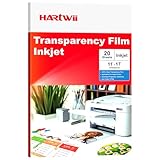
- Specification:Hartwii inkjet transparency film comes in a pack of 20 sheets, sized 11×17 inches. With 5mil thickness and made of high‑quality PET material, it…
- Swift Drying Feature: Transparency films dry rapidly post-printing, preventing smudging or bleeding.Ensures crisp, clean results every time. UV ink is recommended…
- A4 sheet format.
- 0.100 mm polyester film.
- Special toner-adhesion coating.
- Designed for color laser printers using low-fusing-temperature toner.
Why I picked it: Folex BG-71.1 provides crystal-clear polyester film, excellent toner bonding, and reliable flatness, making it suitable for colorful overhead presentations and transparent printed overlays. Detail
Folex BG-72 Universal OHP Film
Best for high-temperature laser printers

- This product is by Healthcenter
- A4 and other available formats.
- 0.125 mm polyester construction.
- Heat-resistant material.
- Designed for color laser printers and copiers.
Why I picked it: Folex BG-72 offers thicker polyester construction and heat resistance, making it worth considering for compatible high-temperature laser printers requiring durable overhead projector transparency materials. Manualzz
Related Products to Consider
Besides transparency film, a few accessories can make your printing and presentation experience easier:
- Overhead projector markers: Useful for writing notes, highlighting diagrams, and making handwritten annotations on suitable transparency sheets.
- Transparency film storage sleeves: Protect printed sheets from scratches, dust, fingerprints, and accidental damage.
- Laser printer cleaning sheets: Help maintain the printer’s paper path and reduce accumulated dust and debris.
- Overhead projector replacement lamps: Useful for maintaining adequate brightness when displaying printed transparencies.
- Transparency sheet organizers: Keep multiple presentation slides arranged and accessible.
Important buying tip: Always check your laser printer’s manual before purchasing any transparency film. HP explains that laser-compatible film must meet specific heat, thickness, and toner-adhesion requirements. Color laser printers may also require different film specifications from monochrome models.
What Is Overhead Projector Transparency Film for Laser Printers and How Does It Work?
Overhead projector transparency film for laser printers is a specially manufactured transparent plastic sheet designed to receive printed toner from a laser printing system. It allows users to print text, illustrations, photographs, diagrams, and presentation slides onto clear material that can subsequently be displayed using an overhead projector.
Unlike ordinary plastic sheets, laser-compatible transparency film is engineered to withstand the high temperatures generated during the printing process. Most laser printers use a heated fuser assembly to permanently bond powdered toner to the printing surface.
The transparency film must therefore have suitable heat resistance and a surface coating that helps toner adhere correctly.
How Does Laser Transparency Printing Work?
The printing process involves several stages:
- Digital image preparation: You create a document, presentation, diagram, or illustration using software such as Microsoft PowerPoint or Adobe Acrobat.
- Laser imaging: The printer uses a laser beam and an electrically charged drum to create the image pattern.
- Toner application: Fine powdered toner transfers onto the transparency sheet to reproduce the selected text or graphics.
- Heat bonding: The transparency passes through heated fuser rollers, which melt and bond the toner to its surface.
- Finished transparency: The printed sheet emerges with the image permanently attached and ready for presentation.
Why Is Special Transparency Film Necessary?
Regular transparency sheets are not suitable for laser printers because they may soften, shrink, melt, or become distorted when exposed to fuser temperatures. Specialized laser transparency film uses heat-resistant polyester and compatible surface treatments to prevent these problems.
Some important characteristics include:
- Heat resistance: Prevents the sheet from melting or deforming inside the printer.
- Toner adhesion: Helps printed text and images remain attached without flaking or smearing.
- Optical clarity: Allows projected images to appear bright, sharp, and easy to read.
- Dimensional stability: Helps the sheet maintain its original shape during printing.
For the best results, select transparency film specifically approved for your printer model and follow the manufacturer’s recommended media settings.
How to Choose the Best Overhead Projector Transparency Film for Laser Printers
Choosing the right overhead projector transparency film for laser printers requires more than checking whether a sheet is transparent. You need a material that can withstand your printer’s fuser temperature, accept toner properly, and produce clear images when projected onto a screen.
Different transparency films have different thicknesses, coatings, sizes, and printer compatibility ratings. Therefore, checking these specifications before purchasing helps prevent printing problems and protects your equipment.
Check Laser Printer Compatibility
The most important consideration is whether the transparency film is specifically designed for laser printers. Some products are manufactured exclusively for inkjet printers, while others support laser printing or photocopiers.
Look for packaging that clearly states:
- Laser printer compatible.
- Suitable for monochrome or color laser printers, as applicable.
- Heat-resistant polyester construction.
- Compatible with your printer’s recommended media specifications.
Never assume that a transparency sheet labeled simply as overhead projector film is safe for laser printing.
Consider Film Thickness
Transparency film thickness affects its durability, flexibility, and ability to travel through the printer.
Common specifications include approximately 0.10 mm to 0.18 mm, although available thicknesses vary by manufacturer.
Thicker polyester sheets can offer greater durability, but they must still fall within your printer’s supported media range. Excessively thick film may cause feeding problems or paper jams.
Examine the Surface Coating
The coating determines how effectively toner adheres to the transparency sheet. A suitable coating helps prevent printed text and graphics from rubbing off after printing.
For professional presentations, choose film with a uniform coating that supports consistent toner distribution and clear image reproduction.
Choose the Correct Transparency Size
The size of the transparency film should match your printer’s supported paper dimensions and your presentation requirements.
Common options include:
- A4 (210 × 297 mm): Suitable for classrooms, offices, and international presentation formats.
- Letter (8.5 × 11 inches): Commonly used in North American offices and educational institutions.
- A3 (297 × 420 mm): Useful for larger diagrams, engineering drawings, and detailed presentation materials.
Always verify the supported dimensions before ordering.
Evaluate Optical Clarity and Image Quality
Clear transparency film allows more light to pass through, helping projected images appear brighter and easier to understand. Look for film with a smooth, colorless finish rather than sheets with noticeable yellow or blue discoloration.
For presentations containing photographs, colored diagrams, or detailed illustrations, prioritize film designed for color laser printing.
Check Printer Feeding Requirements
Some laser printers require transparency sheets to be loaded through a manual feed or multipurpose tray. Others support automatic feeding but may have specific loading limits.
Before purchasing, check:
- Whether your printer supports overhead transparencies.
- The recommended paper tray.
- The maximum supported media thickness.
- Whether single-sheet feeding is necessary.
- The correct paper-type setting.
HP specifically warns that incompatible transparency materials can melt or wrap around the fuser, potentially damaging the printer. It also recommends matching transparency specifications to monochrome or color laser printers. Print Media Guide+1
Buying recommendation: Prioritize printer compatibility, heat resistance, and toner adhesion over price alone. A slightly more expensive transparency sheet designed for your specific laser printer is generally a safer investment.
How to Print on Overhead Projector Transparency Film Using a Laser Printer
Printing on overhead projector transparency film using a laser printer is relatively straightforward when you use compatible materials and the correct printer settings. However, because transparency sheets are made from plastic rather than ordinary paper, you need to prepare your printer carefully to achieve clean results without causing jams or heat-related damage.
Follow these steps to print professional-looking transparencies.
Step 1: Prepare Your Digital Document
Start by creating the presentation, diagram, photograph, or text you want to print. Microsoft PowerPoint, Microsoft Word, and Adobe Acrobat are useful applications for preparing transparency designs.
For better projection quality:
- Use dark text against a transparent background.
- Choose readable fonts and appropriate font sizes.
- Avoid unnecessarily complicated graphics.
- Use bold colors for important diagrams.
- Check that images have sufficient resolution.
Remember that transparent backgrounds allow the projector’s light to pass through, so contrast is particularly important.
Step 2: Check and Load the Transparency Film
Before loading the sheets, inspect the packaging to identify the recommended printing side and loading orientation. Some transparency films have a specially coated side that must face a particular direction.
Next, select the printer tray recommended by your manufacturer.
For many printers, the multipurpose or manual feed tray is preferable because it provides a straighter paper path and allows you to feed transparency sheets individually.
Avoid loading too many sheets at once unless your printer manufacturer specifically permits it.
Step 3: Adjust the Printer Settings
Open your document’s print settings and check the available media options.
Depending on your printer model, select:
- Paper type: Transparency or appropriate specialty media.
- Print quality: Normal or high quality.
- Paper size: A4, Letter, or the correct sheet dimensions.
- Feed source: Manual or multipurpose tray, if recommended.
Selecting the correct media setting is particularly important because laser printers may adjust their feeding speed and fuser operation according to the selected material.
Do not manually increase fuser temperatures or override manufacturer safety settings.
Step 4: Print a Test Transparency
Before printing an entire presentation, print one test sheet.
Examine the result for:
- Clear and readable text.
- Consistent toner coverage.
- Proper image alignment.
- Scratches or smudges.
- Curled or distorted edges.
If the toner does not adhere correctly, stop printing and verify that the film is compatible with your printer.
Step 5: Allow the Transparency to Cool
After printing, handle the sheet carefully because it may be warm when it exits the printer.
Allow it to cool on a clean, flat surface before stacking or storing it. Avoid rubbing the printed surface or placing heavy objects on top of freshly printed transparencies.
Additional Tips for Better Printing Results
- Use fresh transparency film stored in its original packaging.
- Keep fingerprints away from the printable surface.
- Avoid mixing transparency sheets with ordinary paper.
- Clean the printer according to manufacturer instructions.
- Store completed transparencies in protective sleeves.
Following these steps helps produce sharp, professional overhead projector transparencies while minimizing printing errors and equipment problems.
Common Problems When Using Overhead Projector Transparency Film for Laser Printers and How to Fix Them
Although laser-compatible overhead projector transparency film is designed to withstand printing temperatures, problems can still occur when the wrong material, printer settings, or feeding methods are used. Understanding these issues helps you troubleshoot printing errors, improve image quality, and avoid damaging your laser printer.
Here are some common problems and practical ways to fix them.
Transparency Film Melting Inside the Printer
Melting is one of the most serious problems associated with using incompatible transparency sheets in laser printers. Ordinary plastic transparency film may not withstand the heat generated by the printer’s fuser assembly.
How to fix it:
- Stop printing immediately if you suspect melting.
- Switch off the printer and allow it to cool.
- Follow the manufacturer’s instructions for safely removing jammed material.
- Do not pull melted plastic from the fuser yourself.
- Contact a qualified technician if material is wrapped around internal components.
Always purchase transparency film explicitly rated for your laser printer.
Toner Smudging or Not Sticking Properly
Toner smudging occurs when the transparency film does not provide the correct surface for toner adhesion. It can also happen when unsuitable media settings are selected.
How to fix it:
- Verify that the film supports laser printing.
- Check that the printable side faces the correct direction.
- Select the recommended transparency media setting.
- Allow the printed sheet to cool before handling.
- Replace film that has an incompatible or damaged coating.
Transparency Sheets Getting Stuck
Paper jams can occur when transparency film is too thick, improperly loaded, or unsuitable for the printer’s feeding mechanism.
How to fix it:
- Stop the printing job.
- Follow your printer’s instructions for removing the jam.
- Inspect the sheet for wrinkles, tears, or curled edges.
- Confirm that the film thickness is supported.
- Try feeding one transparency through the recommended tray.
Avoid forcing stuck transparency film through the printer because doing so can damage internal rollers.
Poor Image Clarity and Uneven Printing
Sometimes printed transparencies appear faded, uneven, or difficult to read when projected. This may result from poor-quality film, insufficient toner coverage, or unsuitable document settings.
How to fix it:
- Choose clear, high-quality polyester transparency film.
- Increase document contrast.
- Use sufficiently large fonts.
- Check toner levels.
- Select an appropriate print-quality setting.
For classroom presentations, bold text and simple graphics generally produce more readable projected images.
Transparency Film Curling After Printing
Curling can happen when the film is exposed to excessive heat or when the material is incompatible with the printer.
How to fix it:
Use manufacturer-approved transparency sheets, confirm the correct media setting, and store finished transparencies flat in protective sleeves. Never attempt to flatten a hot transparency by applying additional heat.
Important: If you notice unusual odors, smoke, melted plastic, or repeated jams, stop using the printer and follow its safety instructions. Continuing to print could turn a minor compatibility issue into an expensive repair.
How to Store, Maintain, and Reuse Overhead Projector Transparency Film
Proper storage and maintenance help preserve overhead projector transparency film for laser printers, especially when you use the sheets for classroom lessons, business presentations, or repeated overhead projector demonstrations. Although laser-printed transparencies are relatively durable, scratches, dust, fingerprints, and improper handling can affect their clarity and appearance.
Whether you print transparencies for occasional use or maintain a large collection of presentation materials, following a few simple practices can extend their usable life.
Store Transparency Sheets in Protective Sleeves
Protective sleeves are among the easiest ways to prevent scratches and dust accumulation. After printing, allow each transparency to cool completely before placing it inside a clean storage sleeve.
Choose sleeves designed for transparent documents and avoid materials that may leave residue on the printed surface.
You can also organize transparencies using labeled folders for easier identification.
Keep Transparencies Away from Excessive Heat
Although laser-compatible transparency film is manufactured to withstand printing temperatures, prolonged exposure to excessive heat can cause deformation.
Avoid storing sheets:
- Near radiators or heating equipment.
- Inside vehicles exposed to direct sunlight.
- Close to hot projector lamps.
- In areas with extreme temperature fluctuations.
A cool, dry storage environment is generally preferable.
Handle Transparency Film Carefully
Fingerprints, grease, and dust can interfere with image clarity when transparencies are projected.
Follow these handling practices:
- Hold sheets by their edges.
- Keep hands clean and dry.
- Avoid touching the printed toner surface.
- Place transparencies on clean, flat surfaces.
- Avoid stacking heavy objects on stored sheets.
For frequently handled presentation materials, consider using protective covers.
Clean Transparency Film Safely
Dust and fingerprints can make projected images look unclear. However, cleaning methods must be compatible with the film material and printed toner.
Use a clean, soft, lint-free cloth to remove loose dust. If additional cleaning is necessary, follow the film manufacturer’s instructions and test any approved cleaning method on an inconspicuous area first.
Avoid aggressive solvents, abrasive cleaners, excessive moisture, and rough paper towels because they can damage the coating or printed image.
Can You Reuse Laser-Printed Transparency Film?
Yes, laser-printed transparency sheets can generally be reused for repeated presentations as long as they remain clean, flat, and undamaged.
However, laser toner is permanently fused to the film, so you cannot simply wipe away the original printed content to create a blank sheet.
For reusable teaching materials, consider:
- Keeping separate transparencies for different lessons.
- Using compatible removable dry-erase markers when the film manufacturer permits them.
- Storing each sheet in a protective sleeve.
- Replacing sheets with scratched, cloudy, or damaged surfaces.
Maintenance tip: Proper storage is particularly important for transparencies containing detailed diagrams, educational illustrations, and colored graphics. Keeping them clean and protected helps maintain their appearance and makes future presentations easier.
Conclusion
Choosing the right overhead projector transparency film for laser printers is essential for producing clear, professional presentations while protecting your printing equipment. Always select laser-compatible polyester film with suitable heat resistance, reliable toner adhesion, and the correct dimensions for your printer. Products such as Apollo Laser Jet Printer and Copier Films and Folex transparency films offer options worth considering for different presentation requirements.
Additionally, using the correct printer settings, feeding transparencies carefully, and storing finished sheets properly can improve printing results and extend their usable life. Whether you are preparing classroom lessons, business presentations, or technical diagrams, investing in suitable transparency film makes displaying information easier and more effective.
Frequently Asked Questions About Overhead Projector Transparency Film for Laser Printers
Can you use regular transparency film in a laser printer?
No. Regular transparency film may not withstand the high temperatures generated by a laser printer’s fuser assembly. Always choose sheets specifically labeled as laser-printer compatible to prevent melting, paper jams, and potential printer damage.
What is the difference between laser and inkjet transparency film?
Laser transparency film is designed to withstand high printing temperatures and support toner adhesion. Inkjet transparency film usually has a specialized coating that absorbs liquid ink. Using the wrong type can result in poor printing or equipment damage.
Which side of transparency film should you print on?
The printable side depends on the manufacturer’s design. Some transparency sheets have a coated printing surface that must face a particular direction. Check the packaging instructions before loading the film into your printer.
Can color laser printers print on overhead projector transparency film?
Yes. Many color laser printers support transparency printing, provided the film is specifically compatible with the printer’s model and color toner system. Check the manufacturer’s recommended media specifications before printing.
Why does toner rub off transparency film?
Toner may rub off when the transparency coating is incompatible with the printer, the wrong media setting is selected, or the toner has not bonded properly. Check the film specifications and printer settings before trying another sheet.
What size transparency film should I buy?
A4 and Letter are common sizes. However, your choice should depend on your printer’s supported paper dimensions and the size of your overhead projector presentation materials.
Can overhead projector transparency film be reused?
Yes. Laser-printed transparencies can be reused for repeated presentations if they remain clean and undamaged. However, permanently fused toner cannot ordinarily be wiped off to restore the sheet to its original transparent condition.
How should I store printed transparency sheets?
Store printed sheets in clean protective sleeves or document folders. Keep them flat, away from excessive heat, direct sunlight, moisture, dust, and abrasive surfaces to preserve their clarity.
This website is a participant in the Amazon Services LLC Associates Program, an affiliate advertising program designed to provide a means for us to earn fees by linking to Amazon.com and affiliated sites.