
This website is a participant in the Amazon Services LLC Associates Program, an affiliate advertising program designed to provide a means for us to earn fees by linking to Amazon.com and affiliated sites.
Yes, you can mirror an Android phone to a projector without Chromecast by using wired connections, built-in wireless features, or third-party apps.
Imagine needing to present a project, stream a movie, or share photos on a big screen—only to realize you don’t have a Chromecast. It’s a common situation, but fortunately, it’s far from a dead end. Modern Android devices offer multiple ways to connect directly to projectors, many of which are simple and surprisingly effective.
From HDMI adapters to wireless screen mirroring technologies like Miracast, you don’t need expensive add-ons to make it work. Even budget projectors and older Android phones often support at least one reliable method.
Best for Mirroring Android to a Projector Without Chromecast
To get the best experience mirroring your Android device without Chromecast, these three reliable tools stand out based on compatibility, ease of use, and performance.
Best Overall for Wireless Mirroring: AnyCast M9 Plus Wireless Display Dongle
Why this product?
The AnyCast M9 Plus offers affordable wireless mirroring with broad compatibility across Android devices, making it ideal for presentations and streaming without Chromecast. It supports 1080p and easy plug-and-play setup.

- Wireless display: SmartSee Wireless display adapter can mirror the screen…
- Easy to use: No App or drivers required. 3 steps to enjoy media on large…
- Compatibility(Multi-Platform Support) and Limitation: Support Macbook…
Best for Stable Miracast Connection: MiraScreen K11 Wireless WiFi Display Dongle
Why this product? :
MiraScreen K11 supports Miracast, DLNA, and AirPlay, ensuring stable wireless projection from Android devices. Its plug-and-play design and full HD support make it reliable for seamless screen sharing.

- Wireless Display–Instantly mirror your phone screen on tv wirelessly…
- Wide Compatibility–Works with most mainstream smart devices: iOS…
- Easy to use–No App or drivers required. Only 3 steps to enjoy media on…
Best for High-Quality 4K Streaming: Yesido 4K Wireless Display Adapter
Why this product? :
This 4K adapter delivers higher resolution output and dual-band Wi-Fi support, making it ideal for users who want sharper visuals and smoother streaming when mirroring Android devices to projectors wirelessly.
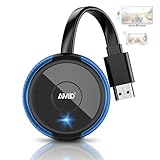
- PLUG & PLAY: AIMIBO Wireless Display Adapter instantly mirrors screens…
- Dual Modes – Direct & DLNA: Tap Screen Mirror to cast instantly from AIMIBO…
- 4K Ultra HD & Dual-Band 2.4G/5G: 4K screen mirroring and media projection…
Related Tools You Can Also Use
- USB-C to HDMI Adapter – Direct wired connection with zero lag
- MHL Adapter – Useful for older Android devices
- Wireless HDMI Kits – No Wi-Fi needed, works like a cable replacement
Most of these devices rely on Miracast, which works like “HDMI over Wi-Fi,” allowing Android devices to mirror screens without internet or Chromecast.
How to Mirror Android to a Projector Using an HDMI Cable (Wired Method)
The most reliable way to mirror your Android device to a projector without Chromecast is by using a wired HDMI connection. This method eliminates lag, ensures stable performance, and works without Wi-Fi.
Most modern Android phones support video output through USB-C, while older devices may require an MHL (Mobile High-Definition Link) adapter. Either way, the setup is straightforward and beginner-friendly.
What You Need
To get started, gather the following items:
- USB-C to HDMI adapter (for newer phones)
- MHL adapter (for older Android devices)
- HDMI cable
- Projector with HDMI input
Step-by-Step Setup
Follow these steps to mirror your screen:
- Connect the HDMI cable to your projector.
- Attach the adapter to your Android phone.
- Plug the HDMI cable into the adapter.
- Switch your projector to the correct HDMI input source.
Your phone screen should automatically appear on the projector.
Why This Method Works Best
A wired connection offers several advantages:
- Zero latency: Perfect for gaming or presentations
- No internet required: Works offline anywhere
- Stable signal: No drops or interference
However, not all Android devices support HDMI output, so it’s important to confirm compatibility before purchasing an adapter.
In short, if you want a simple, plug-and-play solution with consistent quality, a wired HDMI setup is the most dependable option.
How to Mirror Android to a Projector Wirelessly Using Miracast

If you prefer a cable-free setup, Miracast is one of the easiest ways to mirror your Android device to a projector without Chromecast. It’s a built-in wireless display standard supported by many Android phones and projectors.
Unlike streaming apps, Miracast creates a direct connection between your phone and the projector. This means you don’t need an internet connection—just compatible hardware.
How Miracast Works
Miracast uses Wi-Fi Direct to mirror your screen in real time. Many smart projectors support it natively, while others require a wireless display dongle.
Common names for Miracast on Android include:
- Smart View (on Samsung devices)
- Cast Screen
- Wireless Display
- Screen Mirroring
Step-by-Step Setup
Follow these steps to connect:
- Turn on your projector and enable screen mirroring mode.
- On your Android phone, open Settings.
- Tap Connected Devices or Display.
- Select Cast or Screen Mirroring.
- Choose your projector from the list.
Within seconds, your phone screen should appear wirelessly.
Benefits of Using Miracast
This method offers several key advantages:
- No cables needed: Clean and portable setup
- No Wi-Fi required: Works via direct connection
- Wide compatibility: Supported by many Android devices
However, performance can vary depending on signal strength and device quality. You may notice slight lag during high-motion content like gaming or fast videos.
Overall, Miracast is a convenient and cost-effective way to mirror your Android screen—especially for presentations, browsing, or casual streaming.
How to Mirror Android to a Projector Using Third-Party Apps
If your projector doesn’t support Miracast or HDMI connections aren’t practical, third-party apps offer a flexible alternative for mirroring your Android screen. These apps bridge the gap by enabling wireless casting over a shared Wi-Fi network.
Many modern apps are designed to work across different devices, including smart TVs, laptops, and projectors. While they may require a bit more setup, they’re highly versatile and widely accessible.
Popular Screen Mirroring Apps
Here are some reliable options you can try:
- AirScreen – Turns your projector or connected device into a wireless receiver
- LetsView – Free app with high-quality mirroring and screen recording features
- ApowerMirror – Offers advanced controls and cross-platform compatibility
How to Use These Apps
Follow these general steps:
- Install the mirroring app on your Android device.
- Install or enable the receiver app on your projector (or connected device like a laptop).
- Connect both devices to the same Wi-Fi network.
- Open the app and select your projector from the available devices.
Once connected, your screen will mirror in real time.
Pros and Limitations
Using apps comes with both advantages and trade-offs:
Pros:
- Works on devices without built-in casting
- Supports additional features like recording and annotations
- Compatible with a wide range of devices
Cons:
- Requires a stable Wi-Fi connection
- May introduce slight lag or compression
- Some features may require paid versions
In short, third-party apps are a great fallback option when other methods aren’t available, especially for casual use or collaborative work environments.
Common Problems When Mirroring Android to a Projector (And How to Fix Them)
Even with the right setup, mirroring your Android device to a projector without Chromecast can sometimes run into issues. Fortunately, most problems are easy to diagnose and fix with a few adjustments.
Understanding these common challenges will save you time and frustration, especially during important presentations or streaming sessions.
No Signal on Projector
This is one of the most frequent issues users face.
Possible causes:
- Incorrect HDMI input selected
- Loose cable or faulty adapter
- Unsupported phone output
How to fix it:
- Double-check the projector’s input source
- Reconnect all cables securely
- Test with another HDMI cable or adapter
Screen Mirroring Not Detecting Device
If your phone can’t find the projector, it’s usually a connectivity issue.
Solutions include:
- Ensure both devices support Miracast
- Restart both your phone and projector
- Turn Wi-Fi and Bluetooth off, then back on
Lag or Delayed Display
Wireless mirroring can sometimes feel slow or choppy.
Ways to improve performance:
- Move closer to the projector
- Reduce network congestion
- Switch to a wired HDMI connection for better stability
Audio Not Playing Through Projector
Sometimes video works, but sound doesn’t follow.
Quick fixes:
- Check audio output settings on your phone
- Increase projector volume
- Ensure HDMI supports audio transmission
Compatibility Issues
Not all Android devices support every mirroring method.
What you can do:
- Check your phone’s specifications
- Use third-party apps as a workaround
- Consider upgrading to a compatible adapter
By addressing these common issues, you can significantly improve your mirroring experience and avoid last-minute technical hiccups. Most problems have simple fixes once you know where to look.
Best Alternative Methods to Mirror Android to a Projector Without Chromecast
If HDMI, Miracast, or apps don’t suit your setup, there are still several effective alternative methods to mirror your Android device to a projector. These options are especially useful in unique environments or with older hardware.
Each method offers a different balance of convenience, cost, and performance.
Use a Wireless HDMI Kit
Wireless HDMI transmitters act like a cable—without the cable.
How it works:
- Plug the transmitter into your phone (via adapter)
- Connect the receiver to the projector
- The signal transmits directly between them
Why choose this method:
- No Wi-Fi required
- Low latency compared to apps
- Great for professional presentations
Mirror via a Laptop (Intermediate Device)
You can use a laptop as a bridge between your Android and projector.
Steps:
- Mirror your Android screen to your laptop using apps like LetsView
- Connect the laptop to the projector via HDMI
- Display your phone screen through the laptop
This method is helpful when direct connection options are limited.
Use a USB-C Hub with HDMI Output
A USB-C hub expands your phone’s capabilities.
Benefits include:
- Multiple ports (HDMI, USB, charging)
- Stable wired connection
- Easy plug-and-play functionality
It’s ideal for newer Android phones that support video output.
Bluetooth (Limited Use Cases)
Bluetooth is not ideal for full screen mirroring, but it can support:
- Audio streaming to the projector
- Remote control features in some smart projectors
For video mirroring, it’s best combined with another method.
Which Alternative Should You Choose?
- For best performance: Wireless HDMI kit
- For flexibility: Laptop intermediary
- For simplicity: USB-C hub
- For audio only: Bluetooth
These alternatives ensure you’re never stuck—even without Chromecast or built-in casting support. With the right approach, you can always find a way to connect your Android device to a projector.
Conclusion
Mirroring your Android device to a projector without Chromecast is not only possible—it’s surprisingly easy once you know the right method. Whether you choose a wired HDMI connection for stability, Miracast for wireless convenience, or third-party apps for flexibility, there’s a solution for every setup.
Each method comes with its own strengths. Wired connections offer the most reliable performance, while wireless options provide portability and ease of use. Meanwhile, alternative solutions like wireless HDMI kits or using a laptop ensure you’re covered even in less typical scenarios.
The key is to match your method with your device compatibility and usage needs. For presentations, go wired. For casual streaming, wireless works just fine.
Frequently Asked Questions About Mirroring Android to a Projector Without Chromecast
Can all Android phones mirror to a projector without Chromecast?
Not all Android phones support every mirroring method. Newer devices usually support wireless casting like Miracast or HDMI output via USB-C. However, some budget or older models may lack these features. In such cases, third-party apps or using a laptop as an intermediary can help bridge the gap. Always check your device specifications before choosing a method.
Do I need internet to mirror my Android to a projector?
No, you don’t always need internet. Methods like HDMI cables and Miracast use direct connections, meaning they work without Wi-Fi. However, third-party apps typically require both devices to be connected to the same network for proper functionality.
Why is my screen mirroring lagging or buffering?
Lag usually occurs with wireless methods due to weak signals or network congestion. To fix this, move closer to the projector, reduce interference from other devices, or switch to a wired HDMI connection for smoother performance.
What is the best method for presentations?
A wired HDMI connection is the best option for presentations because it provides a stable, lag-free experience. It ensures your slides, videos, and transitions run smoothly without interruptions or delays.
Can I mirror Android to any projector?
Most modern projectors support HDMI, making them compatible with wired connections. For wireless mirroring, the projector must support Miracast or work with a compatible dongle or app. If not, you can still connect using alternative methods like a laptop or adapter.
Is screen mirroring the same as casting?
Not exactly. Screen mirroring duplicates your entire phone screen in real time, while casting (like Chromecast) streams specific content from apps. Mirroring is better for presentations, while casting is ideal for streaming media.
Can a Projector Get a Virus?7 reasons why?
This website is a participant in the Amazon Services LLC Associates Program, an affiliate advertising program designed to provide a means for us to earn fees by linking to Amazon.com and affiliated sites.