
This website is a participant in the Amazon Services LLC Associates Program, an affiliate advertising program designed to provide a means for us to earn fees by linking to Amazon.com and affiliated sites.
Connecting a soundbar to a projector is the easiest way to dramatically improve your audio experience, and you can do it using HDMI ARC, optical cables, Bluetooth, or AUX connections.
Projectors deliver stunning visuals, but their built-in speakers are often weak or tinny. That’s where a soundbar comes in—offering richer, clearer, and more immersive sound for movies, gaming, or presentations.
If you’ve ever struggled with no sound, mismatched ports, or confusing settings, you’re not alone. Many users assume it’s complicated, but the process is surprisingly straightforward once you understand the connection options available.
Best for Connecting Soundbar to a Projector
Choosing the right soundbar for a projector setup comes down to connectivity options (HDMI, optical, Bluetooth), audio quality, and compatibility with non-ARC projectors. Many projectors lack HDMI ARC, so flexible input options are essential .
Below are three top-performing soundbars that work exceptionally well with projectors:
Recommended Soundbars for Projector Setups
Best overall: Sony HT-S100F Soundbar
Sony HT-S100F Soundbar
The Sony HT-S100F is selected because it offers excellent compatibility with projectors through HDMI ARC and optical inputs. It delivers clear dialogue and balanced sound in small to medium rooms without complex setup requirements.

- Straight from the theater to your home: easy set-up, built-in tweeter, 2-ch speaker with simple Bluetooth connection
- Deep sound with Bass Reflex speaker

Best for powerful bass: Samsung HW-C450 Soundbar
2.1 channel soundbar with wireless subwoofer for deeper bass and immersive home theater audio.
The Samsung HW-C450 stands out for its dedicated subwoofer, making it perfect for movie lovers. It supports multiple connection types and produces richer, room-filling sound ideal for cinematic projector experiences.
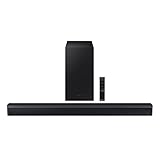
- DTS VIRTUAL:X: Expand your listening experience; DTS Virtual: X creates spacious 3D sound putting you at the center of the action for an elevated and immersive home…
- SUBWOOFER INCLUDED: Get that big boom with our included subwoofer; Bring home intense sound with rich, powerful bass; Elevate the action and take things to the next…
Best for compact spaces: Bose TV Speaker Soundbar
Compact premium soundbar with Bluetooth and optical input for easy wireless or wired projector pairing.
The Bose TV Speaker is ideal for minimalist setups. Its compact design fits easily under projector screens, while Bluetooth and optical connectivity make it highly versatile for both wired and wireless connections.
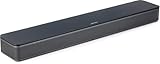
- HEAR YOUR TV BETTER: Designed with simplicity in mind, the Bose TV Speaker is an all-in-one soundbar that clarifies speech and is a simple fix for better TV sound
- WIDE, NATURAL SOUND: 2 angled full-range drivers deliver a more realistic, spatial audio experience for overall better TV sound from a small soundbar
Product Comparison Table
| Feature | Sony HT-S100F Soundbar | Samsung HW-C450 Soundbar | Bose TV Speaker Soundbar |
|---|---|---|---|
| Audio Channels | 2.0 | 2.1 (with subwoofer) | 2.0 |
| Connectivity | HDMI ARC, Optical, Bluetooth | HDMI, Optical, Bluetooth | Optical, Bluetooth |
| Best Use Case | Budget & simple setups | Home theater & bass | Small rooms & portability |
| Projector Compatibility | High | High | Very High |
| Sound Quality | Clear & balanced | Deep bass & immersive | Crisp dialogue |
How to Choose the Right One
- Go with Sony HT-S100F if you want a budget-friendly, easy setup
- Choose Samsung HW-C450 if you want cinematic bass and immersion
- Pick Bose TV Speaker if you need compact size and wireless flexibility
Wired options like HDMI or optical remain the most reliable for syncing audio and video, while Bluetooth is better for convenience than performance .
Connection Methods: How to Connect a Soundbar to a Projector (Step-by-Step)
The best way to connect a soundbar to a projector depends on the ports available on both devices. Most modern setups support HDMI ARC, optical (TOSLINK), Bluetooth, or AUX, each offering different levels of sound quality and convenience.
HDMI ARC (Best Quality & Recommended)
HDMI ARC (Audio Return Channel) provides the highest quality audio with minimal lag. However, your projector must support ARC.
Steps to connect via HDMI ARC:
- Plug an HDMI cable into the HDMI ARC port on your projector
- Connect the other end to the HDMI ARC port on your soundbar
- Turn on both devices
- Set the soundbar input to HDMI ARC
- Enable CEC/ARC settings in the projector menu
This method allows single-cable audio transmission and often lets you control volume with one remote.
Optical Cable (Most Reliable Alternative)
Optical cables are widely supported and deliver clear digital sound without interference.
Steps to connect via optical:
- Connect the optical cable from projector to soundbar
- Remove protective caps from the cable ends
- Select OPTICAL input on the soundbar
- Adjust projector audio output to external speakers
Optical is ideal when HDMI ARC is unavailable but still provides excellent sound clarity.
Bluetooth (Wireless Convenience)
Bluetooth eliminates cables, making it perfect for clean setups. However, it may introduce slight audio delay.
Steps to connect via Bluetooth:
- Enable Bluetooth on your projector
- Put the soundbar in pairing mode
- Select the soundbar from the projector’s Bluetooth list
- Confirm connection
Use this method for casual viewing, not for gaming or precise audio sync.
AUX / 3.5mm (Basic Backup Option)
AUX is the simplest but lowest-quality option, suitable for older projectors.
Steps to connect via AUX:
- Plug a 3.5mm cable into the projector’s headphone jack
- Connect the other end to the soundbar AUX input
- Switch soundbar to AUX mode
This method works universally but lacks surround sound quality.
Quick Comparison of Connection Methods
- HDMI ARC: Best sound + easiest control
- Optical: Reliable + high-quality digital audio
- Bluetooth: Wireless + convenient
- AUX: Universal but lowest quality
How to Fix Soundbar Not Working with a Projector
If your soundbar is connected but not producing sound, the issue is usually related to settings, cables, or compatibility. Fortunately, most problems can be fixed in just a few minutes with the right steps.
Check the Audio Output Settings First
Start by verifying that your projector is set to output audio to an external device.
Many projectors default to internal speakers, even when a soundbar is connected. Navigate to the audio settings menu and switch output to:
- HDMI ARC
- Optical / SPDIF
- External speakers
Also ensure the volume isn’t muted or set too low.
Confirm the Correct Input on the Soundbar
A common mistake is having the soundbar set to the wrong input source.
Make sure your soundbar matches the connection type:
- HDMI ARC → Select HDMI input
- Optical → Select OPTICAL mode
- AUX → Select AUX input
- Bluetooth → Ensure it’s actively paired
Even a perfect cable connection won’t work if the input mode is incorrect.
Inspect Cables and Ports for Issues
Loose or damaged cables can silently cause audio failure.
Check the following:
- HDMI cable is plugged into the ARC port (not regular HDMI)
- Optical cable clicks securely into place (you should feel it lock)
- AUX cable is fully inserted
- No visible damage to cables or ports
If possible, test with a different cable to rule out faults.
Fix Bluetooth Connection Problems
Bluetooth issues often come down to pairing errors or interference.
Try these steps:
- Turn Bluetooth off and on again on both devices
- Remove (forget) the soundbar and reconnect
- Move devices closer together
- Disconnect other nearby Bluetooth devices
If audio is delayed, check for a “lip sync” or audio delay setting on your projector.
Enable HDMI CEC and ARC Settings
For HDMI connections, ARC won’t work unless CEC (Consumer Electronics Control) is enabled.
Look for settings like:
- HDMI CEC
- Anynet+ (Samsung)
- Bravia Sync (Sony)
Turn them ON in both the projector and soundbar menus.
Restart and Reset Devices
If nothing works, a simple reboot can resolve hidden glitches.
- Turn off both devices
- Unplug them for 1–2 minutes
- Power them back on
- Reconnect and test again
For persistent issues, consider a factory reset of the soundbar.
Quick Troubleshooting Checklist
- Audio output set to external speakers
- Soundbar input matches connection type
- Cables securely connected
- Bluetooth properly paired
- HDMI ARC & CEC enabled
Fixing sound issues is usually straightforward once you isolate the cause. Most problems stem from simple misconfigurations rather than hardware failure.
Tips for Getting the Best Sound Quality from Your Soundbar and Projector
Getting your soundbar connected is only half the job—optimizing it properly is what transforms your setup into a true home theater experience. With a few strategic adjustments, you can significantly improve clarity, bass, and overall immersion.
Position Your Soundbar Correctly
Placement plays a huge role in how sound travels across the room.
Ideally, place your soundbar:
- Directly below or above the projector screen
- Centered with the image
- At ear level when seated
Avoid placing it inside cabinets or behind objects, as this can muffle sound and reduce clarity.
Adjust Sound Settings and EQ Modes
Most soundbars come with preset sound modes designed for different content types.
Experiment with settings such as:
- Movie mode for deeper bass and surround effects
- Dialogue/Voice mode for clearer speech
- Music mode for balanced audio
Fine-tuning bass and treble levels can also help match your room’s acoustics.
Use the Best Connection Available
Your connection method directly impacts sound quality.
For the best performance:
- Use HDMI ARC whenever possible
- Choose optical as a strong second option
- Avoid AUX unless necessary
Wired connections generally provide better synchronization and audio fidelity than Bluetooth.
Optimize Room Acoustics
Your room environment can either enhance or distort sound.
Simple improvements include:
- Adding curtains or carpets to reduce echo
- Avoiding large empty walls that reflect sound
- Using furniture to naturally diffuse audio
Even small adjustments can make dialogue clearer and bass more controlled.
Position the Subwoofer Strategically (If Available)
If your soundbar includes a subwoofer, placement is key for deep, balanced bass.
Best practices:
- Place it near a wall or corner for stronger bass
- Avoid placing it too far from the soundbar
- Test different positions to find the best sound balance
Keep Firmware Updated
Many users overlook this, but updates can improve performance and compatibility.
Check periodically for:
- Soundbar firmware updates
- Projector software updates
These updates often fix bugs, improve audio sync, and enhance overall sound quality.
Quick Optimization Checklist
- Soundbar centered and unobstructed
- Correct sound mode selected
- Best connection type in use
- Room acoustics optimized
- Subwoofer properly placed
With these tips, your projector setup can deliver cinema-quality sound without needing a complex speaker system.
Common Mistakes to Avoid When Connecting a Soundbar to a Projector
Even though connecting a soundbar to a projector is straightforward, a few common mistakes can lead to poor audio quality—or no sound at all. Avoiding these errors will save you time and frustration while ensuring the best performance.
Using the Wrong HDMI Port
Not all HDMI ports are the same, and this is one of the most frequent issues.
Many users plug into a standard HDMI port instead of the HDMI ARC port, which prevents audio from being transmitted properly. Always:
- Look for the label “ARC” on both devices
- Use a compatible HDMI cable
- Enable ARC in settings
Ignoring Audio Output Settings
Even with the correct cables, your projector may still send sound to its internal speakers.
This happens when users forget to switch the audio output. Make sure to:
- Select external speakers in settings
- Disable built-in speakers if needed
- Confirm the correct audio format (PCM is safest)
Choosing Bluetooth for Everything
Bluetooth is convenient, but it’s not always the best choice.
Relying on Bluetooth can lead to:
- Audio delay (lip-sync issues)
- Connection drops
- Lower sound quality
Use Bluetooth only when wiring isn’t practical.
Poor Soundbar Placement
Placing your soundbar in the wrong spot can ruin even the best audio system.
Avoid:
- Hiding it inside cabinets
- Placing it too far from the screen
- Blocking it with objects
Proper placement ensures clear, direct sound projection.
Overlooking Cable Quality and Condition
Cheap or damaged cables can degrade audio performance or cause signal loss.
Common issues include:
- Loose HDMI connections
- Bent optical cables
- Worn-out AUX cords
Invest in reliable cables and replace any that show signs of wear.
Skipping Device Compatibility Checks
Not all projectors and soundbars are fully compatible, especially older models.
Before connecting, check:
- Available ports (HDMI ARC, optical, AUX)
- Supported audio formats
- Bluetooth version compatibility
This helps you avoid unnecessary troubleshooting later.
Forgetting to Update Firmware
Outdated software can cause unexpected bugs or connection failures.
Users often miss this simple fix. Always:
- Check for updates on both devices
- Install the latest firmware
- Restart devices after updating
Quick Mistakes Checklist
- Wrong HDMI port used
- Audio output not configured
- Over-reliance on Bluetooth
- Poor soundbar placement
- Faulty or cheap cables
- Ignoring compatibility
- Skipping updates
Conclusion
Connecting a soundbar to a projector doesn’t have to be complicated. By choosing the right method—whether HDMI ARC, optical, Bluetooth, or AUX—you can quickly upgrade your audio from basic to immersive. The key is understanding your devices, selecting the best connection available, and configuring the correct settings.
Throughout this guide, you’ve learned how to connect your soundbar step by step, troubleshoot common issues, optimize sound quality, and avoid costly mistakes. Small adjustments like proper placement and using high-quality cables can make a noticeable difference in your overall experience.
If you’re aiming for a true home theater setup, prioritize HDMI ARC or optical connections for the best results. Take a few minutes to fine-tune your setup, and you’ll enjoy clearer dialogue, deeper bass, and a more cinematic feel every time you press play.
Frequently Asked Questions About How to Connect a Soundbar to a Projector
Connecting a soundbar to a projector can raise a few common questions, especially for first-time setups. Below are clear, practical answers to help you get the best results.
Can I connect any soundbar to any projector?
In most cases, yes—but it depends on the available ports and compatibility.
Projectors and soundbars typically support at least one of these:
- HDMI ARC
- Optical (TOSLINK)
- AUX (3.5mm)
- Bluetooth
As long as both devices share a common connection method, they can work together. If not, you may need an adapter like HDMI audio extractors.
What is the best way to connect a soundbar to a projector?
The best method is HDMI ARC, as it provides high-quality audio and allows easier control with a single remote.
If HDMI ARC isn’t available, optical cables are the next best option. They still deliver excellent digital sound without lag or interference.
Why is there no sound after connecting my soundbar?
This usually happens due to incorrect settings or input selection.
Common causes include:
- Projector still using internal speakers
- Wrong input selected on the soundbar
- Loose or incorrect cable connections
Fixing the audio output settings and matching the correct input mode typically solves the issue.
How do I fix audio delay when using Bluetooth?
Bluetooth audio delay (lip-sync issues) is a common limitation of wireless connections.
To fix it:
- Use a wired connection (HDMI or optical)
- Adjust the audio delay/lip-sync setting in your projector
- Move devices closer to reduce interference
For gaming or movies, wired connections are strongly recommended.
Do I need a receiver to connect a soundbar to a projector?
No, a receiver is not required. Soundbars are designed to work as all-in-one audio systems, meaning they connect directly to projectors without extra equipment.
However, in complex setups with multiple devices (gaming consoles, streaming boxes), a receiver or HDMI switch may help manage connections more efficiently.
Can I connect streaming devices and still use a soundbar?
Yes, but the setup may vary depending on your projector.
You can:
- Connect the streaming device to the projector, then send audio to the soundbar
- Use an HDMI splitter or audio extractor for better control
- Connect the streaming device directly to the soundbar (if supported)
This ensures both video and audio are routed correctly.
Is Bluetooth good enough for a home theater setup?
Bluetooth is convenient but not ideal for high-quality home theater experiences.
Limitations include:
- Slight audio lag
- Lower sound quality compared to wired options
- Occasional connection drops
It’s best used for casual viewing rather than immersive movie nights.
For the best overall experience, stick with HDMI ARC or optical connections, ensure your settings are correct, and optimize your room setup. These small steps make a big difference in sound quality.
Can a Projector Get a Virus?why you need to know
This website is a participant in the Amazon Services LLC Associates Program, an affiliate advertising program designed to provide a means for us to earn fees by linking to Amazon.com and affiliated sites.