
This website is a participant in the Amazon Services LLC Associates Program, an affiliate advertising program designed to provide a means for us to earn fees by linking to Amazon.com and affiliated sites.
The Nintendo Switch OLED is a hybrid gaming console that lets you play games on a vibrant 7-inch OLED screen in handheld mode, enjoy tabletop gaming, or connect it to a television using its included dock. Released in October 2021, it improves on the original Nintendo Switch with a more colorful display, enhanced tabletop support, improved built-in audio, and 64GB of internal storage.
Whether you enjoy Mario Kart 8 Deluxe, The Legend of Zelda: Tears of the Kingdom, or multiplayer games with friends, the Nintendo Switch OLED offers a flexible gaming experience at home and on the go.
However, like other electronic devices, it can occasionally experience problems such as charging difficulties, Wi-Fi connection issues, Joy-Con connection problems, or a blank screen. Understanding its features, learning how to set it up correctly, and knowing which troubleshooting steps to try can help you get more out of your console.
This guide explains the Nintendo Switch OLED’s key features, essential accessories, setup process, common problems, and practical troubleshooting tips to help you enjoy smoother gameplay.
Best for Nintendo Switch OLED Gaming and Essential Accessories
The Nintendo Switch OLED works well with accessories that protect the console, expand its storage, and make gaming more comfortable. Here are three products worth considering for different gaming needs.
Best for portable and TV gaming
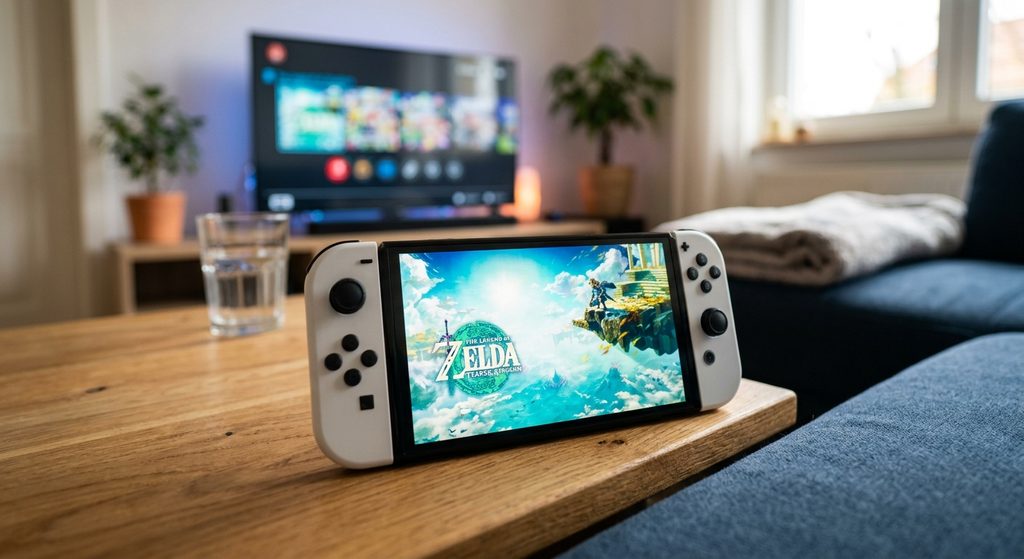
The Nintendo Switch OLED delivers vivid colors, deep contrast, comfortable tabletop gaming, and flexible TV play, making it an excellent choice for casual players and families.
SanDisk microSDXC Memory Card for Nintendo Switch
Best for expanding game storage
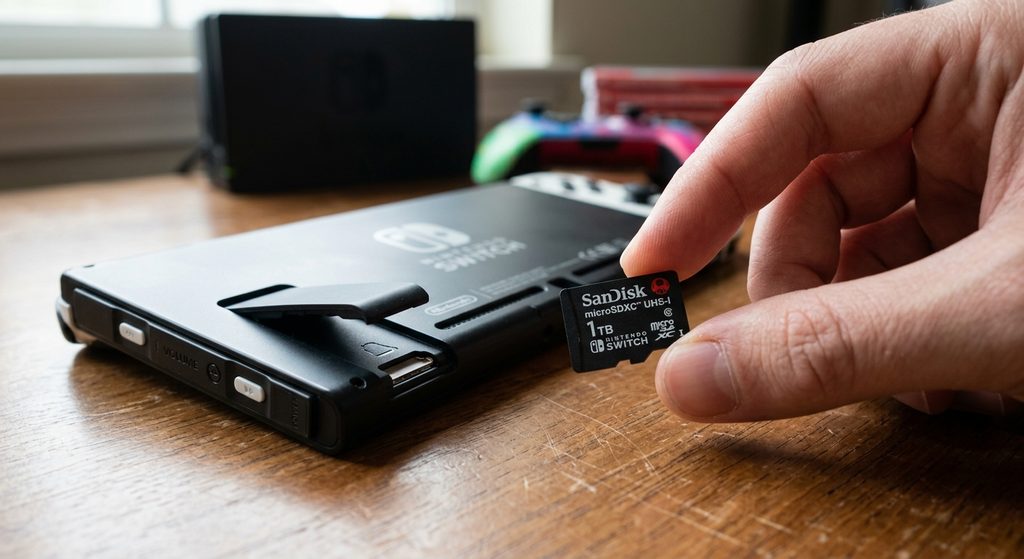
A compatible SanDisk microSDXC card expands storage beyond the console’s built-in 64GB, giving digital-game enthusiasts more room for downloads, updates, screenshots, and additional titles.
Best for everyday screen protection
amFilm Tempered Glass Screen Protector for Nintendo Switch OLED
Best for everyday screen protection
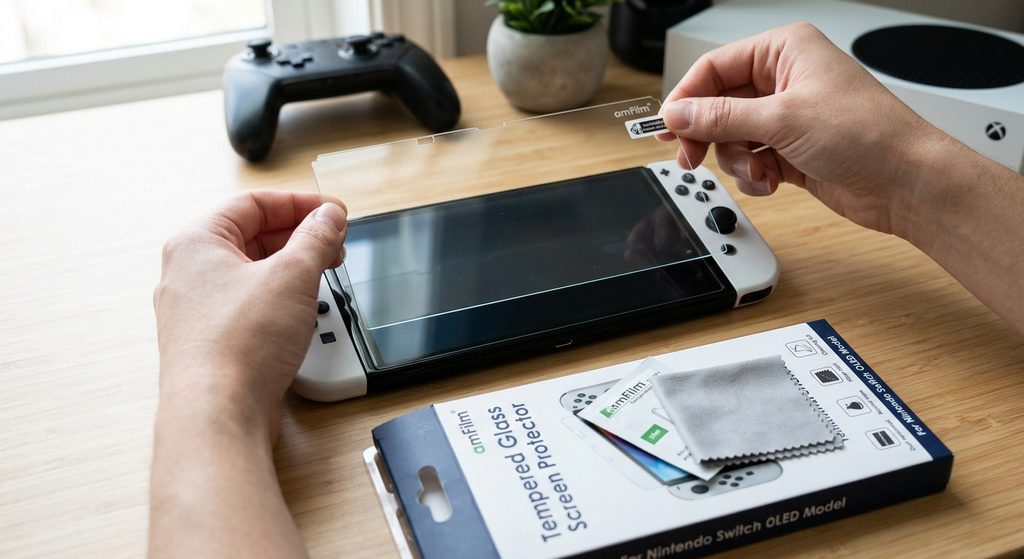
This screen protector helps guard the OLED display against everyday scratches and minor scuffs while maintaining touchscreen usability, making handheld gaming and travel more reassuring.
Related accessories to consider: A protective carrying case, a compatible charging adapter, a comfortable controller, and a microSDXC card can help you get more from your Nintendo Switch OLED. Check compatibility and included accessories before purchasing.
What Are the Key Features of the Nintendo Switch OLED?
The Nintendo Switch OLED stands out because of its upgraded display, flexible gaming modes, improved audio, and redesigned kickstand. These features make it an appealing option for players who want a portable console that can also deliver a big-screen gaming experience.
A vibrant 7-inch OLED display
The console features a 7-inch OLED touchscreen that produces rich colors, deep blacks, and strong contrast. Compared with the original Nintendo Switch’s LCD screen, OLED technology can make colorful games, dark environments, and animated scenes appear more vivid.
Three ways to play
The Nintendo Switch OLED supports three gaming modes:
- TV mode: Place the console in its dock to play compatible games on a television.
- Tabletop mode: Use the built-in adjustable stand and detach the Joy-Con controllers to play on a flat surface.
- Handheld mode: Attach the Joy-Con controllers and play directly on the console’s screen.
More storage and improved audio
The Nintendo Switch OLED includes 64GB of internal storage, compared with 32GB in the original standard Switch model. Some storage is reserved for system use, and a compatible microSD card can provide additional space.
Its enhanced onboard speakers also deliver clearer sound during handheld and tabletop gaming.
A redesigned kickstand and dock
The wide, adjustable kickstand offers more stable tabletop positioning than the original model’s narrow stand. The dock also includes a wired LAN port, allowing a compatible Ethernet connection for supported online gaming setups.
Important: The OLED model retains the same general processing performance and game compatibility as the standard Nintendo Switch. It does not provide a major graphics or performance upgrade
How to Set Up the Nintendo Switch OLED for the First Time
Setting up the Nintendo Switch OLED is straightforward, even if you have never owned a gaming console before. You need the console, its Joy-Con controllers, the included AC adapter, and a Wi-Fi connection if you want to access online features. Nintendo’s official setup guide recommends connecting the power adapter, attaching the controllers, and following the on-screen instructions.
Step 1: Charge the console
Connect the Nintendo Switch AC adapter to the USB-C port on the bottom of the console, then plug the adapter into a suitable wall outlet. Charging the console before extended gameplay helps prevent interruptions during initial setup.
Step 2: Attach the Joy-Con controllers
Slide the left and right Joy-Con controllers onto their corresponding rails on the console. Turn on the system by pressing the POWER button, usually located on the top edge.
Step 3: Complete the initial settings
Follow the on-screen prompts to choose your preferred language, region, and time zone. You can also configure internet access, create a user profile, and set up parental controls if needed.
Step 4: Connect to Wi-Fi and update the system
Open the internet settings, select your wireless network, and enter its password. Once connected, check for available system updates in System Settings to help ensure the console runs the latest compatible software.
Step 5: Set up TV mode
If you want to play on a television, connect the dock’s AC adapter and HDMI cable to their designated ports. Connect the HDMI cable to your TV, insert the console into the dock, and select the correct HDMI input on the television.
Helpful tip: Keep the console’s screen film intact and avoid peeling it off. The OLED model has a protective film designed to help prevent fragments from scattering if the screen glass is damaged.
Common Nintendo Switch OLED Problems and How to Fix Them
Although the Nintendo Switch OLED is designed for convenient gaming, you may occasionally encounter problems with charging, controller connections, or displaying games on your television. Many minor issues can be resolved with basic troubleshooting before you consider professional repairs.
Nintendo Switch OLED won’t turn on
If your console displays a black screen or does not wake from sleep mode, its battery may be depleted, or the system may need a forced shutdown.
- Disconnect the AC adapter from the wall and console for 30 seconds.
- Hold the console’s POWER button for 20 seconds, then release it.
- Connect the official AC adapter directly to a wall outlet.
- Allow the console to charge for at least 15–30 minutes before trying again.
These steps follow Nintendo’s official troubleshooting guidance.
Nintendo Switch OLED won’t charge
First, check the charging cable and adapter for visible damage. Try another wall outlet and connect the compatible AC adapter directly to the console rather than relying on the dock.
If the charging indicator does not appear or the battery level never increases, the adapter, charging port, or console may need professional assessment.
Joy-Con controllers won’t connect or charge
Slide the Joy-Con controllers securely onto the console’s rails. If they still do not respond, detach them and press each controller’s SYNC button once before reconnecting.
To charge attached Joy-Con controllers, keep the console connected to its AC adapter and powered on or in Sleep Mode. Nintendo indicates that a full Joy-Con charge takes approximately three and a half hours.
Nintendo Switch OLED won’t display on a TV
Check that the dock is connected to power and the HDMI cable is connected to the television. Select the correct HDMI input, remove any console case that prevents proper docking, and try another HDMI port or cable if necessary.
How to Improve Nintendo Switch OLED Performance and Battery Life
You can improve your Nintendo Switch OLED gaming experience by adjusting display settings, managing background activity, keeping the system updated, and taking care of its battery. Although these steps cannot increase the console’s processing power, they can help you enjoy more comfortable gameplay and make better use of each charge.
Adjust screen brightness
The OLED display produces vibrant colors, but higher brightness can use more battery power. Open System Settings → Screen Brightness and lower the brightness to a comfortable level, or enable automatic brightness adjustment when available.
Understand the expected battery life
Nintendo estimates that the Switch OLED provides approximately 4.5 to 9 hours of battery life on a full charge. Actual results depend on the game, screen brightness, wireless features, and other usage conditions.
Use Sleep Mode when taking breaks
Instead of leaving a game running while you are away, press the POWER button briefly to put the console into Sleep Mode. You can also adjust automatic sleep settings under System Settings → Sleep Mode to help avoid unnecessary battery drain.
Keep the software updated
Install available system updates to maintain compatibility and access software improvements. From the HOME Menu, open System Settings → System → System Update. Updating games can also help resolve certain software-related issues, although updates do not guarantee better performance in every game.
Protect the display and maintain good ventilation
Avoid leaving static images, paused games, or the HOME Menu displayed at high brightness for extended periods. Because the Switch OLED uses an OLED panel, prolonged display of static content can contribute to image retention or burn-in over time. Use a shorter automatic sleep interval and keep brightness at a comfortable level.
Nintendo Support
Also, keep the console’s air vents unobstructed and avoid playing in excessively hot environments. Good ventilation helps the cooling system operate as intended.
Quick checklist:
- Lower screen brightness when practical.
- Use Sleep Mode during breaks.
- Install system and game updates.
- Keep ventilation openings clear.
- Avoid displaying static images for extended periods.
- Check the battery indicator under System Settings when monitoring battery usage.
These simple habits can help maintain your Nintendo Switch OLED and provide a more reliable gaming experience over time.
Is the Nintendo Switch OLED Worth Buying?
The Nintendo Switch OLED can be an excellent choice for gamers who value portable gaming, a vibrant display, and the flexibility to play on a television. However, whether it is worth buying depends on your budget, preferred games, and whether you already own another Nintendo Switch model.
Reasons to buy the Nintendo Switch OLED
The biggest advantage is its 7-inch OLED screen, which produces rich colors and deep blacks that make games look appealing in handheld mode. Its improved kickstand, enhanced speakers, and 64GB of internal storage also make it a practical option for everyday gaming.
Other advantages include:
- Flexible gaming: Switch between handheld, tabletop, and TV modes.
- Multiplayer entertainment: Use the included Joy-Con controllers for compatible local multiplayer games.
- Portable design: Take your favorite compatible games with you.
- Expandable storage: Add a compatible microSD card for downloaded games and screenshots.
When should you consider another model?
The standard Nintendo Switch may be a better option if you want similar core gameplay at a lower price. The Nintendo Switch Lite is worth considering if you primarily play handheld games and do not need TV output.
If you already own the original Switch, upgrading to the OLED model may not be necessary unless the improved screen, kickstand, or audio matters to you.
Also, remember that the OLED model does not offer a substantial processing-power upgrade over the standard Switch. Players seeking newer hardware capabilities should compare it with the newer Nintendo Switch 2 before making a purchase.
Final buying advice
The Nintendo Switch OLED is best suited to players who want an attractive handheld display without giving up the ability to play on a TV. Before buying, compare current prices, warranty coverage, included accessories, and game compatibility from reputable retailers.
Conclusion: Is the Nintendo Switch OLED a Good Gaming Console?
The Nintendo Switch OLED remains an appealing gaming console for players who want vivid visuals, portable entertainment, and the flexibility to switch between handheld, tabletop, and TV gaming. Its 7-inch OLED display, improved kickstand, enhanced audio, and 64GB of internal storage make it a worthwhile option for casual gamers, families, and Nintendo fans.
Understanding how to set up the console, troubleshoot charging or controller problems, and manage battery life can also help you enjoy a smoother gaming experience. Accessories such as a compatible microSD card, protective carrying case, and screen protector can make everyday use more convenient.
Before purchasing, compare the OLED model with the standard Switch, Switch Lite, and Nintendo Switch 2 to find the best fit for your needs and budget.
Frequently Asked Questions About Nintendo Switch OLED
What is special about the Nintendo Switch OLED?
The Nintendo Switch OLED features a 7-inch OLED touchscreen, vivid colors, deep blacks, improved onboard audio, a wide adjustable kickstand, and 64GB of internal storage. It supports handheld, tabletop, and TV gaming.
How long does the Nintendo Switch OLED battery last?
Nintendo estimates approximately 4.5 to 9 hours of battery life per charge. Actual battery performance depends on the game, screen brightness, wireless connectivity, and battery condition.
Can you play Nintendo Switch OLED games on a TV?
Yes. Connect the included dock to a television using the HDMI cable, connect the dock to power, and insert the console. Select the correct HDMI input on your TV to begin playing in TV mode.
Is the Nintendo Switch OLED compatible with regular Switch games?
Yes. The OLED model supports the Nintendo Switch game library, although some accessories and special game experiences may have compatibility limitations. Always check individual game requirements.
Can you expand the Nintendo Switch OLED storage?
Yes. The console includes 64GB of internal storage and supports compatible microSD, microSDHC, and microSDXC memory cards. A microSDXC card may require a system update before use.
Why won’t my Nintendo Switch OLED turn on?
A depleted battery, charging issue, or temporary system problem could be responsible. Charge the console using its compatible AC adapter, then try holding the POWER button for approximately 20 seconds before releasing it and pressing it again.
Is the Nintendo Switch OLED better than the regular Switch?
The OLED model offers a larger, more vibrant display, better tabletop support, enhanced audio, and more internal storage. However, its core processing performance is similar to that of the standard Switch, so the biggest improvements concern the gaming experience rather than raw power.
Is the Nintendo Switch OLED worth buying?
It is worth considering if you enjoy handheld gaming and want an improved screen while retaining TV connectivity. Compare its price and features with other available Nintendo consoles before deciding which model best suits your gaming needs.
This website is a participant in the Amazon Services LLC Associates Program, an affiliate advertising program designed to provide a means for us to earn fees by linking to Amazon.com and affiliated sites.