
This website is a participant in the Amazon Services LLC Associates Program, an affiliate advertising program designed to provide a means for us to earn fees by linking to Amazon.com and affiliated sites.
The Steam Deck handheld console is a portable gaming device developed by Valve that lets you play many PC games without needing a traditional desktop gaming setup. It combines built-in controls, a screen, rechargeable battery, and a customized version of SteamOS in one handheld device.
Whether you want to enjoy your favorite Steam games while traveling, relax with PC gaming on the couch, or troubleshoot performance issues, the Steam Deck offers a flexible gaming experience. However, understanding its compatibility, battery life, storage options, and settings can help you get more out of your console.
In this guide, you’ll discover useful Steam Deck accessories, learn how to address common problems, and explore practical ways to improve your handheld gaming experience. We’ll also cover important questions about game compatibility, charging, connectivity, and maintenance so you can make informed decisions before buying or upgrading your setup.
Best for Steam Deck Handheld Gaming and Troubleshooting
These three products can help you enjoy handheld gaming, expand storage, and connect your Steam Deck to a larger screen. Choose accessories that match your device model and gaming needs.
Best overall
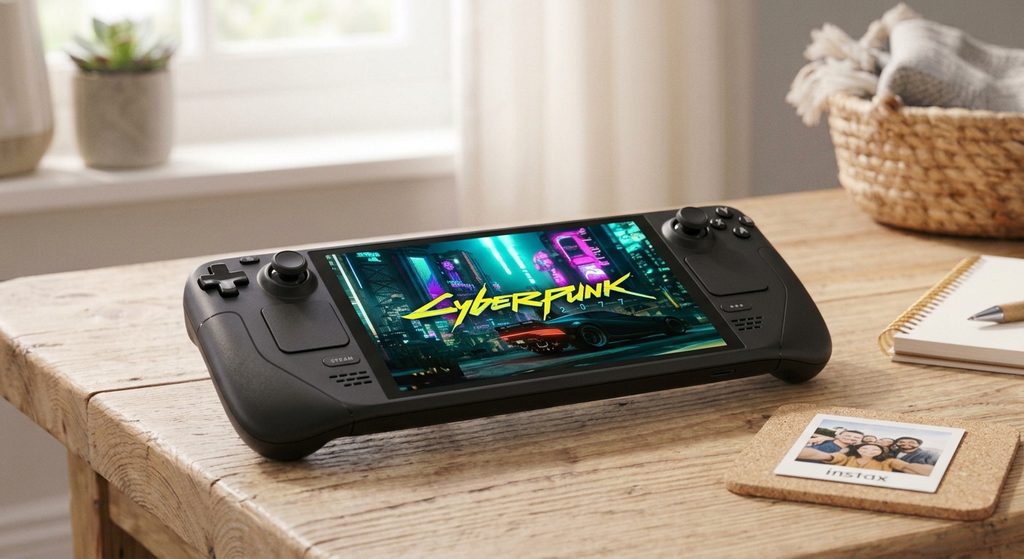
The Steam Deck OLED is ideal for portable PC gaming, offering vibrant HDR visuals, a 90Hz refresh rate, improved wireless connectivity, and a larger battery than the LCD model.
Related product: Steam Deck LCD
JSAUX Steam Deck Docking Station
This docking station is useful for connecting your Steam Deck to a compatible TV or monitor, adding USB peripherals, and using wired Ethernet. Check the selected dock’s ports before purchasing.
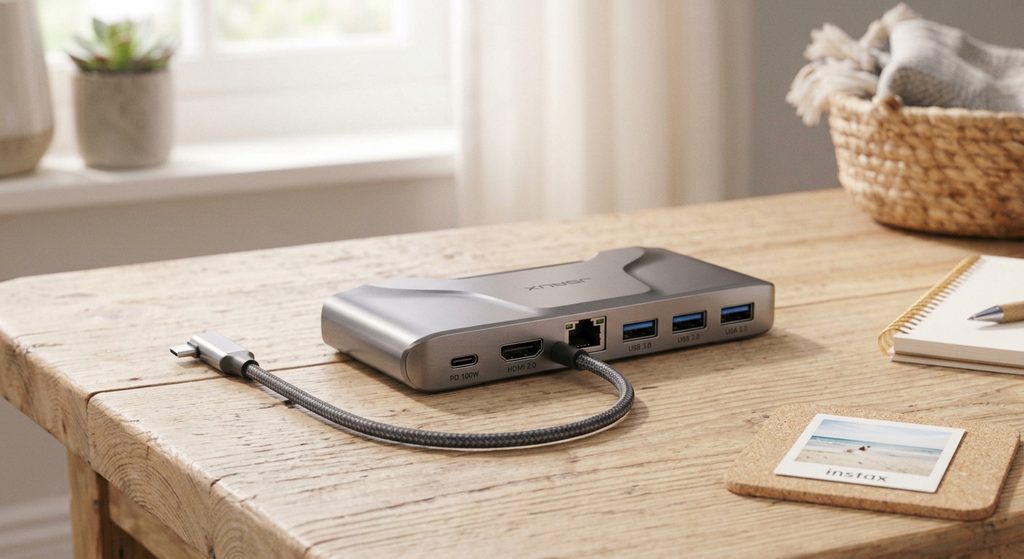
Related products: USB-C hub, HDMI cable, external controller
A suitable microSD card expands your Steam Deck’s game storage without requiring an internal upgrade. Choose a genuine card with adequate capacity and a supported speed rating for downloading and storing games.
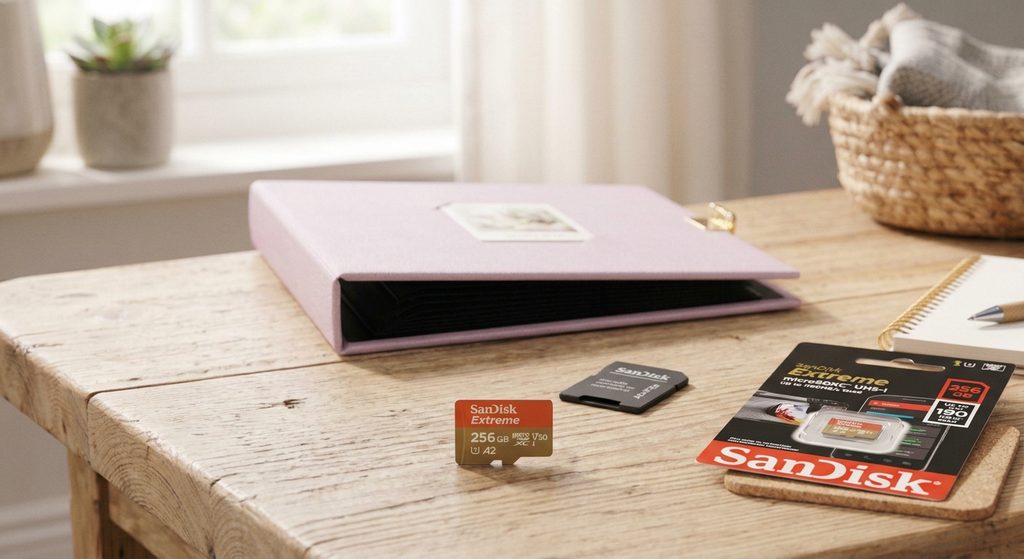
Related products: Samsung EVO Select microSDXC, protective carrying case
Product note: These are recommendations based on their intended uses, not the result of hands-on testing. Check regional availability, current prices, and compatibility before buying.
What Is a Steam Deck Handheld Console and How Does It Work?
The Steam Deck handheld console is a portable gaming computer developed by Valve that allows players to enjoy many PC games wherever they go. Unlike traditional consoles that require a television, the Steam Deck features a built-in display, integrated controls, speakers, and rechargeable battery.
The device runs SteamOS, a Linux-based operating system designed to provide convenient access to the Steam gaming library. Its handheld design combines the flexibility of PC gaming with the convenience of a portable console.
Key Features of the Steam Deck
The Steam Deck includes several features that make it suitable for different gaming preferences.
- Built-in controls: Joysticks, trackpads, buttons, and triggers support various gaming styles.
- Portable display: Play games without connecting an external monitor.
- Steam library access: Download and play compatible games from your Steam account.
- Expandable storage: Use a compatible microSD card to store additional games.
- Desktop mode: Access a traditional desktop environment for supported applications and tasks.
How Does the Steam Deck Work?
To get started, connect the console to Wi-Fi, sign in to your Steam account, and download a compatible game. Once installed, you can launch the game directly from the handheld interface.
However, not every PC game works perfectly. Some titles may have compatibility limitations related to anti-cheat software, launchers, or control configurations. Checking Steam’s current compatibility information before downloading a game can help prevent problems.
The Steam Deck can also connect to compatible docks, monitors, keyboards, and controllers, making it useful for both portable and desktop-style gaming.
Overall, the Steam Deck combines portability, PC gaming flexibility, and customizable controls in one device. Understanding its features and limitations helps you choose suitable games and accessories for your needs.
How to Fix Common Steam Deck Handheld Console Problems
Although the Steam Deck handheld console offers a convenient gaming experience, you may occasionally encounter problems such as games crashing, Wi-Fi disconnecting, charging issues, or the device freezing. Fortunately, several basic troubleshooting steps can resolve common issues without requiring professional repairs.
Steam Deck Won’t Turn On
If your Steam Deck does not respond when you press the power button, check whether the battery is depleted. Connect the console to its compatible charger and allow it to charge for a while before trying again.
If the screen remains blank, disconnect unnecessary accessories and try restarting the device. Avoid repeatedly forcing restarts if the console is installing an update.
Games Keep Crashing or Freezing
Game crashes may result from software bugs, corrupted files, compatibility limitations, or insufficient available storage.
Try these steps:
- Restart the Steam Deck.
- Install available SteamOS updates.
- Check the game’s compatibility information.
- Verify the game’s files through its Steam properties.
- Close unnecessary applications running in the background.
Wi-Fi Connection Problems
If downloads are slow or online games disconnect, restart your router and reconnect the console to your Wi-Fi network. Moving closer to the router may also improve signal strength.
Charging and Battery Issues
Use a compatible charger and inspect the charging cable and port for visible damage. If the device becomes unusually hot, disconnect the charger and allow it to cool before investigating further.
If these solutions do not work, consult the official Steam Deck Support resources before attempting repairs. Avoid opening the console unless you understand the risks and warranty implications.
Tip: Start with simple software and connection checks before considering hardware repairs. This approach can save time and help you identify the actual cause of the problem.
How to Improve Steam Deck Battery Life and Gaming Performance
Improving battery life and gaming performance on your Steam Deck handheld console can help you enjoy longer gaming sessions with fewer interruptions. Although battery life varies depending on the game, screen brightness, and system settings, a few adjustments can make a noticeable difference.
Adjust Screen Brightness and Power Settings
The display is one factor that affects battery consumption. Lowering screen brightness to a comfortable level can help conserve power, particularly when playing games indoors.
You can also explore the Steam Deck’s performance settings to balance graphical quality and energy use. For less demanding games, limiting the frame rate may reduce power consumption without significantly affecting the experience.
Optimize Game Performance
Some games require more processing power than others. If a demanding game experiences stuttering or inconsistent frame rates, consider adjusting its graphics settings.
Useful adjustments include:
- Lowering demanding graphics options where available.
- Using a frame-rate limit appropriate for the game.
- Closing applications you do not need.
- Keeping SteamOS and games updated.
- Checking available storage if downloads or installations fail.
Remember that lower graphics settings may improve performance, but the results depend on the individual game.
Manage Battery Health
Good charging habits can help you maintain your Steam Deck over time. Avoid exposing the console to excessive heat, and use a suitable charger that meets the manufacturer’s requirements.
If you regularly play near a power outlet, connecting the device to power can reduce interruptions during longer sessions. For travel, consider a compatible USB-C power bank that supports the console’s power requirements.
Keep Your Console Updated
Software updates can introduce improvements, compatibility fixes, and performance optimizations. Install updates through the device’s settings and restart the console when prompted.
Ultimately, the best settings depend on your priorities. If you value longer playtime, focus on power efficiency; if you prefer smoother gameplay, experiment with performance settings while monitoring temperature and battery use.
How to Expand Steam Deck Storage and Connect Accessories
Expanding storage and connecting accessories can make your Steam Deck handheld console more versatile. Whether you have a large game library or want to play on a television, the right accessories can improve convenience without requiring a new gaming device.
How to Expand Steam Deck Storage
Steam Deck games can take up considerable storage space, especially modern titles with large installation files. If you frequently install new games, expanding storage can help you manage your library more easily.
You have two main options:
- Use a microSD card: Insert a compatible microSD card into the built-in card slot to add storage for games and other supported files.
- Upgrade the internal SSD: Some Steam Deck models support internal SSD replacement, but this requires careful handling and a compatible drive.
For most beginners, a reputable microSD card is the simpler option. Choose a suitable capacity and speed rating, and format the card through the Steam Deck’s storage settings before using it for games.
How to Connect Your Steam Deck to a TV or Monitor
A compatible USB-C dock or hub lets you connect the Steam Deck to an external display using HDMI or DisplayPort, depending on the dock’s available connections.
To get started:
- Connect the dock to a compatible power source if required.
- Connect your monitor or television using the appropriate display cable.
- Attach the dock to the Steam Deck’s USB-C port.
- Select the correct input on your external display.
- Connect a keyboard, mouse, or external controller if desired.
Other Useful Steam Deck Accessories
A protective carrying case helps protect the console during transport, while a screen protector can reduce the risk of scratches. An external controller may also be useful for playing on a larger screen.
Before purchasing accessories, verify compatibility with your specific Steam Deck model. Using reliable products and following manufacturer instructions can help prevent connection problems and unnecessary expenses.
How to Choose the Right Steam Deck Handheld Console for Your Needs
Choosing the right Steam Deck handheld console depends on your gaming preferences, budget, storage requirements, and how often you plan to play away from home. Comparing the available models can help you decide which option offers the features you value most.
Steam Deck OLED vs. Steam Deck LCD
The Steam Deck OLED and Steam Deck LCD provide access to the Steam gaming ecosystem, but they differ in display technology and other hardware features.
The Steam Deck OLED features an OLED screen with vibrant colors, deeper blacks, HDR support, and a refresh rate of up to 90Hz. It also offers improved wireless connectivity and longer battery life under comparable usage conditions.
The Steam Deck LCD has an LCD display and a refresh rate of up to 60Hz. It may be worth considering if you find it at a substantially lower price, particularly on the used market.
Availability and pricing vary by region, so compare the total cost before purchasing.
Consider Your Storage Needs
If you play a few smaller games, a model with less internal storage may be sufficient. However, if you regularly download large games, additional storage can be helpful.
Consider a compatible microSD card if you want a straightforward way to expand capacity.
Think About Your Gaming Habits
Ask yourself these questions before making a decision:
- Do you mainly play at home or while traveling?
- Do you prefer a more advanced display?
- Will you connect the console to a television?
- Do you need extra storage for large games?
- Is battery life particularly important to you?
Also, check whether your favorite games are compatible with SteamOS before buying.
Ultimately, the best Steam Deck handheld console is the one that suits your budget and gaming habits. Compare features, verify game compatibility, and purchase from a reputable seller to make a more informed decision.
Conclusion: Is the Steam Deck Handheld Console Worth It?
The Steam Deck handheld console is a versatile option for gamers who want to enjoy PC gaming in a portable format. With its built-in controls, Steam library access, expandable storage, and support for compatible external accessories, it offers flexibility for gaming at home or on the go.
To get the most out of your device, keep its software updated, optimize performance settings, and troubleshoot common problems before considering hardware repairs. Choosing suitable accessories, such as a microSD card, docking station, and protective case, can also improve your experience.
Before purchasing, compare the Steam Deck OLED and LCD models, check game compatibility, and consider your budget and storage requirements.
Ready to improve your setup? Explore our related guides on handheld gaming accessories, gaming performance optimization, and troubleshooting common console problems to make your gaming sessions more enjoyable.
Frequently Asked Questions About the Steam Deck Handheld Console
What is a Steam Deck handheld console used for?
The Steam Deck is a portable gaming computer designed primarily for playing compatible PC games from Steam. It includes a built-in display, physical controls, and a rechargeable battery. You can also connect compatible accessories to use it with an external monitor, keyboard, mouse, or controller.
Can you play games offline on the Steam Deck?
Yes, many Steam Deck games support offline play. However, some games require an internet connection for authentication, multiplayer features, or third-party launchers. Check the game’s requirements and enable offline access before traveling.
Is the Steam Deck OLED better than the LCD model?
The OLED model offers a more vibrant display, a refresh rate of up to 90Hz, improved wireless connectivity, and generally longer battery life. The LCD model can still provide an enjoyable gaming experience, especially if you find it at a lower price.
How do you fix a Steam Deck that keeps freezing?
Start by restarting the device and installing available system updates. If a particular game freezes repeatedly, check its compatibility, verify its installed files, and adjust demanding graphics settings. Persistent problems may require assistance from Steam Support.
Can you expand Steam Deck storage?
Yes. You can add storage using a compatible microSD card or replace the internal SSD on supported models. A microSD card is generally easier for beginners because it avoids opening the console.
Can you connect a Steam Deck to a TV?
Yes. A compatible USB-C dock or hub can connect your Steam Deck to a television or monitor through a supported display connection. You can also connect compatible external controllers for a more traditional console-style experience.
How long does the Steam Deck battery last?
Battery life depends on the model, game, screen brightness, and performance settings. Less demanding games may last considerably longer than graphically intensive titles. Reducing brightness and limiting frame rates can help conserve power.
Is the Steam Deck worth buying?
The Steam Deck can be an excellent choice if you want portable access to PC gaming. Before buying, compare the available models, verify compatibility with your favorite games, and consider the cost of accessories and additional storage.
This website is a participant in the Amazon Services LLC Associates Program, an affiliate advertising program designed to provide a means for us to earn fees by linking to Amazon.com and affiliated sites.