
This website is a participant in the Amazon Services LLC Associates Program, an affiliate advertising program designed to provide a means for us to earn fees by linking to Amazon.com and affiliated sites.
A projector for retro gaming can transform classic video games into a big-screen experience, letting you enjoy titles from the Nintendo NES, Super Nintendo, Sega Genesis, PlayStation, and other vintage consoles on a much larger display. The best choice depends on your console’s video connections, the projector’s input lag, image quality, resolution, and available ports.
Whether you’re revisiting childhood favorites or building a dedicated retro gaming room, you don’t necessarily need an expensive home theater projector. A budget-friendly model can work well for casual gaming, while a gaming-focused projector with low input lag is better for fast-paced platformers, fighting games, and racing titles.
Before buying, consider how you’ll connect your console, whether you prefer a 4:3 or widescreen image, and how much room you have for projection. These details can help you avoid compatibility problems and enjoy a sharp, responsive picture that preserves the charm of classic games.
Best for Retro Gaming Projectors
These three projectors are worth considering for a retro gaming setup, from responsive 1080p gaming to short-throw projection for smaller rooms.

BenQ TH575 — Best overall for classic console gaming
1080p Full HD · 3,800 ANSI lumens
The BenQ TH575 combines Full HD resolution, strong brightness, and a dedicated low-latency game mode, making it a practical choice for responsive retro gaming on a large screen.

BenQ TH671ST — Best for smaller gaming rooms
1080p Full HD · Short-throw lens
Its short-throw design helps create a large gaming image from a relatively short distance, making it suitable for apartments, bedrooms, and dedicated retro gaming corners.

Optoma GT1080HDR — Best for fast-paced arcade games
1080p Full HD · Short throw · Gaming mode
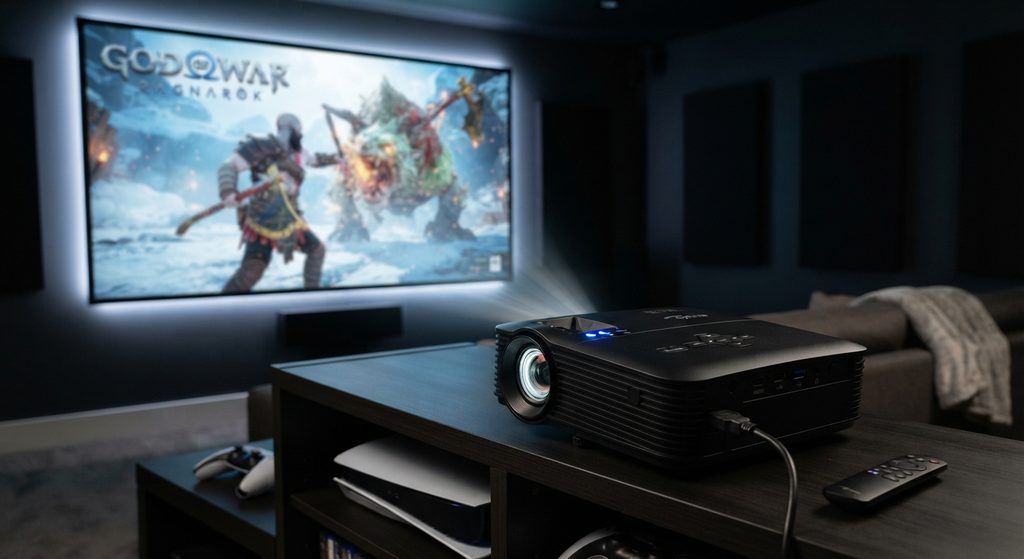
The Optoma GT1080HDR is a strong option for arcade games, fighters, and racing titles because its short-throw design and gaming-focused performance suit large, responsive displays.
Related products for your setup
A projector is only one part of a successful retro gaming system. Consider these complementary accessories:
- RetroTINK 5X-Pro or OSSC video scaler: Converts or processes compatible legacy console signals for modern displays.
- HDMI converter for older consoles: Useful when your console outputs composite or component video instead of HDMI. Choose one compatible with your exact console and region.
- Retractable projector screen: Provides a consistent viewing surface and can make pixel art easier to see.
- Wired gaming speakers or a stereo system: Adds fuller sound without relying on a projector’s small built-in speaker.
Compatibility matters more than buying every accessory. Check your console’s output type and the projector’s supported inputs before ordering a converter or scaler.
What Makes a Projector Good for Retro Gaming?
A good projector for retro gaming should deliver low input lag, reliable console compatibility, appropriate image scaling, and enough brightness to produce a clear picture in your gaming room. Unlike modern games designed for high-resolution displays, classic titles often use older video formats and different aspect ratios, so choosing the right projector involves more than simply looking at resolution.
Input lag is one of the most important features. It measures the delay between pressing a button and seeing the action on screen. For platformers, fighting games, and arcade classics, a projector with a dedicated gaming mode and low input lag can make gameplay feel more responsive.
Resolution and image scaling also matter. Many classic consoles output 240p or 480i signals, while modern projectors commonly support 720p or 1080p input. A compatible video scaler can improve how these signals appear on a large screen, although it cannot recreate detail that was never present in the original game.
Consider these additional features:
- Aspect ratio: A 4:3 image preserves the original proportions of many older games. A widescreen projector can display this format with black bars on the sides.
- Brightness: Around 2,000–3,500 ANSI lumens can be a useful starting point for many home setups, depending on screen size and room lighting.
- Connectivity: HDMI is useful for modern retro consoles and scalers, while older systems may require composite or component connections through an appropriate converter.
- Throw distance: Short-throw models are helpful when you have limited space between the projector and screen.
Ultimately, prioritize responsiveness and compatibility over 4K resolution alone. These features will usually make a more noticeable difference to your retro gaming experience.
How to Connect Retro Gaming Consoles to a Projector
Connecting a retro gaming console to a projector depends on the console’s video output and the inputs supported by your projector. Older systems such as the Nintendo Entertainment System (NES), Super Nintendo, Sega Genesis, and original PlayStation may use composite, component, or other legacy connections, while modern retro consoles often provide HDMI.
Step 1: Identify your console’s video output. Check the back of the console or consult its manual. Yellow, red, and white RCA plugs typically indicate composite video and stereo audio, while component connections use separate red, green, and blue video plugs alongside audio cables.
Step 2: Check the projector’s available inputs. If your projector has a compatible input, you may be able to connect directly. If it only has HDMI, you’ll generally need a compatible converter or a dedicated video scaler to translate the console’s signal.
Step 3: Choose the right adapter. A basic HDMI converter can work for casual gaming, but a quality scaler may provide better image processing for older consoles. Confirm that the device supports your console’s signal format, including 240p where relevant, because some inexpensive converters handle older signals poorly.
Step 4: Connect the audio. If your projector lacks suitable speakers, connect the console’s audio output or the converter’s audio output to external speakers. Check whether your chosen converter passes audio through HDMI or provides separate audio connections.
Step 5: Select the correct source and test the picture. Turn on the console, choose the projector’s corresponding input, and check for stable video, correct colors, and appropriate image proportions.
Before purchasing accessories, verify compatibility with your exact console model and region. The right connection method helps preserve the original gaming experience while making classic titles easier to enjoy on a large screen.
For most HDMI-only projectors, a compatible retro video scaler is a reliable solution for older consoles that output analog video.
Best Picture Settings for Retro Gaming on a Projector
The best projector picture settings for retro gaming balance sharpness, color accuracy, image proportions, and responsiveness. Since classic consoles were designed for older televisions, the goal is not always to make the graphics look ultra-sharp; it is to preserve the original visual style while making games comfortable to play on a larger screen.
Start by selecting your projector’s Game Mode if available. This setting typically reduces image processing to improve responsiveness, although the exact effect depends on the model. Disable unnecessary motion smoothing, noise reduction, and other processing features if they introduce delay or make pixel art look unnatural.
Next, adjust the following settings:
- Aspect ratio: Choose 4:3 for games originally designed for standard-definition televisions. Use the projector’s native or automatic scaling options if they preserve the correct proportions.
- Sharpness: Begin with a neutral setting. Excessive sharpness can create halos around sprites, text, and pixel edges.
- Brightness and contrast: Adjust these controls until dark areas remain visible without washing out black levels. A dim room makes this easier.
- Color temperature: A neutral or warm setting can provide a more natural image than an excessively cool, blue-tinted picture.
- Scaling mode: If you’re using an external scaler, experiment with its supported output resolutions and pixel-processing options. Some gamers prefer crisp, square pixels, while others enjoy softer, CRT-like visuals.
Your room and screen size also affect the final result. A larger projected image can reveal imperfections in low-resolution graphics, so consider reducing the image size if pixels appear distracting. Keep ambient light low and use a suitable screen or smooth, neutral-colored wall for better contrast.
Finally, test settings with several games. A 2D platformer, a fighting game, and a 3D PlayStation title may look different, so save separate picture presets if your projector supports them.
Common Projector Problems in Retro Gaming and How to Fix Them
Using a projector for retro gaming can occasionally introduce problems such as no signal, blurry graphics, input lag, incorrect aspect ratios, or distorted colors. Most of these issues can be resolved by checking the console connection, adjusting the projector settings, or using a compatible video scaler.
No Signal or a Black Screen
If your projector displays a “No Signal” message, first confirm that the console is powered on and the correct input source is selected. Check that all cables are securely connected and that any HDMI converter or video scaler has power.
If the problem continues, verify that the converter supports your console’s output format. Some inexpensive adapters struggle with older 240p signals.
Blurry or Pixelated Graphics
Retro games were designed for much smaller screens, so enlarging them can make individual pixels more noticeable. Check the projector’s focus, adjust the image size, and avoid excessive digital zoom.
A dedicated retro gaming scaler may improve image processing, but it cannot restore original detail that the console never produced.
Noticeable Input Lag
Input lag can make fast-paced games feel unresponsive. Enable Game Mode, disable unnecessary image processing, and connect your console directly to the projector or through a low-latency scaler.
Test the setup with a game that requires precise timing before making further adjustments.
Stretched or Incorrectly Proportioned Images
If classic games look unusually wide, change the aspect ratio to 4:3 when appropriate. Avoid stretching older games to fill a widescreen image unless you intentionally prefer that appearance.
Washed-Out Colors or Poor Contrast
Reduce ambient lighting, adjust brightness and contrast, and check the video cable connections. If colors remain incorrect, inspect the converter’s output settings and confirm that the selected video format is compatible with both devices.
The best troubleshooting approach is to change one setting at a time. This makes it easier to identify the cause without introducing additional problems.
Conclusion: Choosing the Best Projector for Retro Gaming
Choosing the right projector for retro gaming comes down to low input lag, console compatibility, picture quality, and your available space. A gaming-focused projector such as the BenQ TH575, BenQ TH671ST, or Optoma GT1080HDR can provide an enjoyable big-screen experience for classic arcade games and console favorites.
Before buying, check your console’s video output, the projector’s supported connections, and whether you need a video scaler to convert older signals to HDMI. Adjusting the aspect ratio, enabling Game Mode, and reducing ambient light can also improve your gaming experience.
Ultimately, you don’t need the most expensive projector to enjoy retro games. Choose a model that suits your room, preserves the original game’s proportions, and responds quickly to your controls. With the right setup, your favorite classics can feel exciting all over again.
Frequently Asked Questions About Projectors for Retro Gaming
Are projectors good for retro gaming?
Yes, projectors can be excellent for retro gaming because they display classic games on a much larger screen than most televisions. They work particularly well for arcade games, platformers, racing games, and multiplayer sessions. For the best experience, choose a projector with low input lag and a compatible connection for your console.
What is the best projector for retro gaming?
The BenQ TH575 is a strong all-around option because it offers Full HD resolution, high brightness, and a dedicated gaming mode. The BenQ TH671ST and Optoma GT1080HDR are worth considering if you need short-throw projection for a smaller room. Always check current specifications and availability before purchasing.
Can I connect an old Nintendo or Sega console to a projector?
Yes. Older Nintendo and Sega consoles can often connect through composite or component video, depending on the model. If your projector only supports HDMI, you may need a compatible converter or retro gaming scaler. Check that the adapter supports your console’s particular signal format.
Is 4K resolution necessary for retro gaming?
No. A 1080p projector is generally sufficient for enjoying classic games. Many older consoles output much lower resolutions, so a good scaler and appropriate image processing can matter more than a projector’s maximum resolution.
Does projector input lag matter for retro games?
Yes. Input lag affects how quickly on-screen actions respond to controller inputs. It is especially important for fighting games, rhythm games, and platformers that require precise timing. Look for a projector with a dedicated Game Mode and check measured input-lag figures at your intended resolution.
Should I use a projector screen for retro gaming?
A projector screen is helpful but not essential. A smooth, flat, neutral-colored wall can work well for casual gaming. A dedicated screen can provide more consistent image quality, particularly when projecting large images in a dark room.
Can I play retro games on a projector during the day?
Yes, but bright ambient light can reduce contrast and make dark scenes difficult to see. Choose a sufficiently bright projector, close curtains where possible, and avoid projecting directly onto a sunlit wall. For the best results, play in a dimly lit room.
How can I make retro games look better on a projector?
Use the correct 4:3 aspect ratio for games designed around that format, enable Game Mode, adjust focus and sharpness, and consider a dedicated retro video scaler. Experiment with settings to find a balance between crisp pixels and the softer appearance associated with older CRT televisions.
This website is a participant in the Amazon Services LLC Associates Program, an affiliate advertising program designed to provide a means for us to earn fees by linking to Amazon.com and affiliated sites.