This website is a participant in the Amazon Services LLC Associates Program, an affiliate advertising program designed to provide a means for us to earn fees by linking to Amazon.com and affiliated sites.
Not all projectors support Netflix—but many do, if you know what to look for.
Are you looking to enhance your movie nights or binge-watching sessions with the ultimate cinematic experience? Look no further than the best projectors with Netflix compatibility in 2025. These cutting-edge devices combine the convenience of streaming your favorite Netflix shows and movies with the immersive visuals of a high-quality projector.
Did you know that some projectors get blocked from streaming Netflix even though they have Android OS?
Best for Streaming Netflix: Anker Nebula Capsule 3, Epson EpiqVision Mini EF12, and XGIMI Horizon Pro
Here are three top-rated projectors that offer seamless Netflix streaming experiences, either natively or through reliable streaming compatibility:
Anker Nebula Capsule 3 Laser
- Why we picked it:
Compact, portable, and Netflix-certified with Android TV 11 built-in, this projector supports Netflix directly via a pre-installed app—no external devices needed.
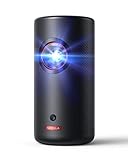
- Laser Engine to Illuminate Your World: Experience vibrant visuals with this laser projector, featuring a laser light source delivering 300 ANSI Lumens of brightness…
- Travel Light, Project Big: At just 2 lb (900 g) and 90% smaller than others with similar brightness, NEBULA Capsule 3 Laser projects up to a 120-inch screen and…
Epson EpiqVision Mini EF12 Smart Streaming Laser Projector
- Why we picked it:
Offers stunning picture quality with 1080p resolution, built-in Android TV, and Chromecast support. While Netflix isn’t pre-installed, it streams smoothly using external devices like Fire Stick.

- Epson Certified-Refurbished Product – Epson’s quality-assurance team reviews each refurbished product. They have been inspected and tested to ensure they perform…
- Stunning Picture Quality up to 150″ — Delivers an immersive viewing experience for TV shows, sporting events, gaming and movies by accepting content up to 4K…
XGIMI Horizon Pro 4K
- Why we picked it:
With 4K UHD resolution and Android TV, it’s a premium choice. Although native Netflix is restricted, it delivers excellent playback via external streamers or screen-mirroring methods.
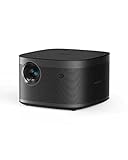
- True 4K Technology: 3840 x 2160 Pixels Standard Resolution with 8.29 million pixels and ultra-bright 1500 ISO Lumens
- Room-Filling Sound: Dual 8W built-in Harman Kardon speakers, DTS-HD & DTS Studio Sound, Dolby Digital compatibility
Do All Projectors Support Netflix?
The short answer is no—not all projectors support Netflix, especially not natively. This is largely due to Netflix’s licensing and DRM (Digital Rights Management) policies. Projectors must be officially certified to run the Netflix app, and many are not.
Why Some Projectors Can’t Run Netflix
While many projectors run on Android OS, that doesn’t automatically mean they support Netflix. Netflix has strict hardware and software requirements, and unless a projector is certified by Netflix, the app may not work properly—or at all.
- DRM limitations: Netflix requires Widevine L1 DRM support, which is missing on many budget and mid-range projectors.
- Blocked apps: Even if you sideload the Netflix app, it may crash, show error messages, or stream in low resolution.
- User interface limitations: Projectors without full Android TV or certified app stores might not allow secure playback of Netflix content.
Types of Projectors & Netflix Compatibility
Here’s a quick breakdown of projector types and how they relate to Netflix support:
- Smart Projectors (with Android TV): Some support Netflix natively (e.g., Nebula Capsule 3), but many don’t.
- Mini/Budget Projectors: Often lack the certification to stream Netflix.
- Laser or 4K Projectors: Usually support Netflix through external devices.
- Business/Education Projectors: Typically not built for streaming apps.
Workaround Methods
If your projector doesn’t support Netflix directly:
- Use a streaming device like Amazon Fire Stick, Roku, or Chromecast.
- Screen mirror from a phone or tablet (though quality may vary).
- Connect a laptop via HDMI to stream Netflix without app limitations.
How to Stream Netflix on a Projector (Step-by-Step Guide)
Even if your projector doesn’t support Netflix natively, there are multiple reliable ways to stream your favorite shows on the big screen. Here’s a detailed guide on how to do it, no matter what kind of projector you own.
Option 1: Use a Streaming Stick (Most Reliable)
Compatible devices:
- Amazon Fire TV Stick
- Roku Streaming Stick
- Google Chromecast with Google TV
Steps:
- Plug the streaming stick into the projector’s HDMI port.
- Connect to Wi-Fi and complete setup.
- Open the Netflix app and log in.
- Start watching!
Note: Fire TV Stick is often the most stable and widely compatible.
Option 2: Connect a Laptop or PC
Best for: Projectors with HDMI input but no smart features.
Steps:
- Connect your laptop to the projector using an HDMI cable.
- Set your projector to the correct HDMI source.
- Open Netflix in a browser and play your content.
- Adjust the audio output if needed (e.g., external speakers).
Option 3: Use Screen Mirroring (Phones/Tablets)
Devices supported:
- Android phones
- iPhones (with AirPlay or third-party apps)
Steps:
- Ensure both devices are on the same Wi-Fi network.
- Use built-in casting (e.g., Chromecast) or third-party apps.
- Open Netflix on your phone and cast to the projector.
Warning:
This method may result in lower resolution or blocked playback due to Netflix’s DRM restrictions.
What Features Should a Netflix-Ready Projector Have?
Not every projector can handle Netflix streaming efficiently—even if it technically connects to the internet. To enjoy smooth playback, high resolution, and proper app functionality, here are the key features you should look for in a Netflix-ready projector.
Certified Android TV OS or Netflix Licensing
Netflix only runs natively on projectors with proper licensing or official Android TV certification. Look for:
- Android TV 10 or 11 with pre-installed Google Play Store
- Projectors that explicitly mention Netflix compatibility
- Widevine L1 DRM support (enables HD streaming)
High Brightness and Resolution
Streaming movies and shows from Netflix looks best when the display quality matches the content.
- Minimum resolution: 1080p Full HD; 4K for the best experience
- Brightness: 300 ANSI lumens or more for indoor viewing; 800+ for well-lit rooms
Built-In Wi-Fi and Streaming Support
Wi-Fi capability is essential. Look for dual-band (2.4GHz + 5GHz) Wi-Fi for a stable signal. Bluetooth connectivity is also useful for pairing external speakers.
Multiple Ports
To accommodate streaming devices:
- HDMI ports (at least 1 or 2)
- USB ports for powering devices or media playback
- Audio out for external speaker connection
Compact Design and Portability (Optional)
If you move your projector between rooms or take it outdoors, choose a model with:
- Built-in battery
- Lightweight build
- Auto-focus and keystone correction for quick setup
Why Netflix Blocks Some Projectors (And How to Work Around It)
You might be surprised to learn that Netflix actively blocks its app on many projectors—even those with Android systems. This can be frustrating for users who assume that downloading the app guarantees it will work. Let’s explore why this happens and how to work around these limitations.
Why Netflix Blocks Certain Devices
Netflix uses strict Digital Rights Management (DRM) protocols to protect its copyrighted content. Devices that don’t meet its standards—especially uncertified or budget Android projectors—are either:
- Blocked from downloading the app
- Able to install the app, but unable to stream content in HD
- Restricted to audio playback only, with a black screen
The most common reasons include:
- No Widevine L1 certification (only Widevine L3 = SD playback or failure)
- Outdated Android OS (or custom versions not recognized by Netflix)
- Lack of Netflix approval or manufacturer certification
How to Bypass Netflix Restrictions on Projectors
While you can’t “hack” certification, you can get around the limitations in legitimate ways:
Use an External Streaming Device
- Fire TV Stick, Roku, or Chromecast are officially certified by Netflix.
- Simply plug it into your projector’s HDMI and stream natively.
Cast Netflix from a Smartphone (Caution)
- Some projectors support Miracast or AirPlay.
- However, casting from Netflix may still be blocked or limited in quality.
Connect a Laptop via HDMI
- The most foolproof method.
- You retain full browser functionality with no resolution or audio issues.
Conclusion
Not all projectors support Netflix, and knowing which ones do—and how they do it—can save you time, frustration, and money. Native support is limited to a select few models like the Anker Nebula Capsule 3, while many others require external streaming devices such as a Fire TV Stick or Chromecast for full Netflix functionality.
By understanding Netflix’s DRM restrictions and choosing a projector with the right features—like certified Android TV, proper brightness, and connectivity options—you’ll ensure a seamless viewing experience. Whether you’re streaming indoors or outdoors, the right setup will let you enjoy your favorite shows and movies without interruptions.
Frequently Asked Questions About Which Projectors Support Netflix
Why won’t Netflix work on my projector?
Netflix doesn’t work on many projectors because of DRM (Digital Rights Management) restrictions. If the projector doesn’t support Widevine L1 certification or lacks Netflix app certification, the app may not install, stream in HD, or function at all.
Can I install Netflix manually on my projector (APK)?
You can try sideloading the Netflix APK on Android-based projectors, but it usually won’t work properly. Common issues include:
- App crashes or failure to launch
- Poor resolution (SD only)
- Black screen with audio only
The best solution is using an external streaming device like Fire Stick or Roku.
What is the easiest way to watch Netflix on a projector?
The easiest and most reliable method is to:
- Plug a Fire TV Stick, Roku, or Chromecast into the projector’s HDMI port
- Connect to Wi-Fi
- Open Netflix and start watching
These devices are certified and regularly updated, ensuring app stability.
Are there projectors that come with Netflix pre-installed?
Yes, but they are rare. Some models like the Anker Nebula Capsule 3 and certain XGIMI projectors support Netflix natively. Always check the product description—many projectors claim to be “smart,” but lack official Netflix support.
Can I mirror Netflix from my phone to a projector?
Technically yes, but it’s not reliable. Due to copyright protections, screen mirroring may result in:
- Low resolution
- Lag or buffering
- A black screen with only sound
Use HDMI from a laptop or a streaming stick for best results.
4K Projector with HDR10+: Ultimate Guide to Stunning Home Theater Visuals in 2026
Can You Put HID in Halogen Projectors? (Complete Guide)
Can You Use a Projector Without a Laptop? 5 Easy Alternatives to Try Today
This website is a participant in the Amazon Services LLC Associates Program, an affiliate advertising program designed to provide a means for us to earn fees by linking to Amazon.com and affiliated sites.