This website is a participant in the Amazon Services LLC Associates Program, an affiliate advertising program designed to provide a means for us to earn fees by linking to Amazon.com and affiliated sites.
The Epson projector lens cover timer is an automatic power-saving feature that switches off your projector after 30 minutes if the lens cover remains closed. It helps reduce unnecessary power consumption when you temporarily stop projection without manually shutting down the device.
Have you ever closed your Epson projector’s lens cover to pause a movie, only to discover that the projector switches off unexpectedly? This behavior is usually normal when the Lens Cover Timer setting is enabled.
The feature is particularly useful in classrooms, offices, and home theaters where users frequently pause presentations or temporarily block the projected image. However, it can become inconvenient if you prefer keeping the projector running while the lens cover is closed.
Fortunately, you can check the setting through the projector’s ECO menu and disable it on supported models. Understanding how the timer works will help you avoid unexpected shutdowns and manage your Epson projector more effectively.
Best Products for Managing and Maintaining an Epson Projector
Although the Epson lens cover timer is controlled through the projector’s settings, a few useful accessories can make operating and maintaining your projector easier. The following products are worth considering.
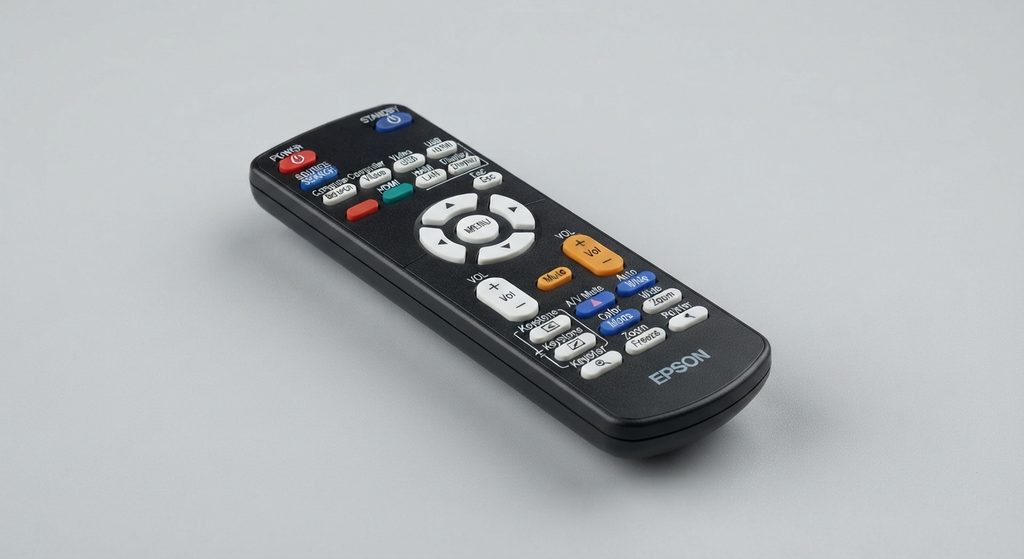
Epson Replacement Projector Remote Control
Why we recommend it: A compatible Epson replacement remote makes it easier to access projector settings, navigate the ECO menu, adjust power-saving options, and manage projection without reaching the device.
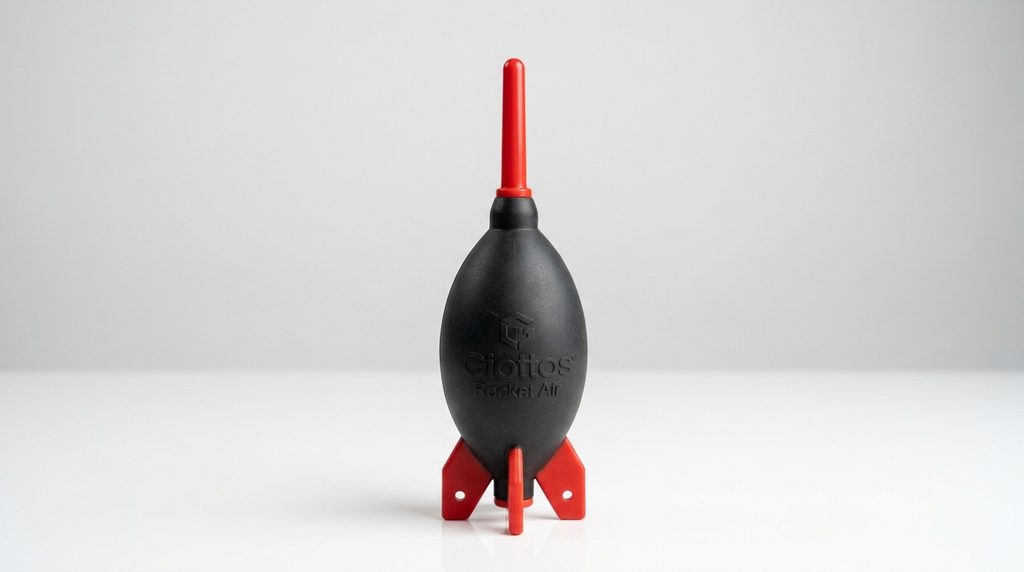
Giottos Rocket Air Blower
Why we recommend it: This reusable air blower removes loose dust from projector lenses and surrounding areas without direct contact, helping maintain cleaner optics while reducing the risk of scratches.
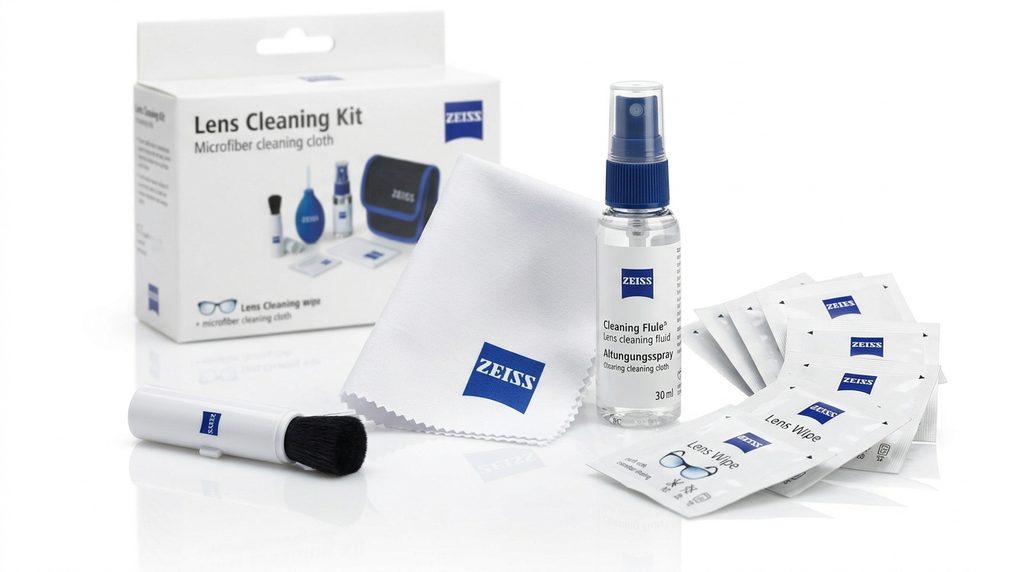
ZEISS Lens Cleaning Kit
Why we recommend it: This cleaning kit provides useful lens-care accessories for removing fingerprints and smudges, helping maintain clear projected images when used according to the projector manufacturer’s cleaning instructions.
Related products worth considering:
- Replacement Epson projector lens cover.
- Microfiber optical cleaning cloth.
- Epson-compatible replacement projector lamp.
- Projector dust cover.
- Universal projector remote control.
Product compatibility note: Check your Epson projector’s exact model number before purchasing a remote, replacement lens cover, or lamp. These accessories do not control the Lens Cover Timer itsel
What Is the Epson Projector Lens Cover Timer and How Does It Work?
The Epson projector lens cover timer is an automatic power-management feature designed to prevent unnecessary energy consumption when the projector’s lens cover remains closed. When enabled, the feature monitors how long the lens cover stays closed and automatically turns off the projector after approximately 30 minutes.
This function is particularly helpful when users temporarily stop presentations, pause entertainment, or leave the projector unattended. Instead of allowing the projector to continue operating unnecessarily, the timer initiates an automatic shutdown.
Here’s how the Epson lens cover timer works:
- The projector is switched on: The projector operates normally and displays images or videos.
- The lens cover is closed: The projector detects that the lens cover has been closed.
- The timer begins counting: The automatic shutdown countdown starts.
- Automatic shutdown occurs: If the cover remains closed for approximately 30 minutes, the projector switches off.
The feature is designed to conserve electricity and reduce unnecessary operating time. It can also help limit the amount of time the projector’s lamp or light source remains active when projection is not needed.
However, the exact behavior and menu options may differ depending on your Epson projector model. Some models include this feature under the ECO menu, while others may use different power-management terminology.
Important distinction: The Lens Cover Timer is different from Sleep Mode. Sleep Mode responds to inactivity, while the Lens Cover Timer specifically responds to a closed lens cover. Epson also provides a separate A/V Mute Timer on supported models.
How to Turn Off the Epson Projector Lens Cover Timer
If your Epson projector keeps switching off after the lens cover has been closed, disabling the Lens Cover Timer may solve the problem. Epson provides this option in the ECO menu on supported projector models.
Follow these steps to turn it off:
- Turn on your Epson projector: Make sure the projector is powered on and displaying its home screen or connected input.
- Open the Settings menu: Press the Menu button on your Epson projector remote control.
- Navigate to the ECO menu: Use the directional buttons to locate and select ECO.
- Find Lens Cover Timer: Scroll through the available power-management settings until you see Lens Cover Timer.
- Select Off: Change the setting from On to Off using the remote control.
- Save and exit: Press Enter if required, then exit the menu.
Illustrative menu reference. The appearance and navigation may differ between Epson projector models.
Once disabled, your projector should no longer automatically shut down after 30 minutes simply because the lens cover is closed.
Important: Turning off this feature does not disable every automatic shutdown function. Sleep Mode and A/V Mute Timer are separate settings, so check them if your projector continues switching off unexpectedly. ECO Menu+2
If you cannot find the Lens Cover Timer option, consult your specific Epson model’s user manual because menu availability and navigation can vary.
Why Does Your Epson Projector Keep Turning Off When the Lens Cover Is Closed?
If your Epson projector switches off shortly after you close the lens cover, the most likely explanation is that the Lens Cover Timer is enabled. This is generally normal behavior rather than a sign that your projector is damaged.
The timer is designed to prevent unnecessary power consumption when the projector is not being used. However, several other settings or technical issues can also cause unexpected shutdowns.
Here are the most common reasons:
Lens Cover Timer Is Enabled
When this setting is active, the projector automatically shuts down after the lens cover remains closed for the configured period, typically 30 minutes on supported models. Disabling the setting can prevent this particular shutdown.
Sleep Mode Is Activated
Some Epson projectors include a Sleep Mode that automatically switches off the device after a period of inactivity. Even with the Lens Cover Timer disabled, Sleep Mode may still cause automatic shutdowns.
A/V Mute Timer Is Enabled
The A/V Mute function temporarily hides the projected image. On supported models, its timer can automatically turn off the projector if the blanked screen remains active for a specified period.
Overheating or Poor Ventilation
An Epson projector may shut down automatically if its internal temperature becomes too high. Blocked air vents, accumulated dust, or insufficient space around the projector can restrict airflow and trigger its thermal protection system.
Power Supply Problems
A loose power cable, unstable electrical supply, or faulty power connection can also cause unexpected shutdowns. If the projector turns off at irregular intervals, inspect its power connection before assuming the lens cover timer is responsible.
How to identify the actual cause:
- Check whether the projector switches off consistently after 30 minutes.
- Inspect the Lens Cover Timer and Sleep Mode settings.
- Check whether A/V Mute is activated.
- Make sure the cooling vents are clear.
- Inspect the power cable and electrical connection.
Epson’s official documentation confirms that the Lens Cover Timer and A/V Mute Timer can each trigger automatic shutdown after 30 minutes, while Sleep Mode uses a separate inactivity interval. ECO Menu+2
Identifying which setting or condition causes the shutdown will help you apply the correct solution instead of unnecessarily resetting your projector.
How to Troubleshoot an Epson Projector Lens Cover Timer That Won’t Turn Off
Sometimes, changing the Lens Cover Timer setting does not resolve unexpected projector shutdowns. This may happen because another power-management feature is active, the setting has not been saved, or your projector uses a different menu configuration.
The following troubleshooting steps can help you identify and resolve the problem.
Recheck the ECO Menu Settings
Open the projector’s ECO menu and confirm that Lens Cover Timer is set to Off. If the option is unavailable, check your model’s user manual for the correct menu location.
Check Sleep Mode and A/V Mute Timer
If the projector continues shutting down, inspect other automatic power-saving settings. Disable or adjust Sleep Mode and A/V Mute Timer if they are responsible for the shutdown.
Restart the Projector
Turn off the projector using its power button and allow it to complete its shutdown cycle. Disconnect the power cable only after the projector has finished cooling down, then reconnect it and test the settings again.
Inspect the Projector’s Cooling System
Check whether the air filters and ventilation openings are blocked by dust. If the temperature indicator illuminates or flashes, allow the projector to cool and clean the filters according to the manufacturer’s instructions.
Check the Power Cable
Make sure the power cable is firmly connected to the projector and a working electrical outlet. If the cable appears damaged, stop using it and contact a qualified technician or Epson support.
Consult the Correct Epson User Manual
Different Epson projector models have different menu layouts and power-management options. Find your model number and download its official user manual to confirm the correct troubleshooting procedure.
Example of an Epson projector control panel. Indicator meanings vary by model.
When to seek professional assistance: If the projector continues shutting down despite disabling the relevant timers, or displays persistent temperature warnings, contact Epson support or an authorized service provider. Avoid repeatedly restarting an overheating projector.
Epson’s troubleshooting documentation recommends checking the power connection, Sleep Mode, A/V Mute Timer, Lens Cover Timer, and temperature indicators when unexpected shutdowns occur. Epson Support Files+2
How to Prevent Unexpected Epson Projector Shutdowns
Preventing unexpected Epson projector shutdowns starts with understanding its power-management settings and maintaining the device properly. Although the Lens Cover Timer is designed to conserve energy, incorrect settings, overheating, and electrical problems can interrupt your viewing experience.
Here are practical ways to keep your Epson projector operating reliably.
Adjust Automatic Shutdown Settings
Review the ECO menu and check the Lens Cover Timer, Sleep Mode, and A/V Mute Timer. Adjust these settings according to your usage habits to avoid unnecessary interruptions.
Keep the Lens Cover Open During Use
If you want the projector to remain ready for immediate projection, keep the lens cover open while the device is operating. Close it when you have finished using the projector.
Maintain Proper Ventilation
Place your Epson projector on a stable surface with sufficient space around its ventilation openings. Avoid placing it near walls, curtains, or other objects that could restrict airflow.
Clean the Air Filter Regularly
Dust accumulation can interfere with cooling and contribute to overheating. Inspect the air filter periodically and clean or replace it according to your projector’s maintenance instructions.
Use a Reliable Power Connection
Connect the projector to a properly functioning electrical outlet and avoid using damaged cables or overloaded extension boards. A suitable surge protector can also help protect compatible equipment against electrical surges.
Follow Recommended Shutdown Procedures
Always switch off your Epson projector using its power button and allow the cooling process to finish before disconnecting the power supply. This helps protect internal components and maintain reliable operation.
Keep Projector Firmware and Settings Updated
Check Epson’s official support website for firmware updates applicable to your model. Follow the manufacturer’s installation instructions and avoid interrupting updates.
Regular projector maintenance helps maintain airflow and reliable operation.
By following these precautions, you can reduce unnecessary shutdowns, improve projector reliability, and avoid confusing normal power-saving behavior with hardware problems.
Remember that disabling the Lens Cover Timer is optional. It is best to keep automatic shutdown features enabled if they suit your usage habits.
Conclusion
The Epson projector lens cover timer is a useful energy-saving feature that automatically switches off supported projectors when the lens cover remains closed for approximately 30 minutes. Although this feature helps reduce unnecessary power consumption, it may be inconvenient when you want your projector to remain on temporarily.
Fortunately, you can manage this function through the ECO menu by switching off the Lens Cover Timer on supported models. If your projector continues shutting down unexpectedly, check Sleep Mode, A/V Mute Timer, ventilation, and power connections.
Ultimately, understanding your Epson projector’s power-management settings makes troubleshooting easier and helps maintain reliable performance. Always consult your model’s official user manual for accurate instructions.
Frequently Asked Questions About the Epson Projector Lens Cover Timer
What does the Epson projector lens cover timer do?
The Epson Lens Cover Timer is an automatic power-saving feature that switches off supported projectors after the lens cover remains closed for approximately 30 minutes. It prevents unnecessary operation when projection is not required.
How do I turn off the Epson lens cover timer?
Press Menu on your remote control, navigate to the ECO menu, locate Lens Cover Timer, and select Off. The exact steps may vary depending on your Epson projector model.
Why does my Epson projector turn off after 30 minutes?
Your projector may have Lens Cover Timer or A/V Mute Timer enabled. These features can trigger automatic shutdown after approximately 30 minutes. Sleep Mode and overheating can also cause shutdowns.
Does disabling the lens cover timer damage my projector?
No. Disabling the feature does not automatically damage your projector. However, it removes one automatic power-saving safeguard, so remember to switch off the projector when you finish using it.
Is the Epson lens cover timer the same as Sleep Mode?
No. The Lens Cover Timer responds specifically to a closed lens cover, while Sleep Mode responds to inactivity. Both features can automatically switch off supported projectors.
Can I use my Epson projector with the lens cover closed?
You can temporarily close the lens cover on supported models, but doing so may activate the automatic shutdown timer. Avoid leaving the projector operating with its lens covered for extended periods, and follow your model’s safety instructions.
What should I do if my Epson projector keeps turning off?
Check the Lens Cover Timer, Sleep Mode, and A/V Mute Timer settings. Also inspect the power cable, ventilation openings, and air filter. If the problem persists, consult Epson support or an authorized technician.
Do all Epson projectors have a lens cover timer?
No. Available features depend on the projector model. Check your model’s official Epson user manual to determine whether it includes the Lens Cover Timer and how to access it.
This website is a participant in the Amazon Services LLC Associates Program, an affiliate advertising program designed to provide a means for us to earn fees by linking to Amazon.com and affiliated sites.